



Documentation
101 step-by-step guides with screenshots, from connecting your first cloud account to restoring a backup.
Start here
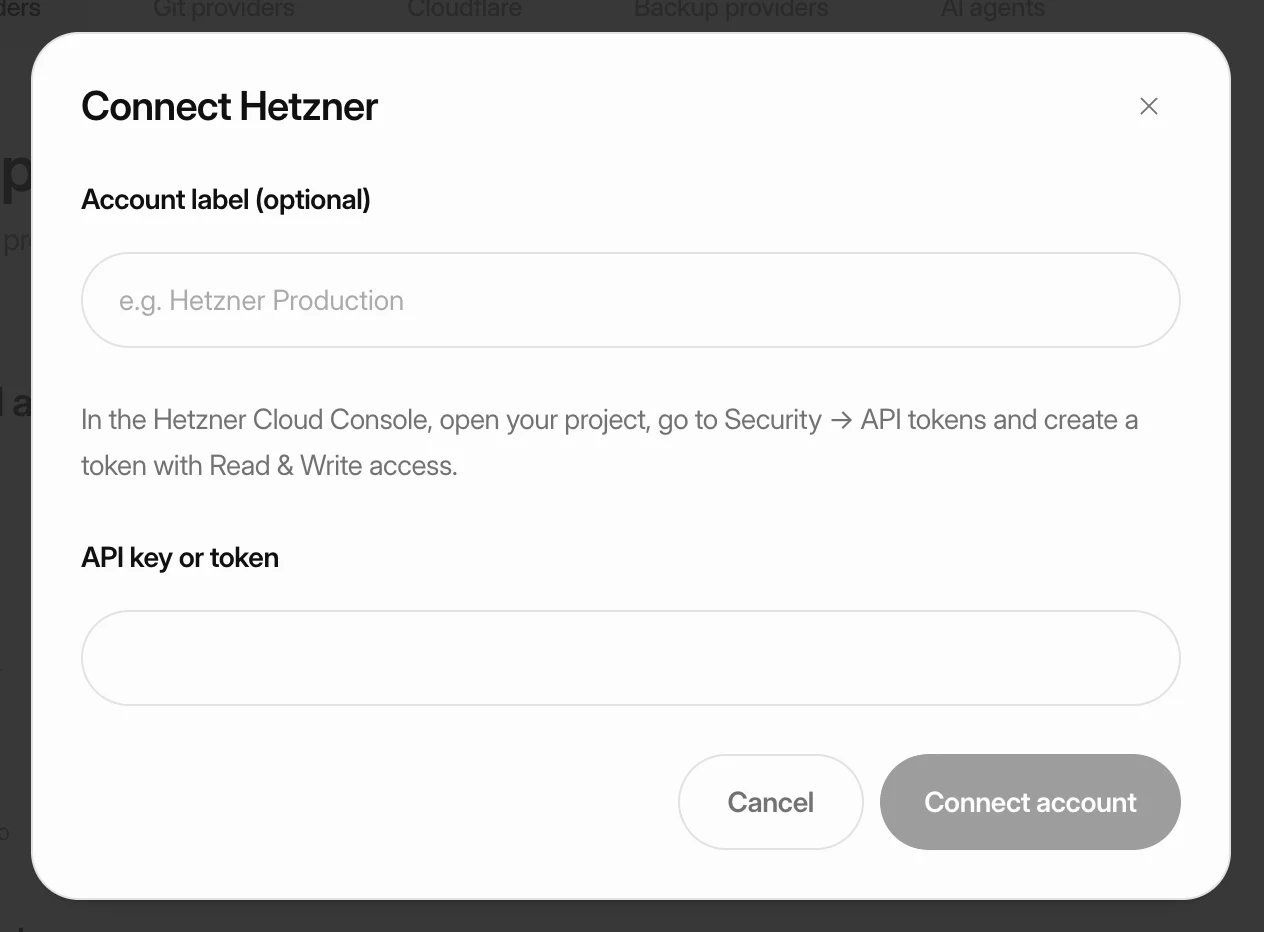 Step 1Put your first site onlineConnect a cloud provider, create a server and deploy a site on it. Each step links to a detailed guide if you need more help.
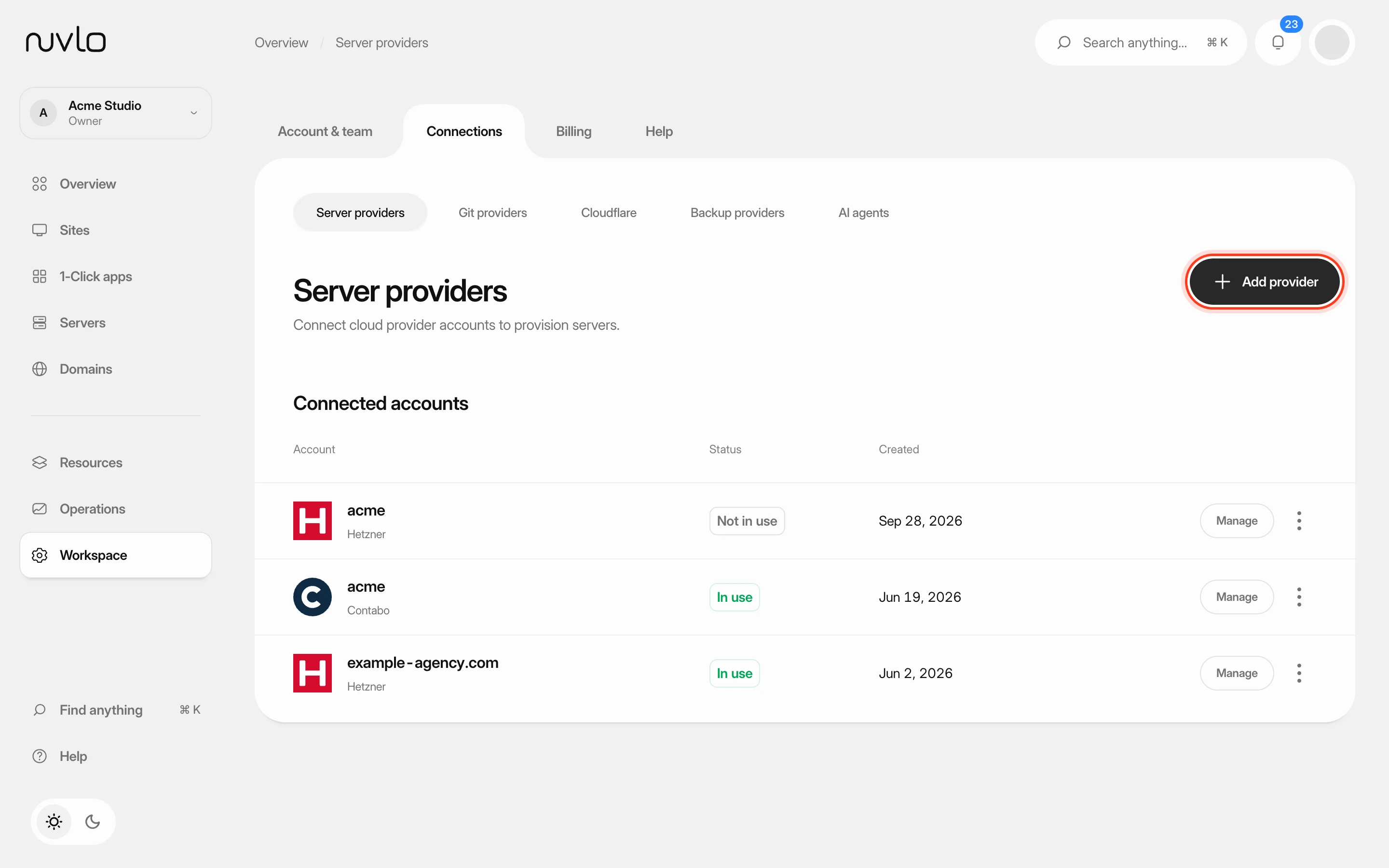 Step 2Connect a server providerConnect your own cloud account so Nuvlo can create and manage servers in it. You add an API key on the Server providers page, and Nuvlo checks it with the provider before saving it.
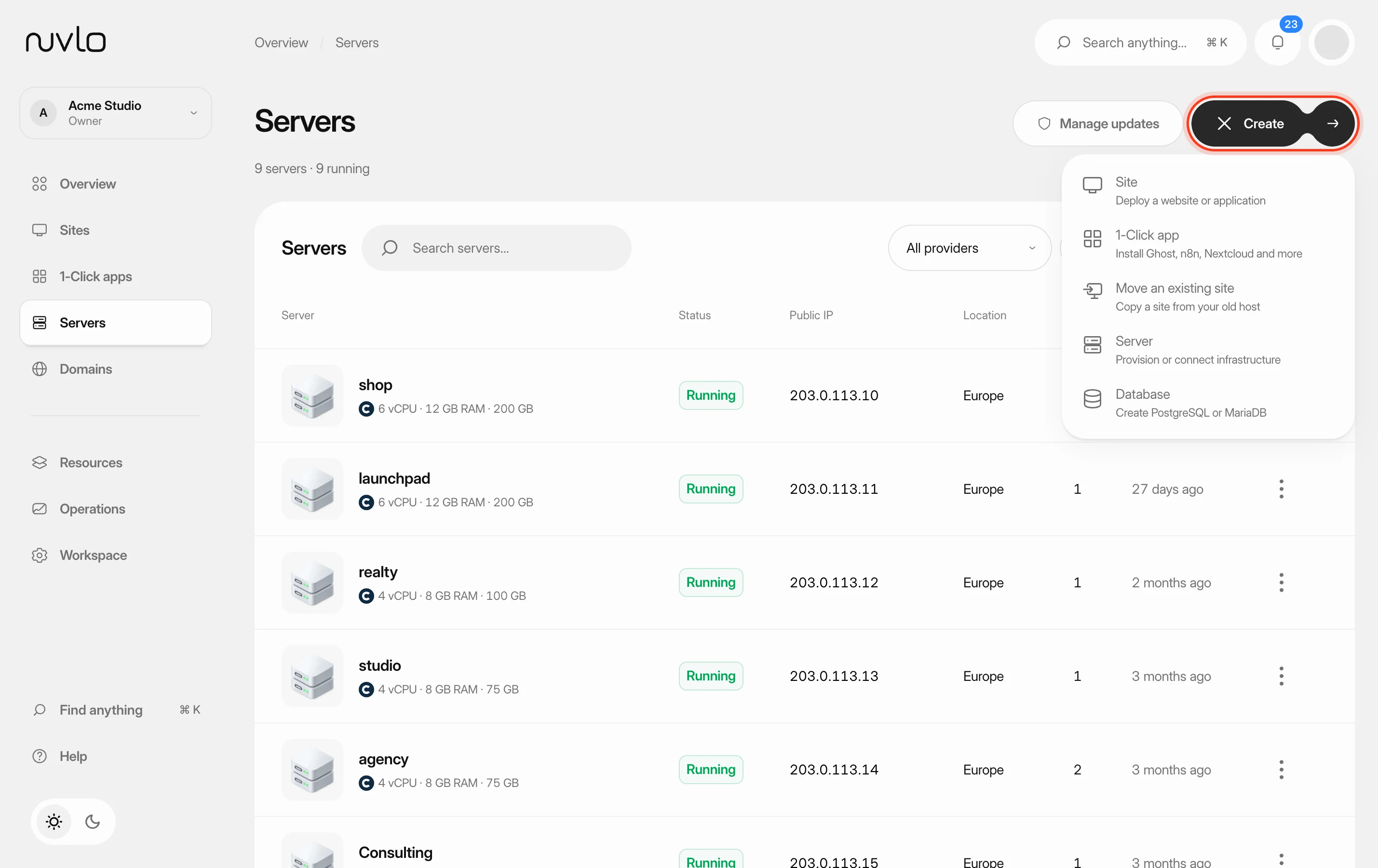 Step 3Create a serverOrder a new server at your cloud provider from Nuvlo and have it set up with everything your sites need: web server, firewall, security hardening and the software for the projects you plan to host.
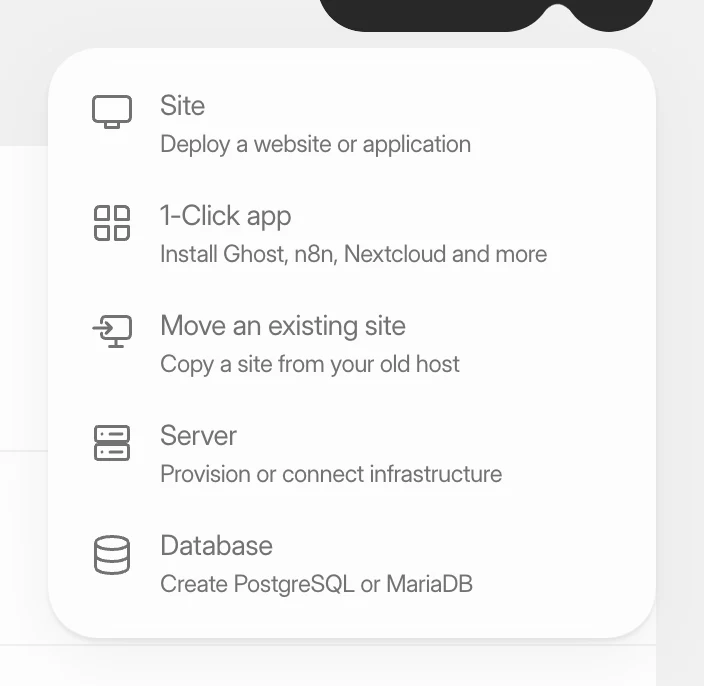 Step 4Create a WordPress siteInstall a new WordPress site on one of your servers, with its own database, Redis cache and HTTPS. It takes four short screens and a few minutes of setup.
Getting started
Create your account and put your first site online.
Server providers
Connect Hetzner, DigitalOcean, AWS and the other cloud accounts your servers run in.
- Connect a server provider
- Connect your Hetzner account
- Connect your DigitalOcean account
- Connect your Vultr account
- Connect your Linode account
- Connect your UpCloud account
- Connect your Scaleway account
- Connect your AWS account
- Connect your Google Cloud account
- Connect your Exoscale account
- Connect your Contabo account
Servers
Create, manage, resize and update the servers in your provider accounts.
- Create a server
- Erase an existing server and set it up with Nuvlo
- Connect any server with one command
- Read your server page
- Open a terminal on your server
- Check and restart server services
- Update PHP and Node.js versions
- Change a server's plan
- Update Nuvlo's server software
- Test, repair and reboot a server
- Manage a Contabo server
- Disconnect a server from Nuvlo
- Delete a server
Sites
Deploy static sites, PHP and Node apps from Git or an upload.
- Create a site
- Connect GitHub
- Deploy from Git
- Upload a site from your computer
- Change build settings
- Set environment variables
- Change PHP and routing settings
- Run background processes and cron jobs
- Manage a WordPress site's files
- Set response headers
- Improve SEO and control AI bots
- Run a launch check
- Move a Lovable or Bolt app to your own server
- Create a staging site or clone a site
- Delete a site
WordPress
Install, move, update and look after WordPress sites.
- Create a WordPress site
- Move a WordPress site to Nuvlo
- Restore a WordPress site from a backup
- Sign in to WordPress admin with one click
- Update WordPress, plugins and themes
- Change wp-config.php settings
- Restart a WordPress site’s services
- Send WordPress email through an email service
- Use the Nuvlo plugins for WordPress
- Run WordPress headless
- Speed up WordPress with caching
- Protect a WordPress site
- Change PHP settings for WordPress
- Run WordPress scheduled tasks
- Edit a WordPress site’s Nginx configuration
- Remove data left by deleted plugins
Applications and 1-click apps
Run Node, Nuxt, Next and other apps, and install ready-made apps.
Databases
Create databases, share credentials and back them up.
Domains and SSL
Point domains at your sites, use Cloudflare and keep certificates valid.
Backups and restore
Back up sites to your own storage, schedule backups and restore them.
Security
Firewall rules, SSH keys, security scans and two-factor sign-in.
Monitoring and logs
Watch server health, read logs, run cron jobs and get notified.
Account and team
Your profile, team members, roles, API tokens and AI agents.
Billing
Plans, lifetime licenses, invoices and what your servers cost.