



Test, repair and reboot a server
Check that Nuvlo can still connect to a server, repair the connection, install extra system packages, and reboot the server safely.
On this page
Step 1 Open Maintenance
Open the server and click the Settings tab. The Maintenance card is at the top. Its badge shows Operational or Needs attention.
Step 2 Test the connection
In the SSH connection row, click Test connection. Connected — Nuvlo can manage this server means everything works. Otherwise the message says why the connection failed.
Step 3 Repair the connection (Hetzner)
On Hetzner servers, click Repair connection if the test fails. Nuvlo inspects its management key on the server and replaces it if needed. Your sites' deploy keys aren't changed. You need the owner or admin role.
Repairing can restart the server. If it can't fix the connection on its own, the card shows the steps to take, a Rescue password (works once) and the key to add. Keep the page open until you've finished.
Step 4 Install extra system packages
Headless browser support installs the libraries Chromium needs to run without a screen. Apps that render PDFs or screenshots on the server, for example with Puppeteer or Playwright, need it. Click Install packages and confirm. Once installed, the row shows Installed and the button reads Reinstall packages.
Step 5 Reboot the server
In the Reboot server row, click Reboot server, then the Reboot button with the server's name. Every site on the server goes offline while the operating system restarts.
The dialog then shows the time since the reboot started; reboots usually take 30 to 60 seconds. It shows Server is back online! when the server answers again.
Related guides
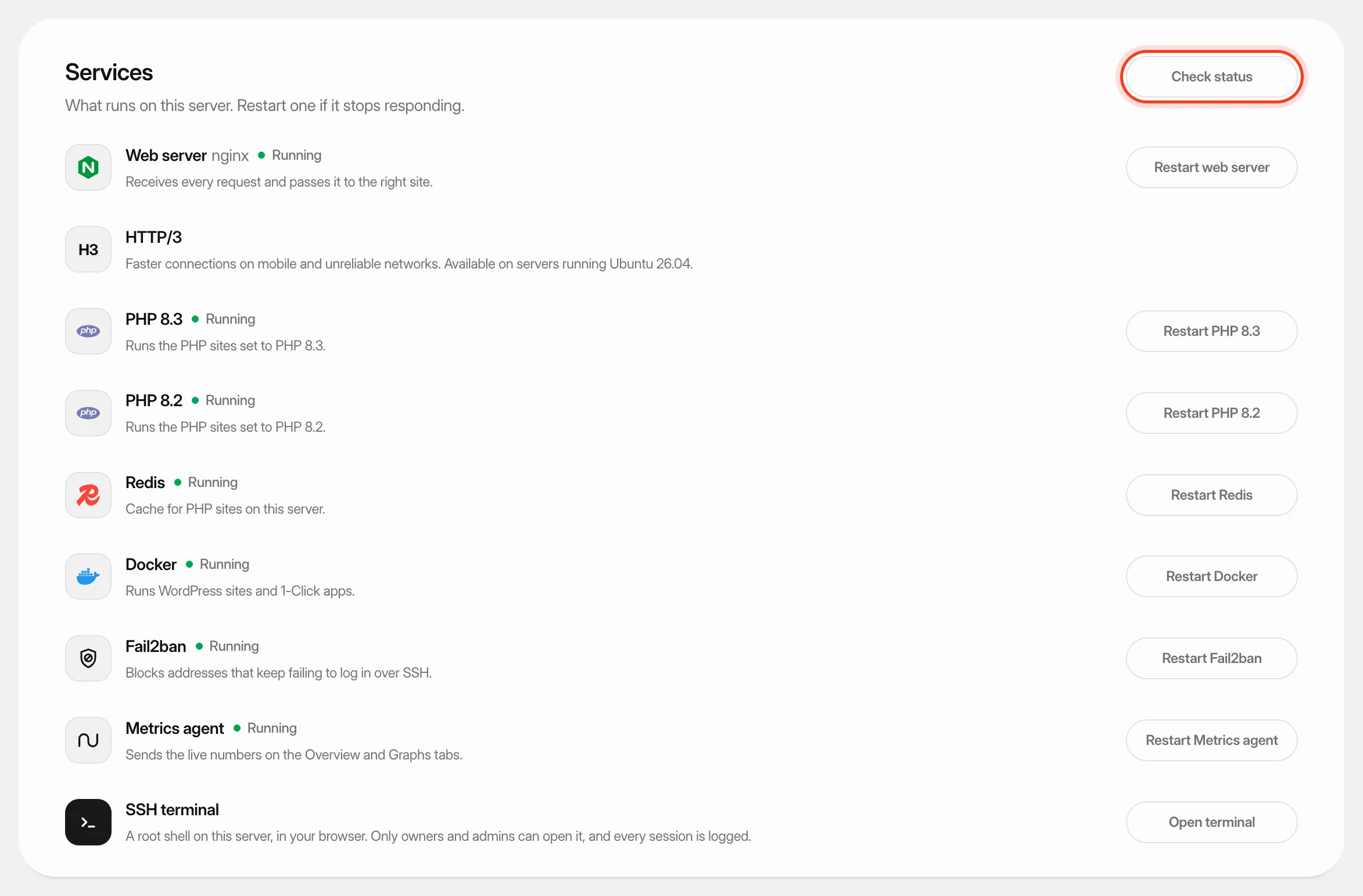 Check and restart server servicesSee which services run on your server, restart one that stopped responding, and turn HTTP/3 on or off.
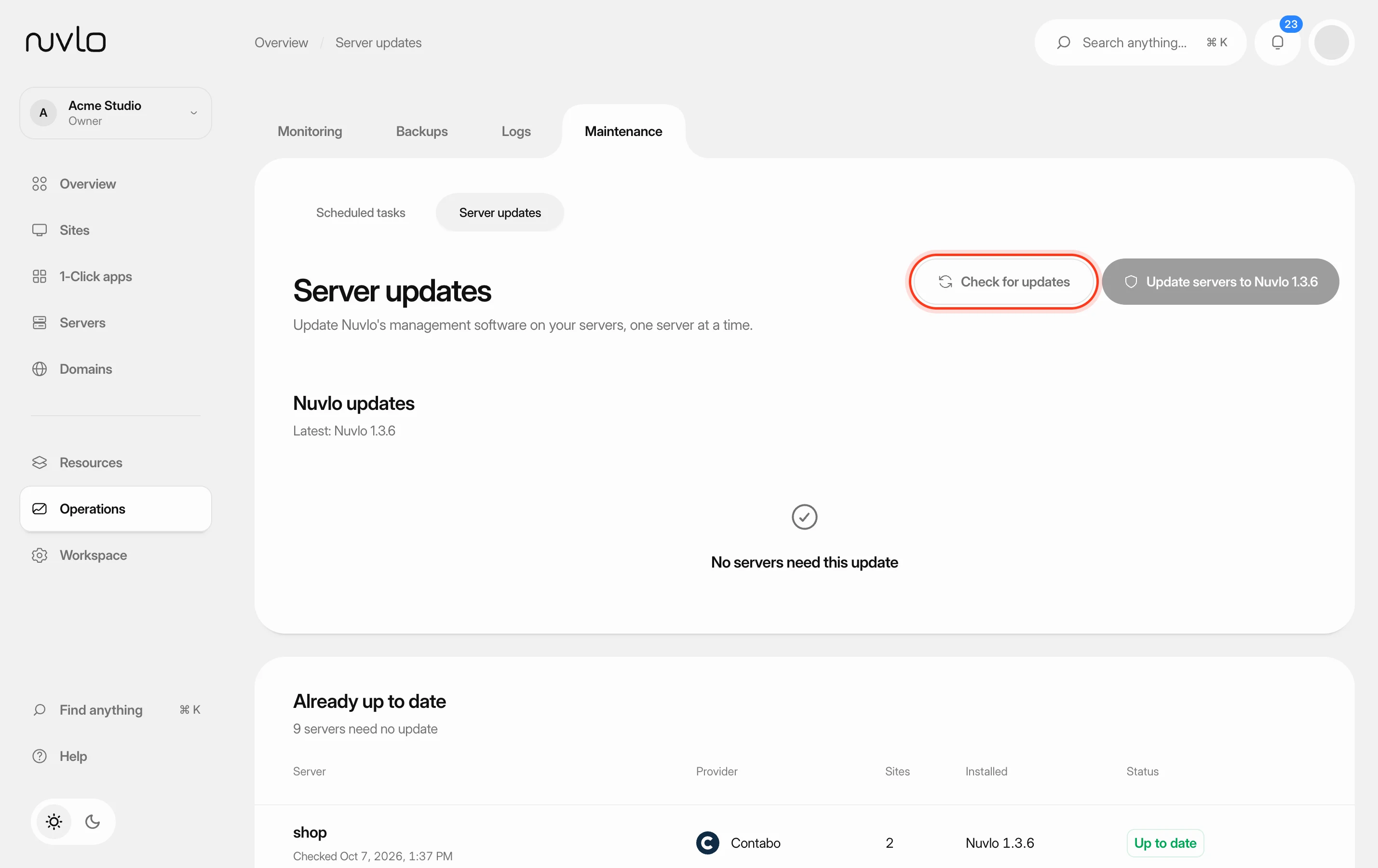 Update Nuvlo's server softwareBring Nuvlo's management software on your servers up to the latest version, one server at a time, with health checks between servers.
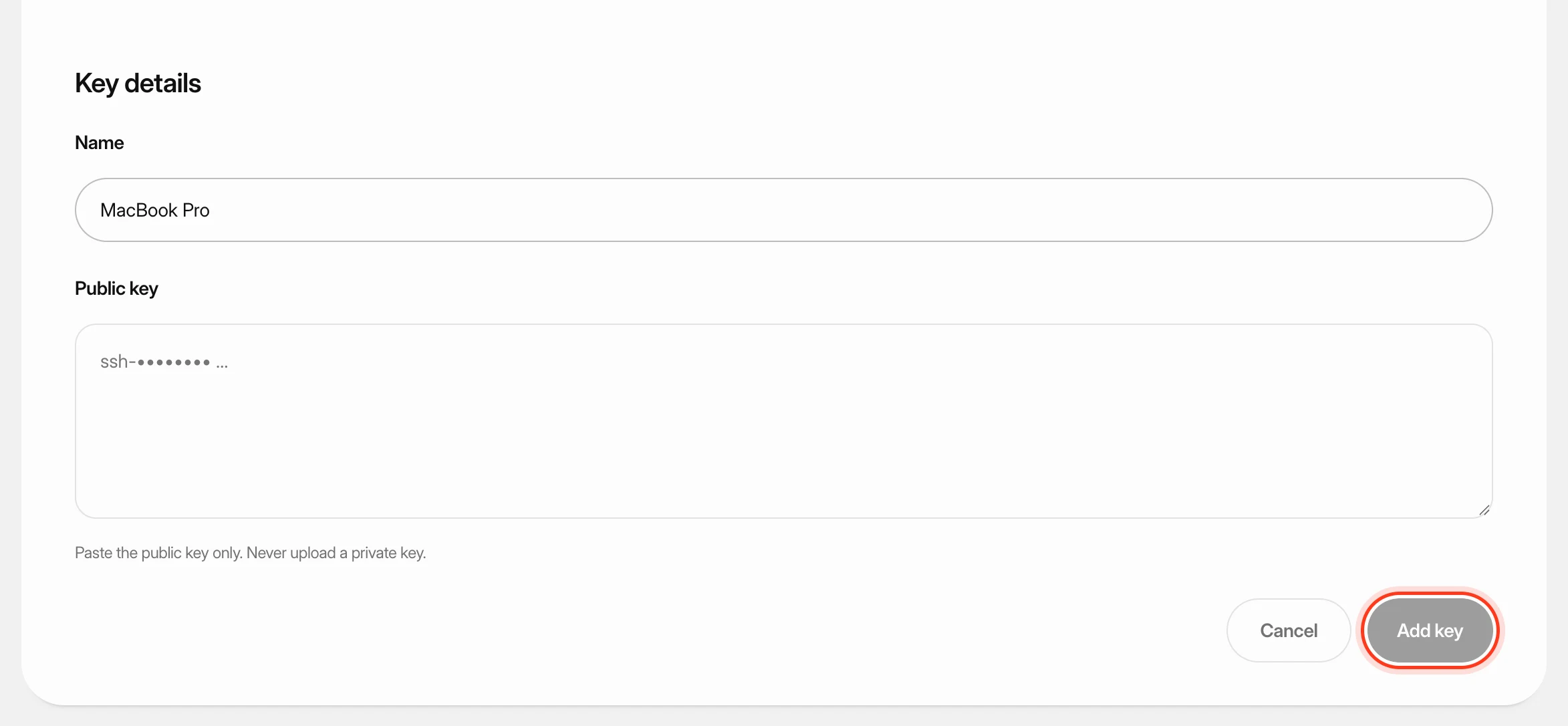 Add SSH keys to your serversSave your public SSH keys in Nuvlo and pick them when you create a server, so you can sign in to that server from your own computer. You'll also learn what happens when you delete a key.