



Add a domain to a site
Point a domain you own at one of your sites. Nuvlo sets up the web server for it and issues a free HTTPS certificate as soon as the domain reaches your server.
On this page
- Where you can add a domain
- Step 1: Open the Add domain form
- Step 2: Choose the site and enter the domain
- Step 3: Decide who creates the DNS record
- Step 4: Find your server's IP address
- Step 5: Add the A record at your DNS provider
- Step 6: Wait for verification and HTTPS
- The www version of a domain
- Troubleshooting
- Remove a domain
Before you start
- A site that has finished deploying. Nuvlo only adds domains to running sites that already have their main address.
- A domain you own, and access to its DNS settings at your registrar or DNS provider.
- Optional: Cloudflare connected, so Nuvlo can create the DNS record for you. See Connect Cloudflare.
- A role that can manage domains. Viewers can't add domains.
Where you can add a domain
This guide uses the Domains page under Resources, which works for every site. You can also add a domain from the site itself: on a WordPress site, open the Domains tab; on an application, PHP or static site, open Settings and then Domains. The form there asks for the same things and the result is the same.
To replace a site's main address instead of adding another one, see Change a site's domain.
Step 1 Open the Add domain form
Open Domains and click Add domain.
Step 2 Choose the site and enter the domain
Under Site, pick the site the domain should open. Under Domain, enter the full name without https://, for example example.com or shop.example.com.
If the name is already connected to one of your sites, the form says so and names the site. A domain can only belong to one site.
Some 1-Click apps run a second service, such as a public viewer. For those, a Target field appears so you can send the domain to that service instead of the app's main one.
Step 3 Decide who creates the DNS record
With Cloudflare connected, Auto-configure DNS via Cloudflare is on. Nuvlo then creates an A record in your Cloudflare zone that points the domain at the site's server. The domain has to be in the connected Cloudflare account for this to work.
ImportantAny existing A, AAAA or CNAME record for this exact name is replaced. Other records, such as MX records for email, stay as they are.
Turn it off, or leave it off when Cloudflare isn't connected, to add the record at your DNS provider yourself in the next steps.
Click Add domain. If part of the setup couldn't finish, a message tells you what is missing, for example that the domain isn't in your Cloudflare account. The domain is still added, and you can point it manually.
Step 4 Find your server's IP address
Skip this step and the next if Cloudflare created the record.
Click the domain in the list. Its page shows DNS as Manual, and the DNS & HTTPS card tells you which IP address the A record must point to.
Step 5 Add the A record at your DNS provider
Sign in where your domain's DNS is managed, usually your registrar, and add this record:
| Type | Name | Value |
|---|---|---|
| A | @ for the domain itself (example.com), or the part before the domain for a subdomain (shop for shop.example.com) | Your server's IP address |
If the same name already has an A or AAAA record that points somewhere else, such as your old host, delete it. Otherwise some visitors, and the certificate check, reach the old address.
DNS changes usually spread within minutes, but some providers take a few hours.
Step 6 Wait for verification and HTTPS
Nuvlo checks pending domains every few minutes. Once the domain resolves to your server, its Status changes from Pending to Active and Nuvlo issues a free Let’s Encrypt certificate. The HTTPS column then reads Let’s Encrypt.
Opening the domain's page also runs a live check. If DNS isn't right yet, it tells you what it found, for example which address the domain resolves to instead.
The www version of a domain
Each hostname is a separate domain in Nuvlo. example.com and www.example.com need their own A records.
- For an extra domain: if visitors should also reach the site on the www name, add
www.example.comas another domain. - For a WordPress site's main address: you choose between the plain name, www, or both when you create the site or change its domain. See Change a site's domain.
- For an application, PHP or static site's main address: open the main domain's menu, choose www redirect and pick the Preferred hostname. Visitors on the other name are redirected. Point both names at the server.
Troubleshooting
- The domain stays Pending. Check that the A record points to the IP shown on the domain page and that no other A or AAAA record exists for the same name.
- "Couldn’t verify DNS". The domain is proxied through Cloudflare, which hides the server's address. Connect Cloudflare so Nuvlo can read the record, or use Move DNS to Cloudflare on the domain page.
- HTTPS doesn't arrive. Let’s Encrypt checks the domain over plain HTTP, so port 80 must be open on the server. After a failed attempt, Nuvlo tries again about every 30 minutes. See Manage SSL certificates.
Remove a domain
On Domains, open the domain's menu, choose Remove domain and confirm. Nuvlo removes it from the site's web server and, if Nuvlo manages its DNS in Cloudflare, from Cloudflare too. This can't be undone.
A site's main domain can't be removed this way. Change the site's domain instead, or delete the site.
Related guides
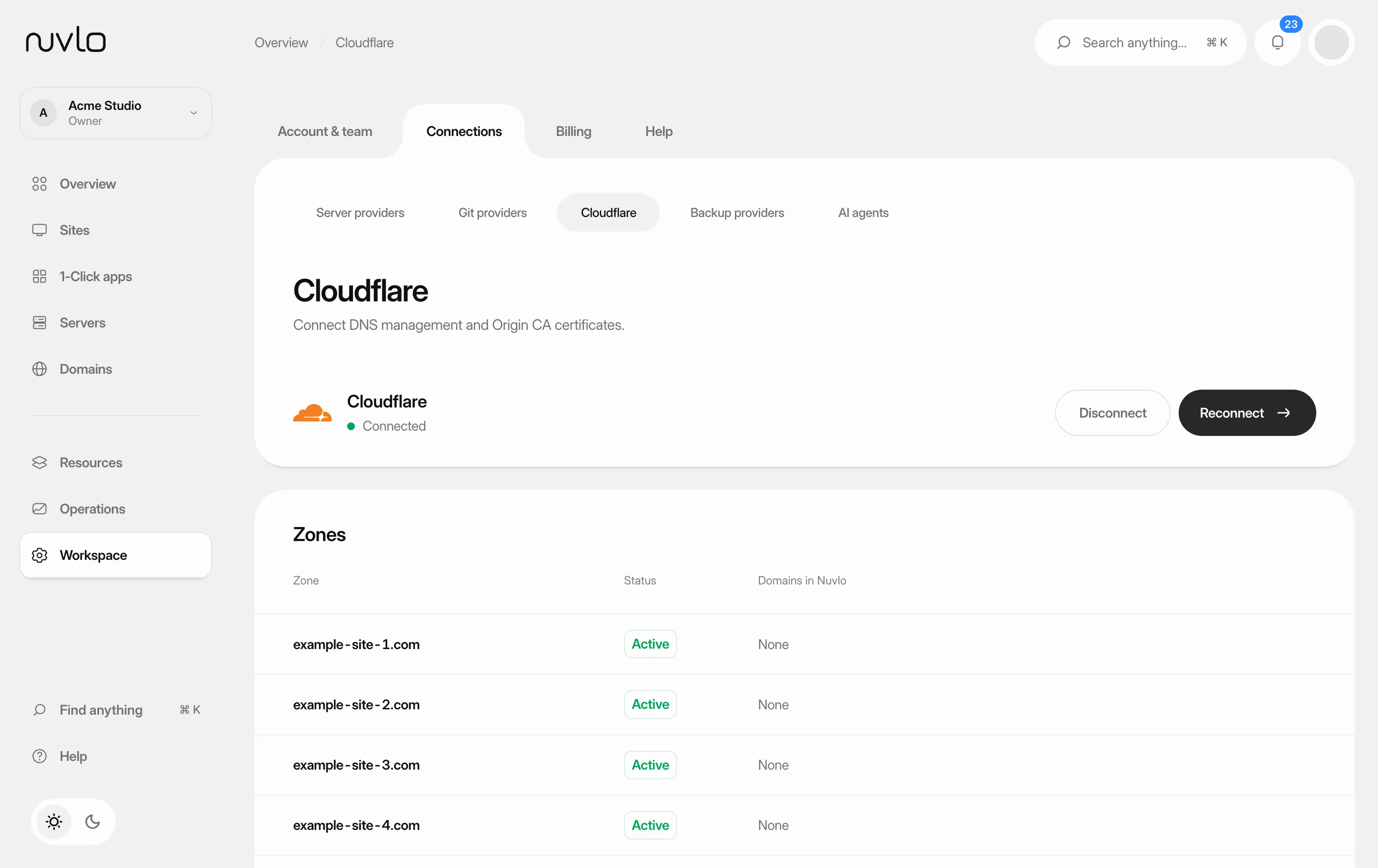 Connect CloudflareConnect your Cloudflare account so Nuvlo can create DNS records for your sites, install Cloudflare Origin certificates and keep your zones on secure settings.
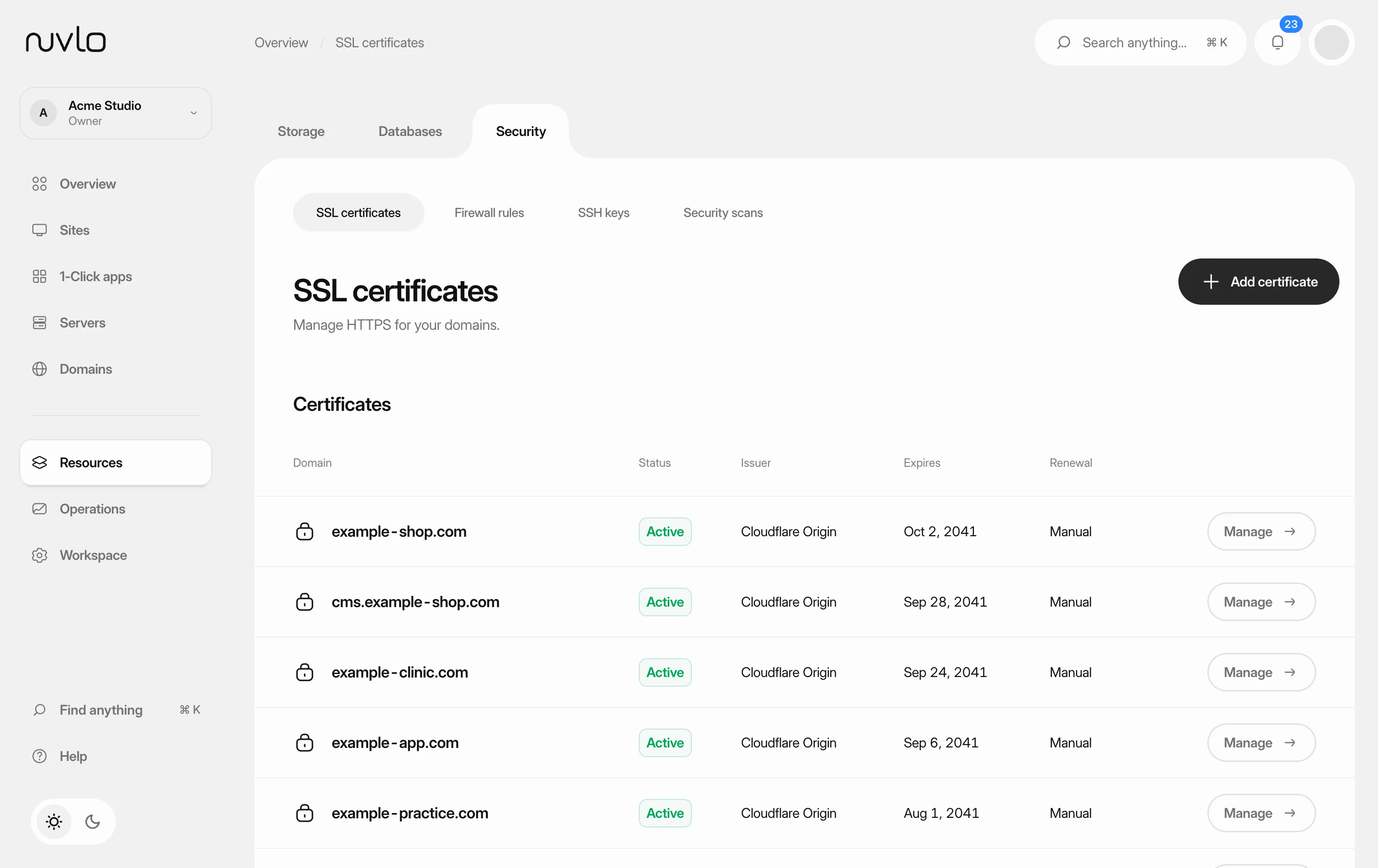 Manage SSL certificatesSee which certificate each domain uses, turn on HTTPS for a site, and know which certificates renew by themselves and which you have to replace.
 Change a site's domainMove a WordPress site or an application to a different domain, or from its temporary address to your own domain, without creating a new site.
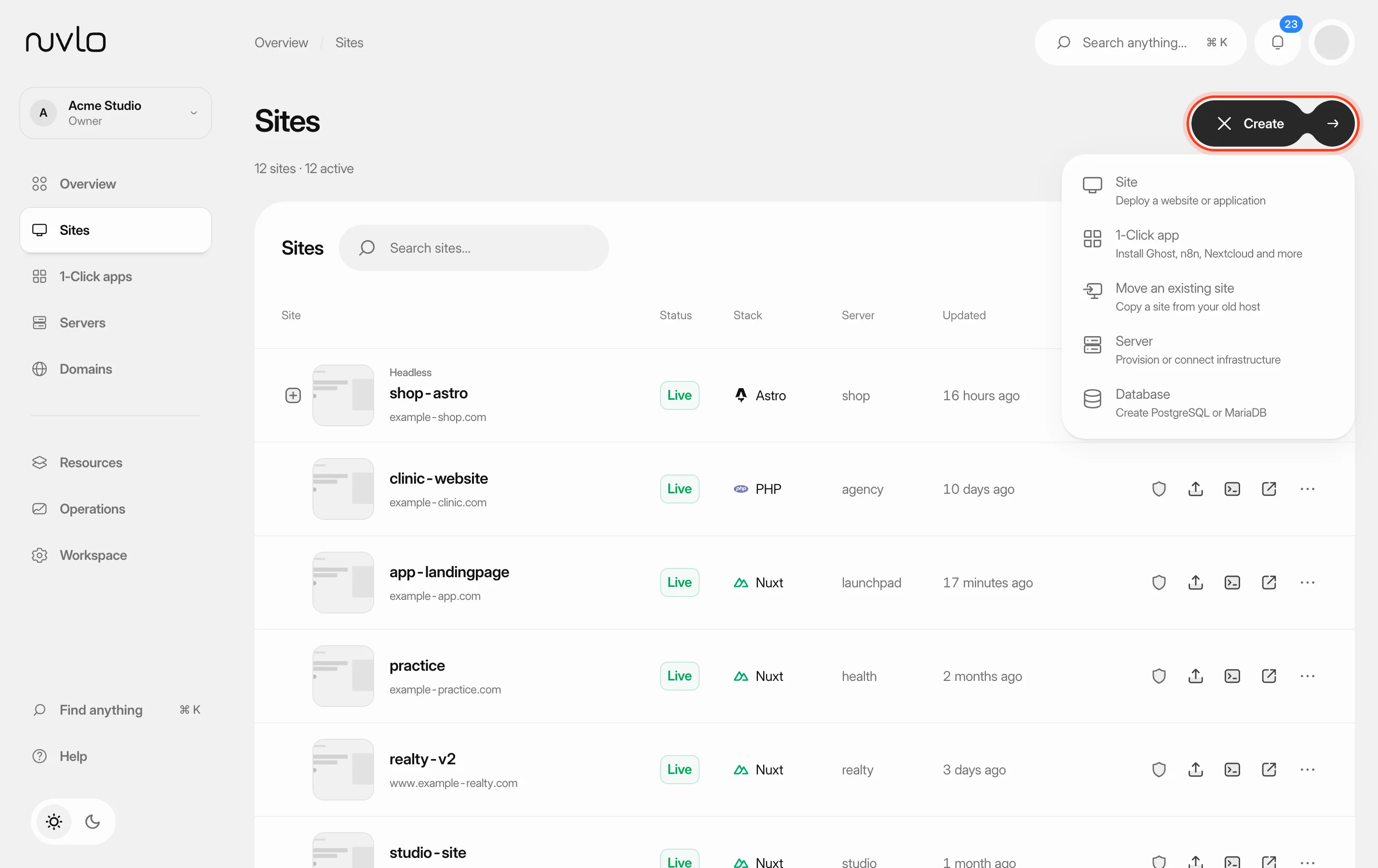 Create a siteChoose the right site type for your project and put a static website or a PHP or Laravel site online from a GitHub repository or a ZIP file, with its own domain and HTTPS.