



Restore a site backup
Roll a site back to one of its backups: the database, the files, or both.
On this page
Before you start
- A backup with the status Completed.
- The storage account the backup is in, still connected to Nuvlo.
- A site that is running. A stopped site can’t be restored; start it first.
- A role that can manage sites. By default that is Owner, Admin and Developer.
Before you restore
ImportantA restore overwrites the site’s current data and can’t be undone. If you might need today’s version, back up the site first.
A backup restores onto the site it was made from. To bring back a whole server, use a server snapshot or your provider’s automatic server backups instead.
Step 1 Find the backup
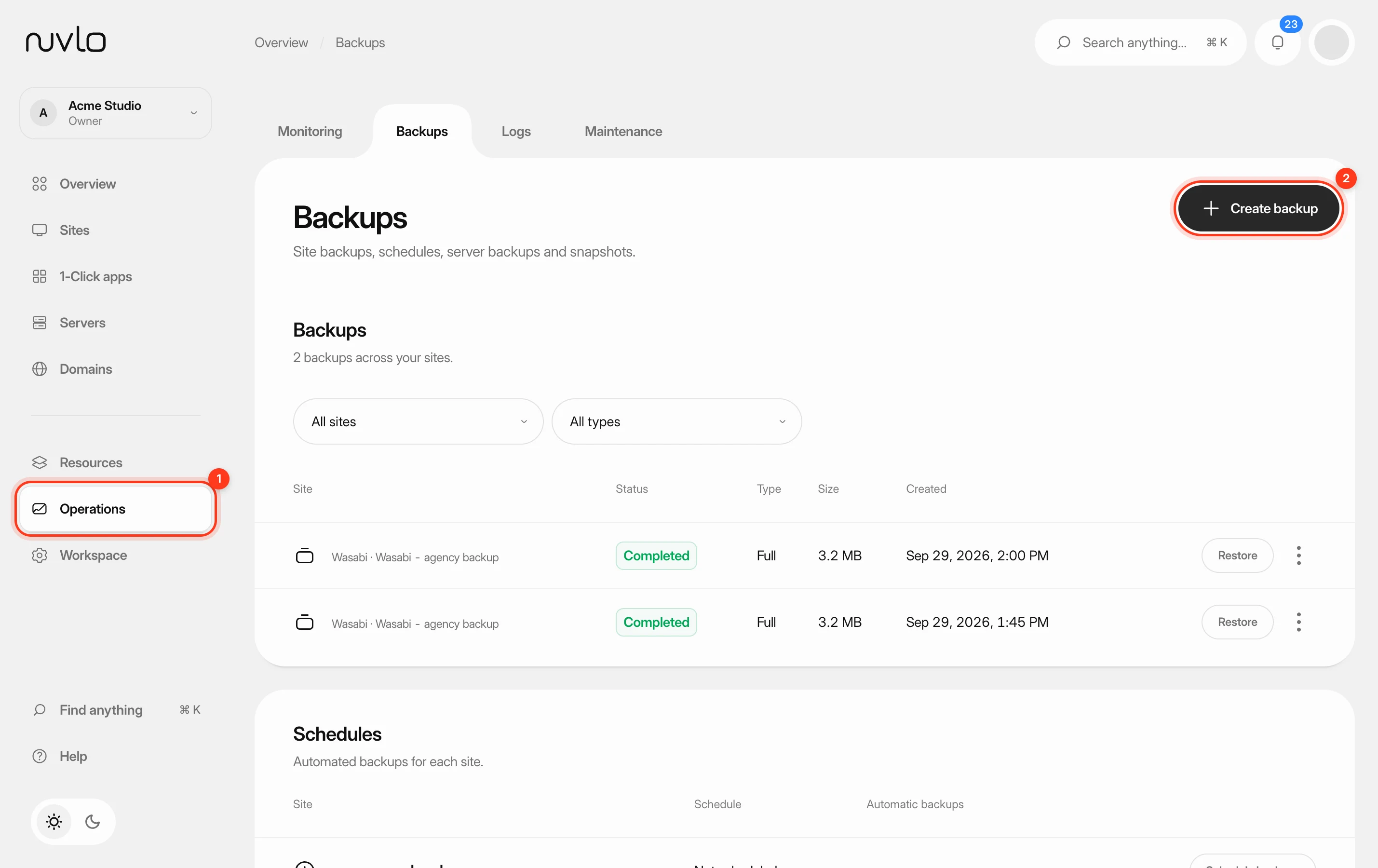
In the sidebar, select Operations and then Backups, or go to Backups. Use the site filter to find the site’s backups.
Only completed backups can be restored. Click Restore on the backup you want.
Step 2 Choose what to restore
In the Restore backup dialog, choose What to restore.
- A full backup offers Full, Database only and Files only. Restoring only the database is useful when content went wrong but your theme and plugins are fine.
- A database-only backup offers only Database only.
- A files-only backup offers only Files only.
Step 3 Confirm the restore
Type the site’s domain in the field under Type … to confirm. The copy button next to it fills it in for you.
Click Restore followed by the domain. The button stays disabled until the domain matches.
Step 4 Follow the progress
The restore appears under Recent restores with the step it is on. You can leave the page; the restore keeps running.
On a WordPress site’s Backups tab, a Restoring backup card shows each step: Download database, Restore database, Download files, Restore files and Bring the site back. When it is done, Nuvlo shows Restore finished, or Restore failed with the reason.
The site goes offline briefly while its data is replaced. Visitors may see errors until the restore finishes.
Restore from a WordPress site’s page
On a WordPress site, open Backups and click Restore on a completed backup. The dialog works the same way; type the domain and click Restore backup.
If the backup left folders out, the dialog says so. Those folders stay as they are on the site.
What a restore changes
| Site | What is replaced |
|---|---|
| WordPress | The database, and the wp-content folder (themes, plugins and uploads). |
| PHP and static sites | The data kept between deploys, and the database if the site has one. If the restore fails, Nuvlo puts the previous data back. |
| Applications | The data kept between deploys (persistent paths and environment file). If the app doesn’t come up healthy afterwards, Nuvlo puts the previous data back. |
| 1-Click apps | The app’s databases and data volumes. |
For applications, PHP and static sites, a restore doesn’t change the code that is running. To go back to older code, redeploy or roll back a release. See Releases and rollback.
Good to know
- You can start up to 3 restores of the same site within 15 minutes.
- If you disconnected the storage account a backup is in, that backup can no longer be restored through Nuvlo.
- On a WordPress site’s Backups tab, Back up now and the other Restore buttons stay disabled until the restore has finished.
Related guides
 Back up a siteMake a backup of a site’s database, files or both whenever you need one, stored in your own backup storage.
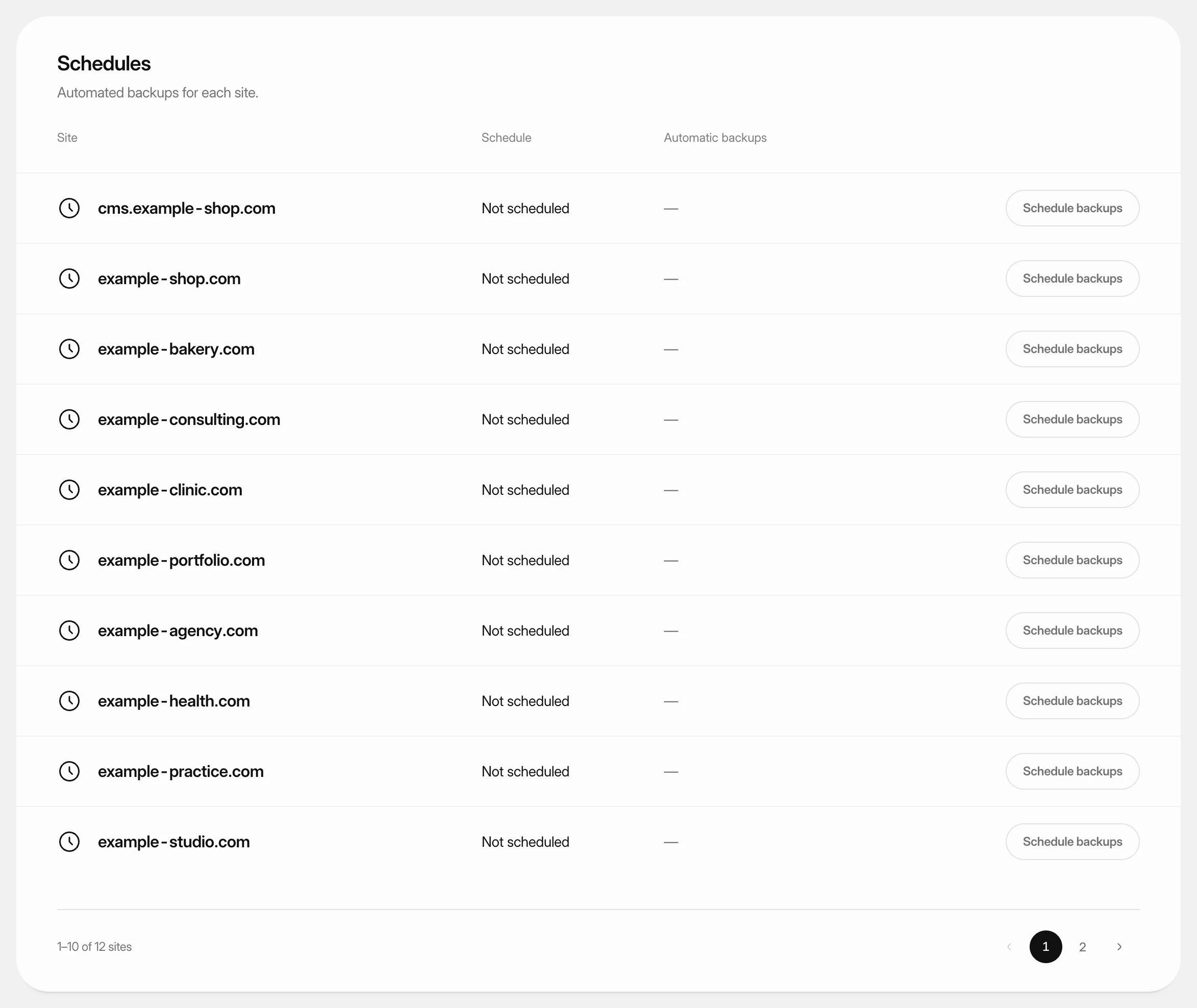 Schedule automatic backupsBack a site up automatically every hour, day, week or month, and keep only as many backups as you need.
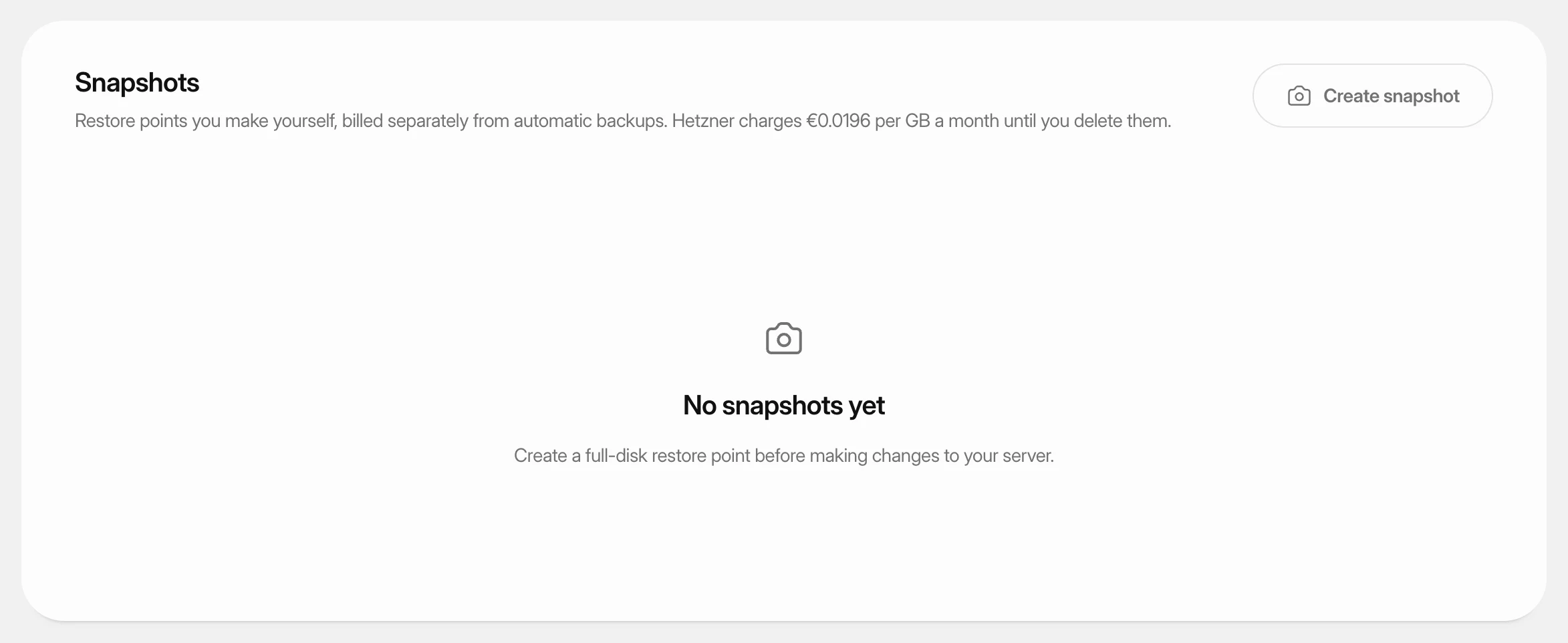 Create and restore server snapshotsSave a full-disk restore point of a server at its cloud provider, choose when it deletes itself, and restore it over the server or into a new one.
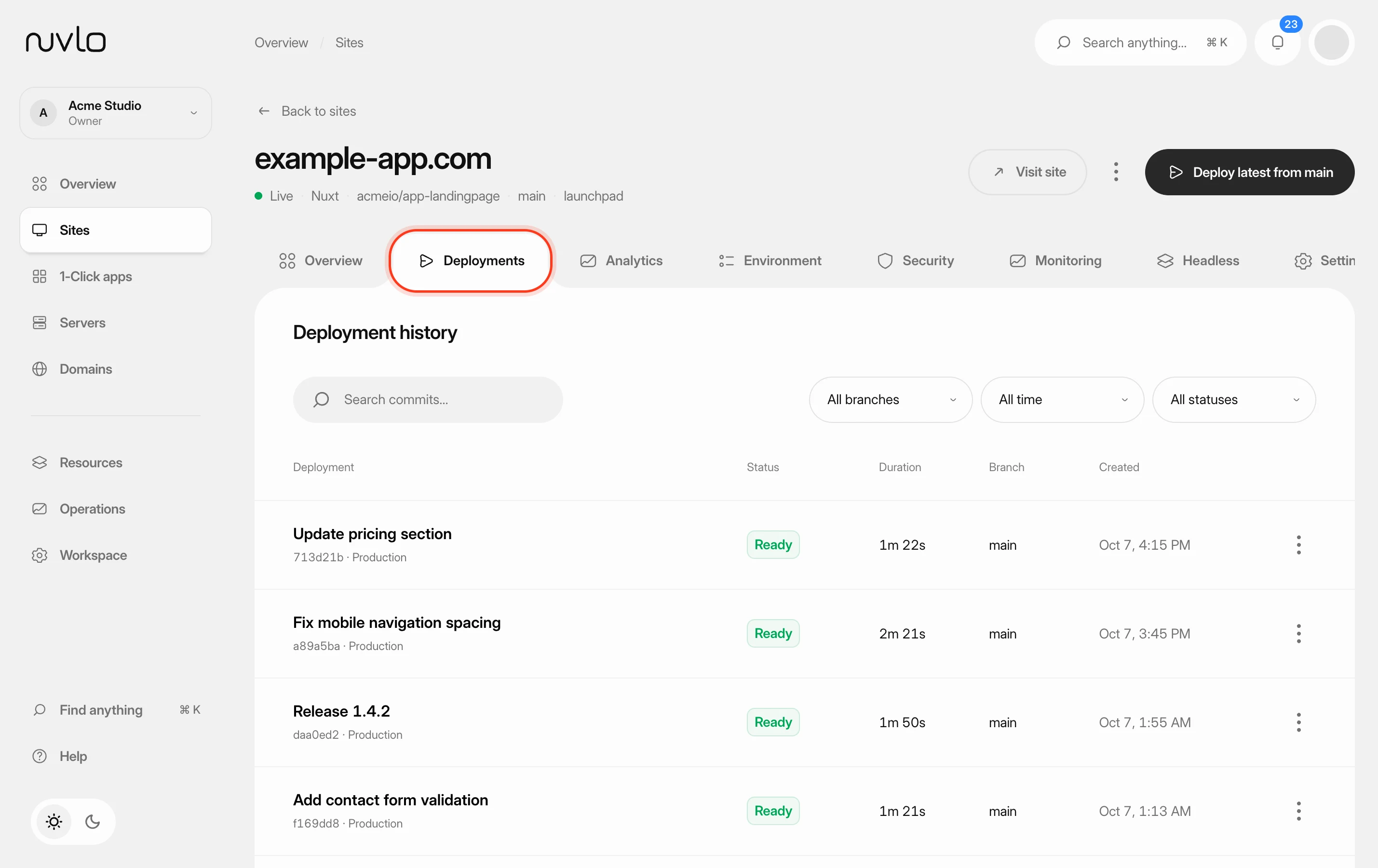 Roll back to an earlier releasePut a previous version of a Node.js app, static site or PHP site back online in seconds, without rebuilding it, and choose how many releases Nuvlo keeps.