



Find your way around the dashboard
Learn what the Overview page shows and where to find everything else: the sidebar, the Create menu, search, notifications and the workspace switcher.
On this page
The Overview page
Overview is the first page after you sign in. Once you have a site, it shows the state of your sites and servers at a glance.
- A summary row with Sites, Servers, Recent deploys and Need attention. When something needs attention, such as a failed deployment or a server that is offline, the last box links straight to it.
- Your sites, a short list of your sites. View all opens the full list.
- Resource usage, the average CPU, memory and disk use of your servers from their latest readings.
- Server costs, what your servers have cost at your providers this month. By server shows the breakdown.
- Your servers, a card for each server with its current load.
- Recent deployments, the latest deploys with their status.
The Get started guide
While your account has no site yet, the Overview page shows the Get started guide instead: connect a cloud provider, create a server and deploy a site. Each step checks itself off from your real data.
Click Skip to move past a step you want to do later, and Undo to bring it back. Hide guide shows the regular Overview instead. To get the guide back before your first site exists, click Setup guide at the top of the page.
The full walk-through is in Put your first site online.
Find anything
Press ⌘ K on a Mac or Ctrl K on Windows and Linux, or click Search anything… at the top of the page. Type part of a page or setting name, for example “API tokens” or “firewall”.
Use the arrow keys to choose a result and Enter to open it. Esc closes the search.
Search finds pages and settings, not individual sites or servers. To find one of those, open Sites or Servers.
Notifications
The bell at the top right shows how many unread notifications you have. Click it to see the latest ones. Click a notification to open what it is about, or the cross to remove it.
Mark all as read clears the counter. See all notifications opens the full list. To choose where notifications are sent, see Notifications.
Switch workspace
Everything you see belongs to one workspace. Your own account is one; each team you joined is another. The current workspace and your role in it are shown at the top of the sidebar.
Click it to open Switch workspace and pick another. The dashboard reloads with that workspace’s sites, servers and settings.
What you can do in a team workspace depends on your role. See Roles and permissions.
Related guides
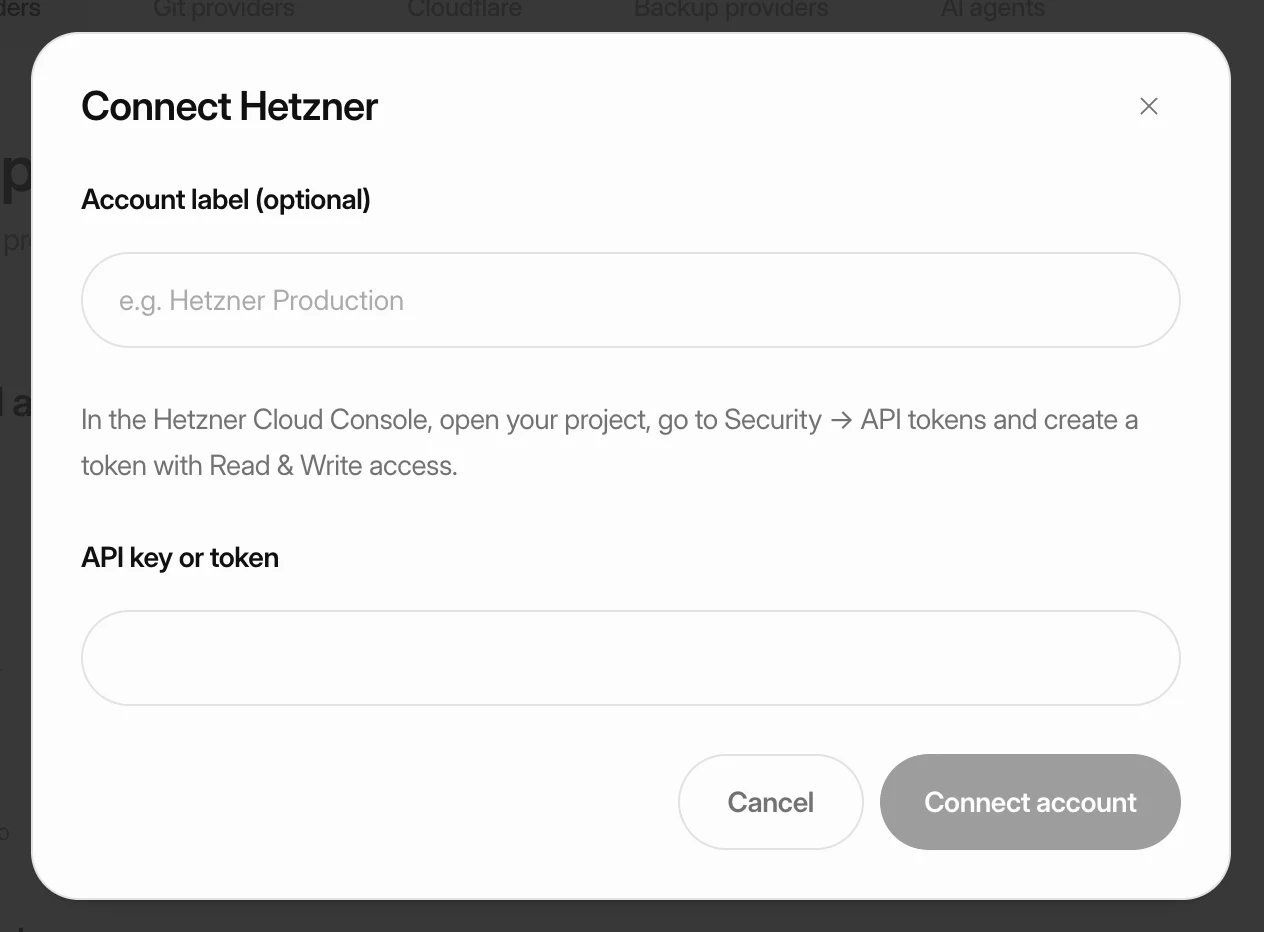 Put your first site onlineConnect a cloud provider, create a server and deploy a site on it. Each step links to a detailed guide if you need more help.
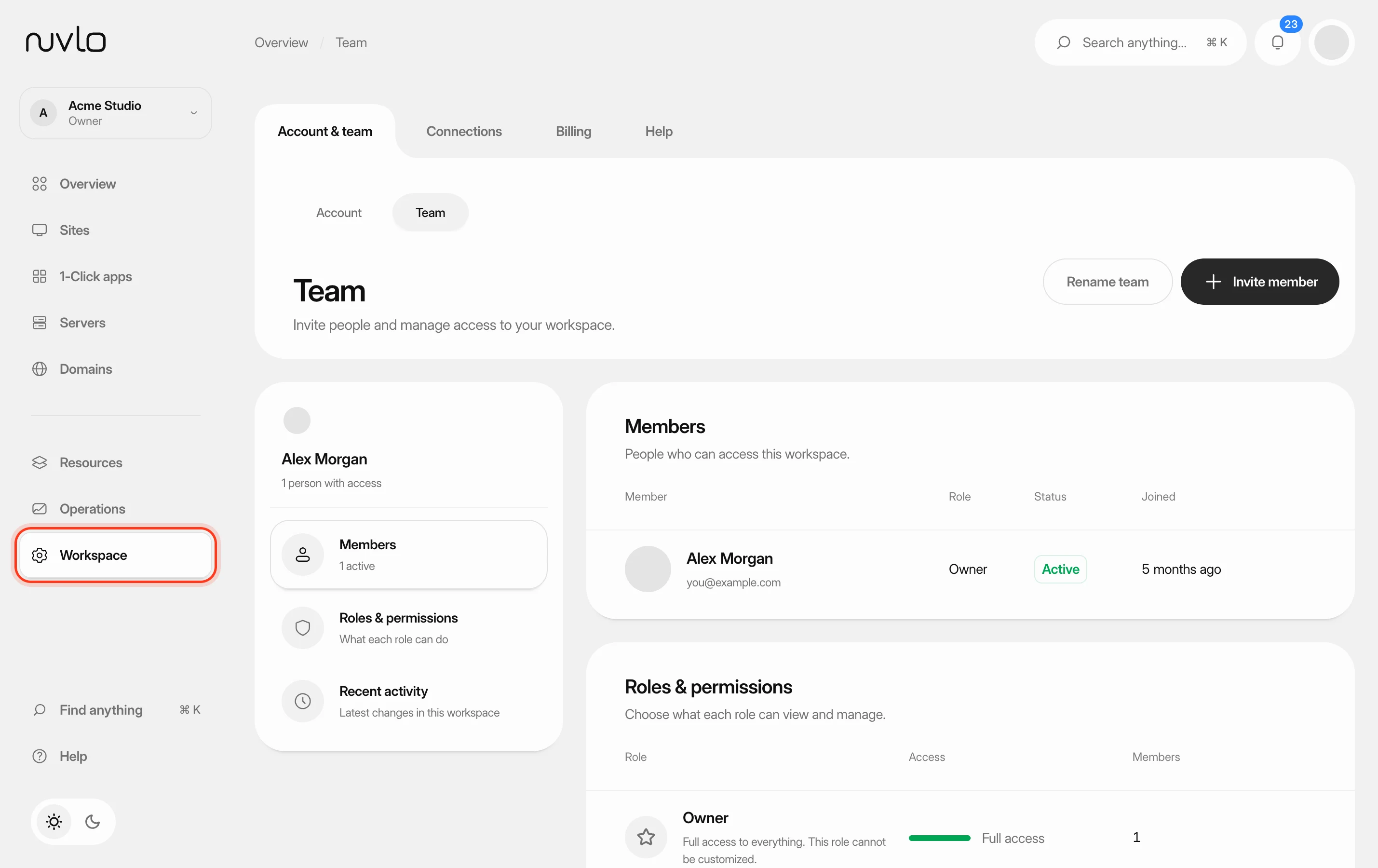 Invite and manage team membersInvite people to your workspace, choose their role, and change or remove their access later. You can also switch between your own workspace and the teams you belong to.
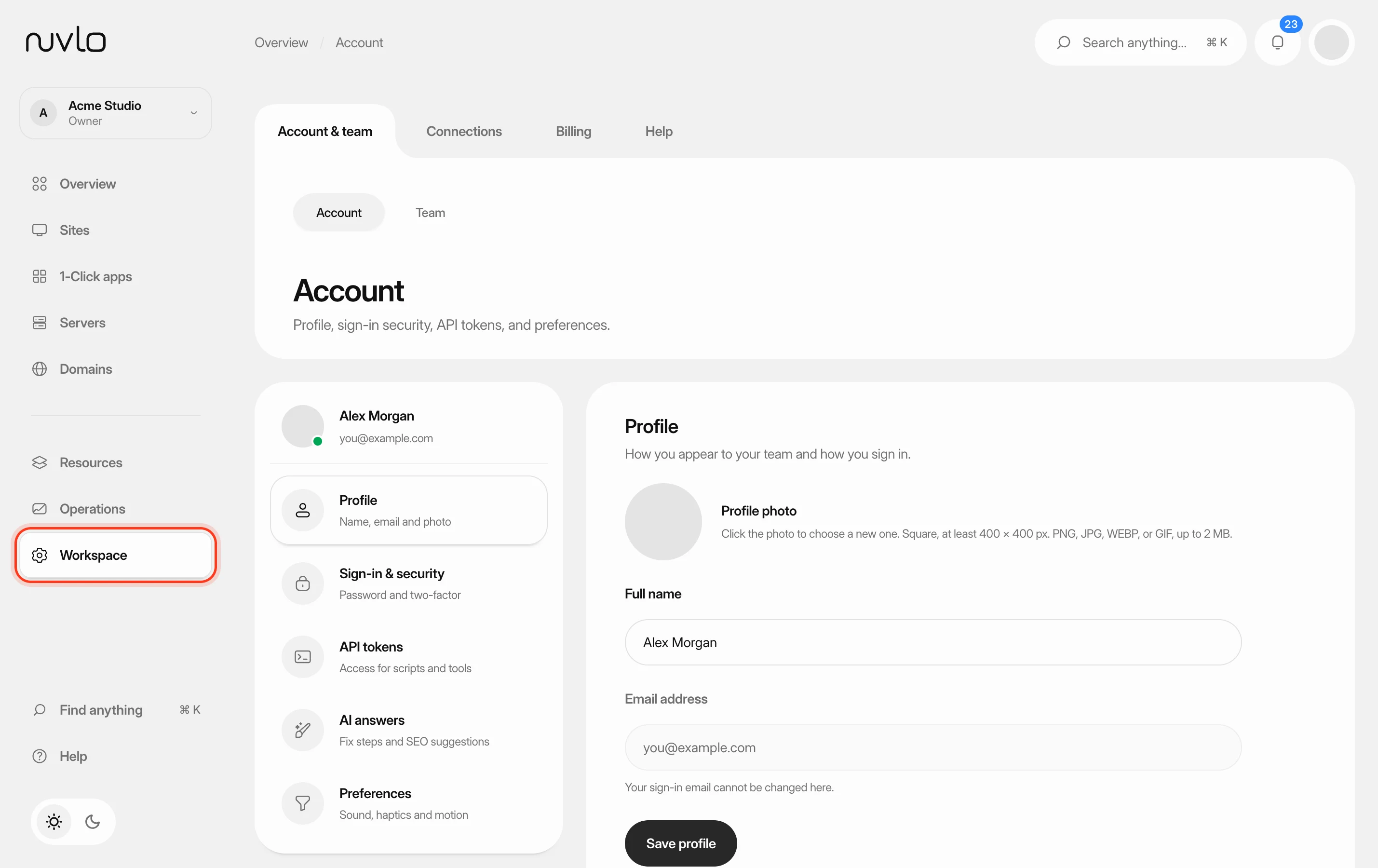 Update your profile and preferencesChange your name and profile photo, send yourself a password reset link, and choose how the dashboard sounds, moves and looks.
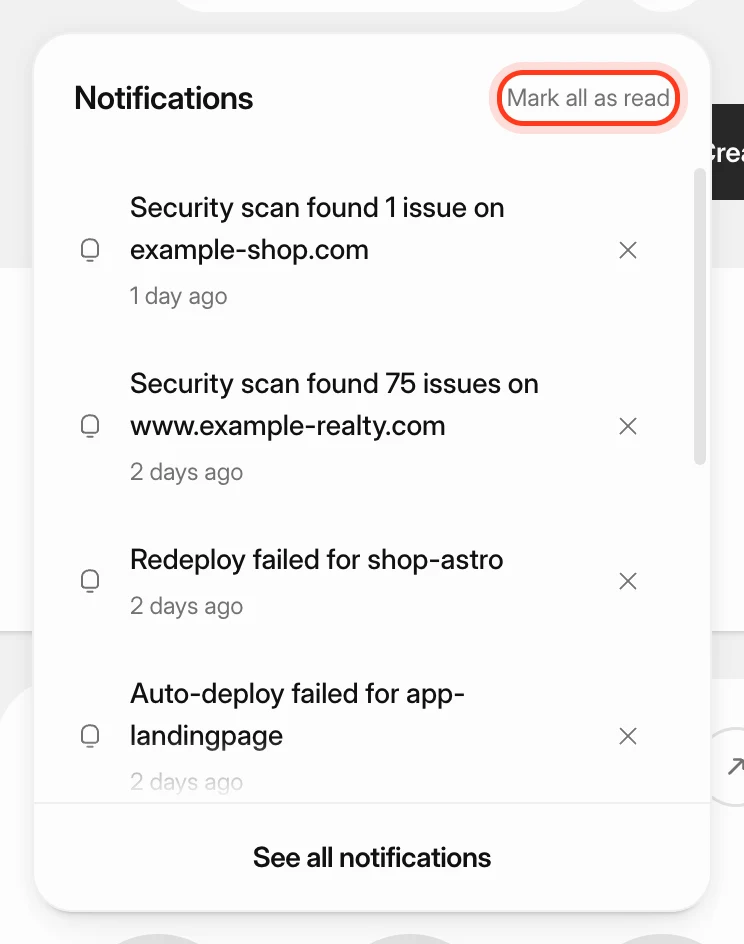 Manage notificationsKeep track of finished deploys, new servers, scan results and failures with the notification bell and the Notifications page, and send alerts to Slack, Discord, Microsoft Teams, Telegram, a webhook or email.