



Connect a server provider
Connect your own cloud account so Nuvlo can create and manage servers in it. You add an API key on the Server providers page, and Nuvlo checks it with the provider before saving it.
On this page
- How it works
- Step 1: Open Server providers
- Step 2: Choose the provider
- Step 3: Enter a label and the key
- Step 4: Connect the account
- Step 5: Create a server with it
- Connect from the server wizard instead
- What Nuvlo does with your key
- Connect more than one account
- Rename an account or replace its key
- Disconnect a provider account
- Who can do this
Before you start
- An account with a supported cloud provider, with billing set up there
- The Owner, Admin or Developer role on your Nuvlo account. Viewers can see connected accounts but cannot add them.
How it works
Nuvlo does not sell servers. Every server you create runs in your own cloud account, and the provider bills you for it directly.
To do that, Nuvlo needs an API key from the provider. Each provider has its own guide for creating a key with the right permissions:
| Provider | What you paste into Nuvlo | Guide |
|---|---|---|
| Hetzner | API token | Connect your Hetzner account |
| DigitalOcean | Personal access token | Connect your DigitalOcean account |
| Vultr | API key | Connect your Vultr account |
| Linode (Akamai) | Personal access token | Connect your Linode account |
| UpCloud | API token | Connect your UpCloud account |
| Scaleway | Project ID and secret key | Connect your Scaleway account |
| AWS | Access key ID and secret access key | Connect your AWS account |
| Google Cloud | Service account key (JSON file) | Connect your Google Cloud account |
| Exoscale | API key and API secret | Connect your Exoscale account |
| Contabo | Client ID, client secret, API user and API password | Connect your Contabo account |
Create the key in the provider’s console first, then come back to Nuvlo and follow the steps below.
Step 1 Open Server providers
In the sidebar, open Integrations → Server providers, or go straight to Server providers.
Click Add provider at the top right. If you haven’t connected anything yet, the button sits in the middle of the page under Connect your first provider.
Step 2 Choose the provider
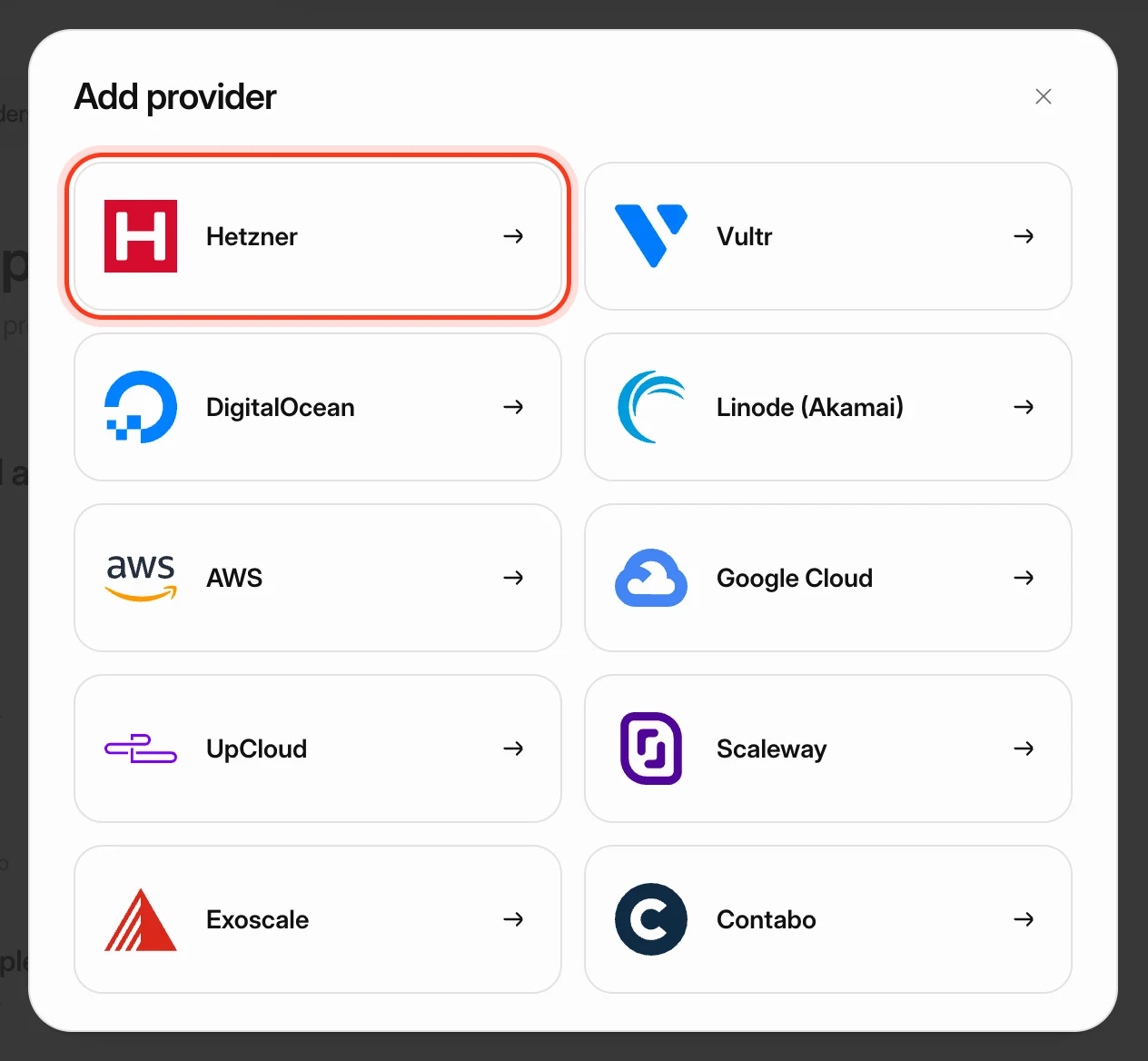
The Add provider dialog lists every provider Nuvlo can create servers on. Click the one your key belongs to.
Step 3 Enter a label and the key
Account label (optional) is the name you’ll see in Nuvlo, for example “Hetzner Production” or the name of a client. If you leave it empty, Nuvlo uses the provider’s name followed by “key”. Labels can be up to 80 characters.
Below the label, the dialog repeats where to find the key at the provider. Paste the key into the field underneath. Most providers take a single API key or token. Scaleway, AWS, Exoscale and Contabo ask for several values, each in its own field.
Step 4 Connect the account
Click Connect account. Nuvlo sends the key to the provider to check that it works, and only saves it if the provider accepts it.
If the provider refuses the key, the dialog shows The provider rejected this key followed by the provider’s reason. Nothing is saved. Fix the key and try again.
When the check passes, the account appears under Connected accounts. The Status column shows In use once at least one of your servers is linked to that account, and Not in use until then.
Step 5 Create a server with it
Open Create server. Under Choose a provider, each provider shows how many accounts you have connected. Pick your provider, then pick the account under Account if you have more than one.
Regions, plans and prices in the wizard come from that account, so you see what it can actually order. Continue with Create a server.
Connect from the server wizard instead
You can also connect while creating a server. In Create server, providers you haven’t connected show Connect account. Select one and a Connect panel opens with the same fields.
Fill them in and click Validate & connect. Nuvlo checks the key, saves it and moves you to the next step.
What Nuvlo does with your key
- It reads regions, plans, prices and operating system images so the server wizard shows what your account can order.
- It creates the servers you ask for, and later resizes, snapshots, backs up, restores and deletes them when you use those actions in Nuvlo.
- For DigitalOcean, Vultr, Linode, UpCloud and Exoscale it reads your balance with the provider, so provider bill reminders show real amounts.
- It only changes servers you created in Nuvlo or picked there. Your other servers in the same cloud account are left alone.
Keys are encrypted before they are stored. Once saved, the secret part of a key is not sent back to your browser. Only an owner or admin can show it again, after confirming it’s them, and each time it’s shown this is recorded in the account’s activity log.
The key can create servers that cost money, so treat it like a password and revoke it at the provider if you stop using Nuvlo.
Connect more than one account
You can connect as many accounts as you like, including several of the same provider. For example, one Hetzner project for your own sites and one for a client. Give each a clear label.
When you create a server, you choose the account in the Account dropdown. The server stays linked to that account. Your Nuvlo plan limits the number of servers, not the number of provider accounts. See Usage and limits.
Rename an account or replace its key
Click Manage next to the account. You can change the Account label and paste a new key. A secret left empty keeps the saved one. Use a key from the same provider account (for Hetzner, the same project): a key for another account can’t see the servers created with the old one.
A new key is checked with the provider before it replaces the old one, so a broken key never overwrites a working one. Click Save account to finish.
To see the saved key, click the eye icon (Show value). Only an owner or admin can do this.
Disconnect a provider account
Open the actions menu at the end of the row and choose Delete account. Confirm with Delete account in the dialog.
ImportantYour servers keep running, and the provider keeps billing for them. To stop paying, delete the servers in Nuvlo before you delete the provider account.
Deleting the account in Nuvlo does not touch anything at the provider. You can still manage sites on its servers, because that works over SSH.
What changes is the work that needs the provider: deleting a server, resizing, snapshots and provider backups. For those, Nuvlo uses another connected key for the same provider if you have one. If you don’t, these actions fail until you connect the account again.
The key itself still works at the provider after you delete it from Nuvlo. Revoke it in the provider’s console if you no longer need it.
Who can do this
| Role | Connect, rename, replace or delete | Show a saved key |
|---|---|---|
| Owner | Yes | Yes |
| Admin | Yes | Yes |
| Developer | Yes, by default | No |
| Viewer | No, by default | No |
Owners and admins can change what Developers and Viewers may do with integrations. See Roles and permissions.
Related guides
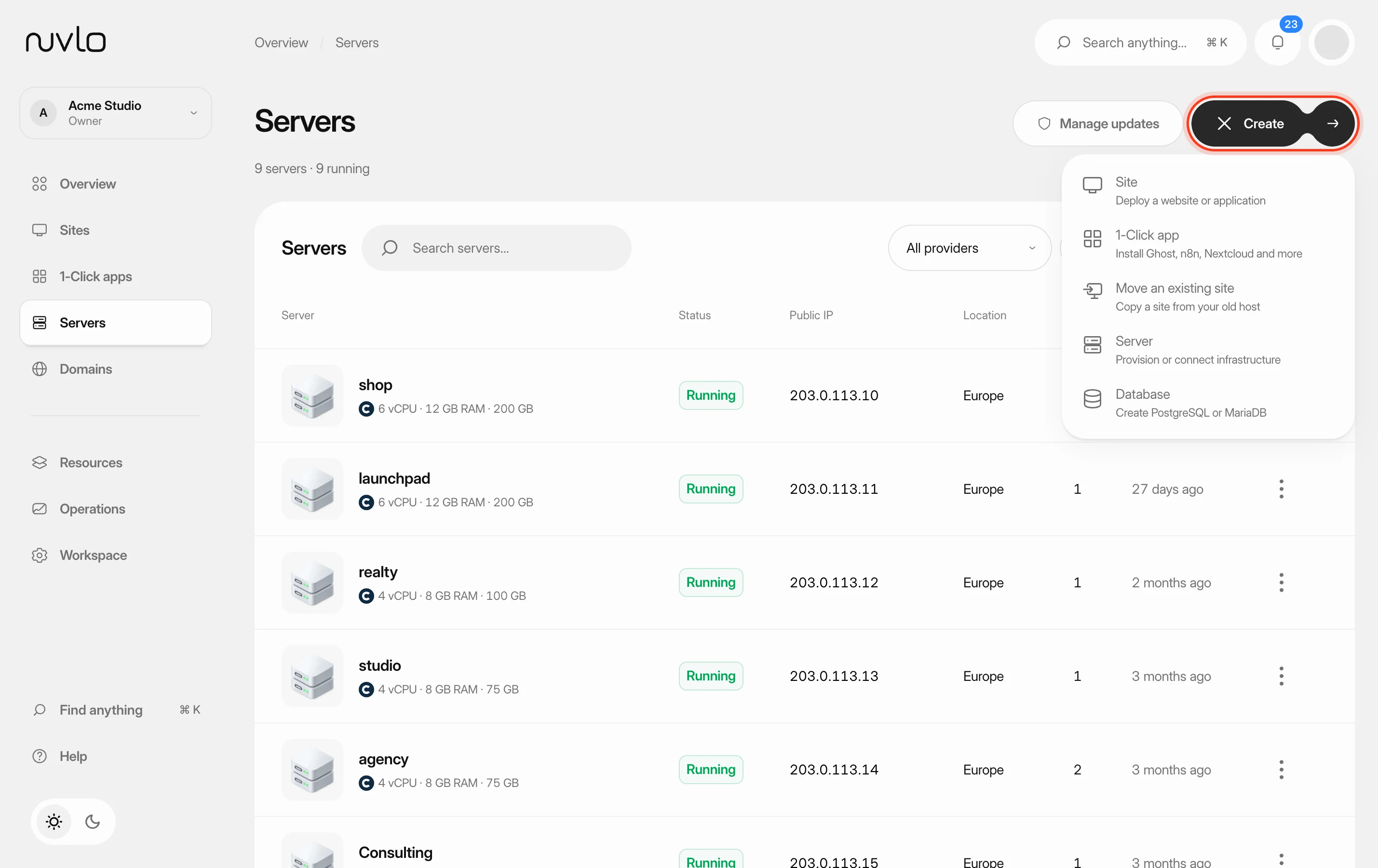 Create a serverOrder a new server at your cloud provider from Nuvlo and have it set up with everything your sites need: web server, firewall, security hardening and the software for the projects you plan to host.
 Connect your Hetzner accountCreate a Read & Write API token in the Hetzner Console, connect it to Nuvlo, and create your first Hetzner server.
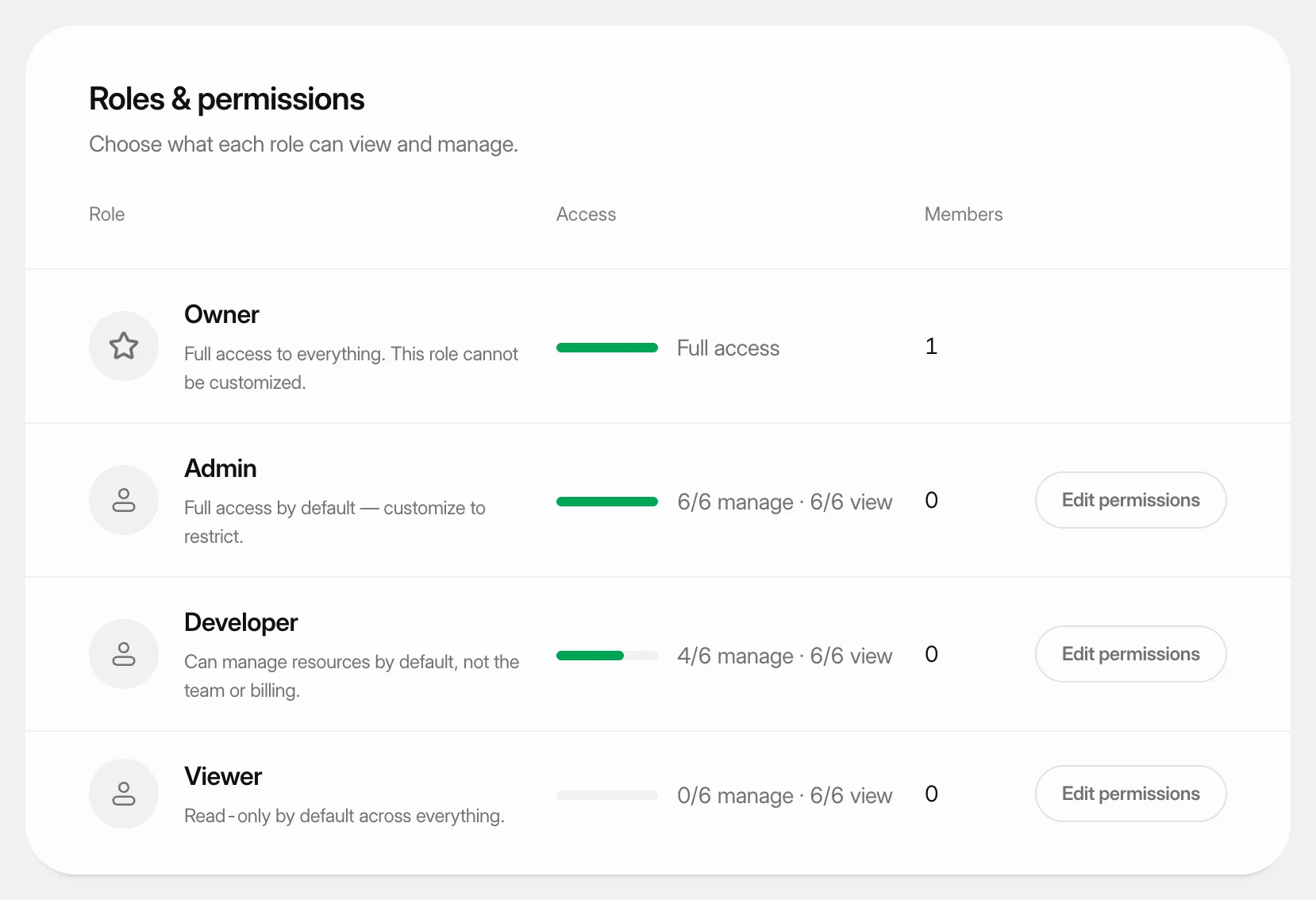 Set what each role can doUnderstand the four team roles and change what the Admin, Developer and Viewer roles may view and manage in your workspace.
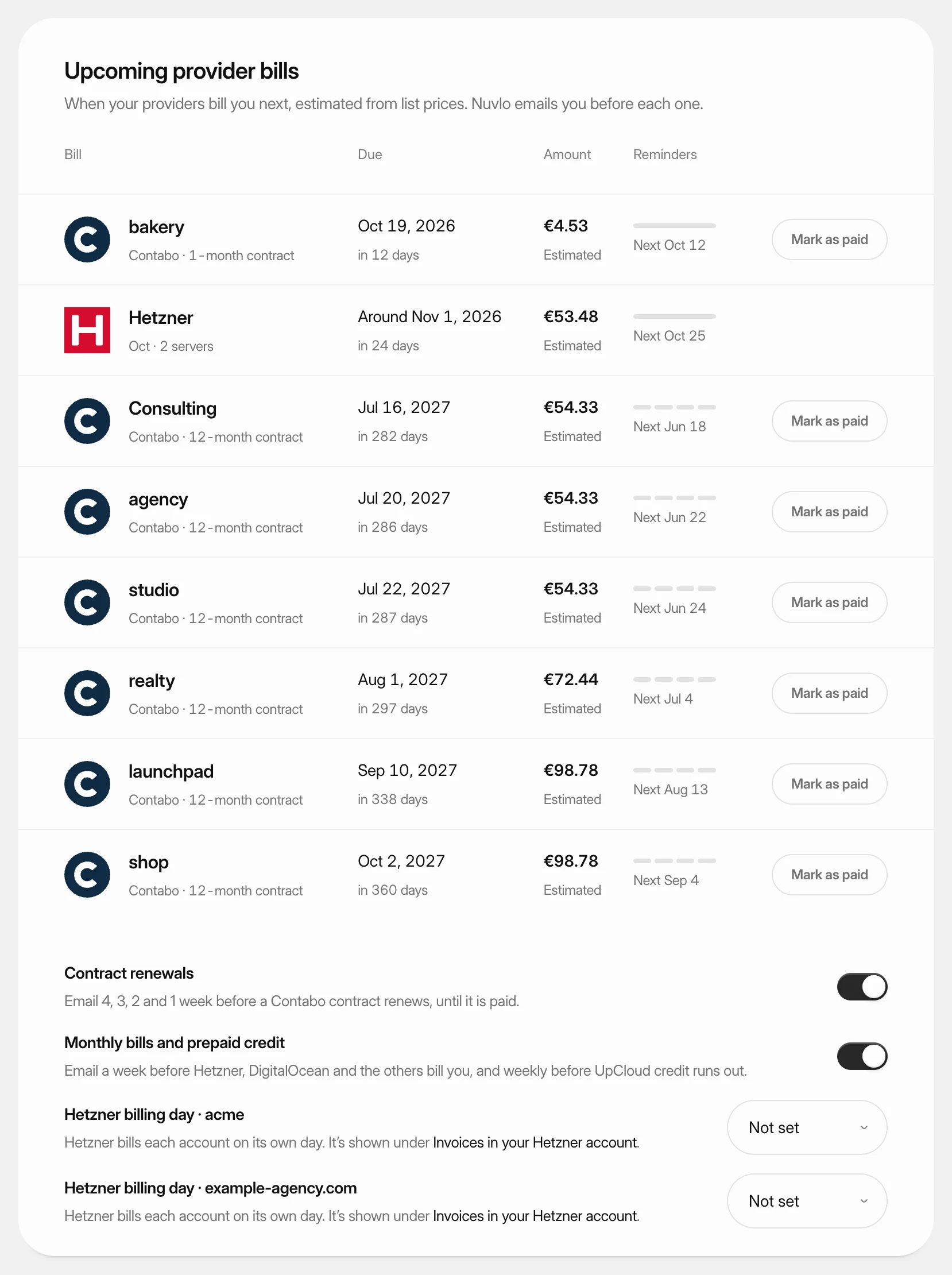 Get reminders before provider billsSee when each cloud provider bills you next and get an email before it happens, so a server never stops over a missed payment.