



Connect your Exoscale account
Create an Exoscale API key with access to compute, connect it to Nuvlo, and create your first server in a European zone.
On this page
Before you start
- An Exoscale organization with a payment method or credit.
- Permission in the Exoscale portal to create IAM roles and API keys.
- A Nuvlo account where you are the owner, an admin or a developer. Viewers can’t connect providers. See roles and permissions.
Step 1 Create an IAM role
Every Exoscale API key gets its permissions from a role, and a key’s role can’t be changed later. Create the role first.
In the Exoscale portal, open IAM → Roles and choose Add. Name the role, for example nuvlo.
Nuvlo only uses the compute service: instances, instance types, templates, security groups, snapshots and zones. For the narrowest role, set the default service strategy to deny and allow only the compute service. A role without restrictions also works, but its key can then do everything in your organization.
Step 2 Create an API key
Open IAM → Keys and choose Add. Name the key, select the role from step 1 and choose Create.
Copy the API key (it starts with EXO) and its secret. Exoscale shows the secret only once. If you lose it, create a new key and replace it in Nuvlo with Manage.
Step 3 Open Server providers in Nuvlo
In Nuvlo, open Integrations → Server providers (go there). Choose Add provider, then Exoscale.
Step 4 Enter the key and secret
Optionally enter an Account label. Paste the key into API key and the secret into API secret, then choose Connect account. Nuvlo checks the key with Exoscale before it saves it.
Step 5 Check that the account is connected
The account appears under Connected accounts with the status Not in use until your first server is linked to it.
Step 6 Create your first Exoscale server
Open Servers and create a server (start here). Choose Exoscale and your account, then choose what you will host.
On Region & plan, pick a zone and an instance type. The list comes from your Exoscale account, so it shows only the types your organization can use. Prices are in euros and include a 50 GB disk.
Finish the remaining steps and choose Create server. See Create a server.
Good to know
| Topic | On Exoscale |
|---|---|
| Zones | All in Europe: Geneva, Zurich, Frankfurt, Munich, Vienna (two zones), Sofia and Zagreb. |
| Network | Nuvlo creates a security group named nuvlo in each zone it uses. It opens SSH, HTTP and HTTPS (ports 22, 80 and 443). |
| Billing | Per second, with no monthly cap. |
| Resize | Standard, CPU-optimized and memory-optimized types can be mixed; other families stay within their family. The IP stays the same. See Resize a server. |
| Snapshots | Restored over the server. See Server snapshots. |
| Delete | The server and its disk are deleted at Exoscale right away. Snapshots stay until you delete them. |
Troubleshooting
| You see | What to do |
|---|---|
| The provider rejected this key | Check that you copied the key and the secret into the right fields, and that the key’s role allows the compute service. |
| No plans available. on Region & plan | The key’s role doesn’t allow listing instance types. Create a key with a role that allows the compute service. |
| Exoscale API error: 403 | The key’s role blocks something Nuvlo needs. A key’s role can’t be changed, so create a new key with a role that allows compute, and replace it with Manage. |
Related guides
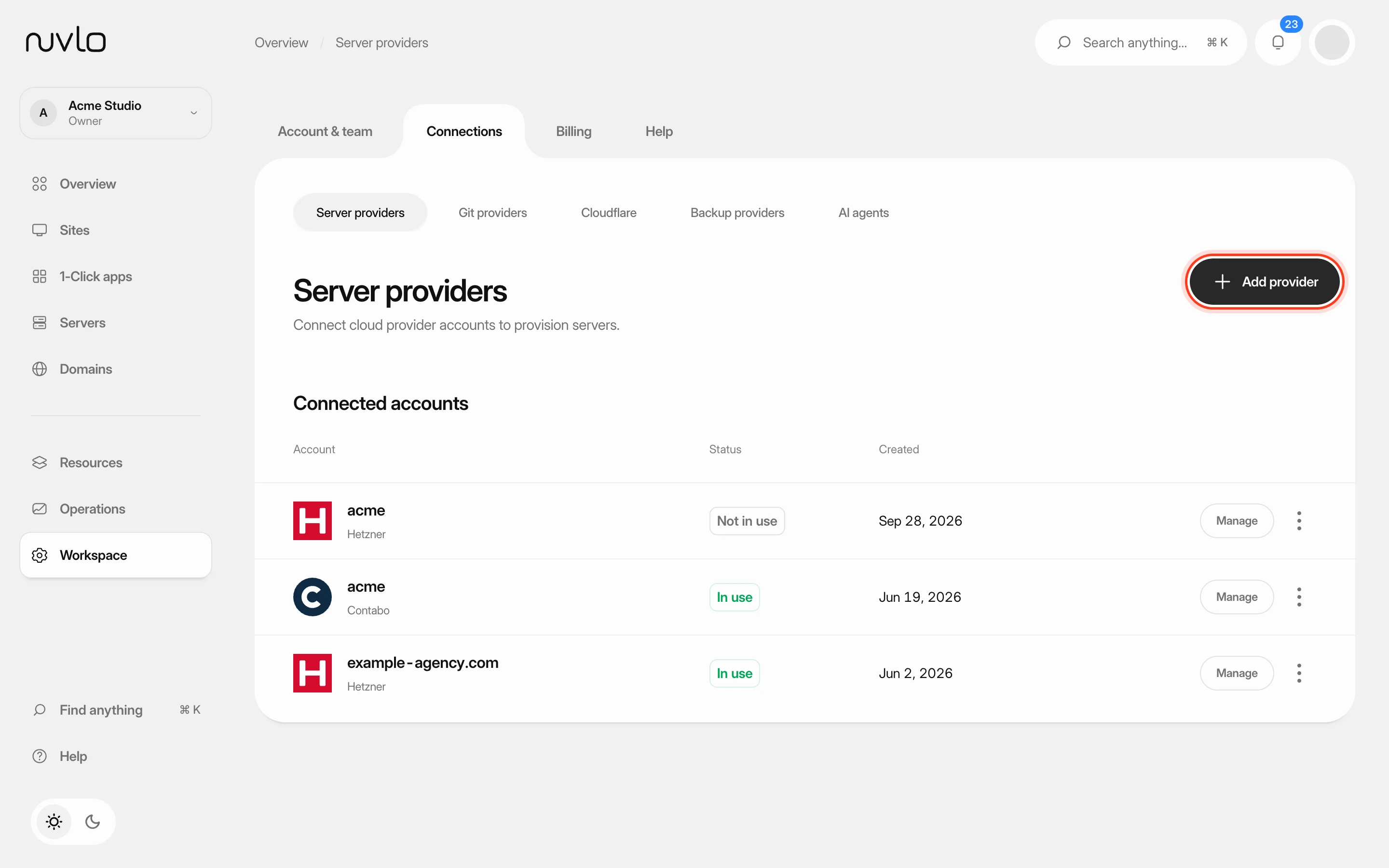 Connect a server providerConnect your own cloud account so Nuvlo can create and manage servers in it. You add an API key on the Server providers page, and Nuvlo checks it with the provider before saving it.
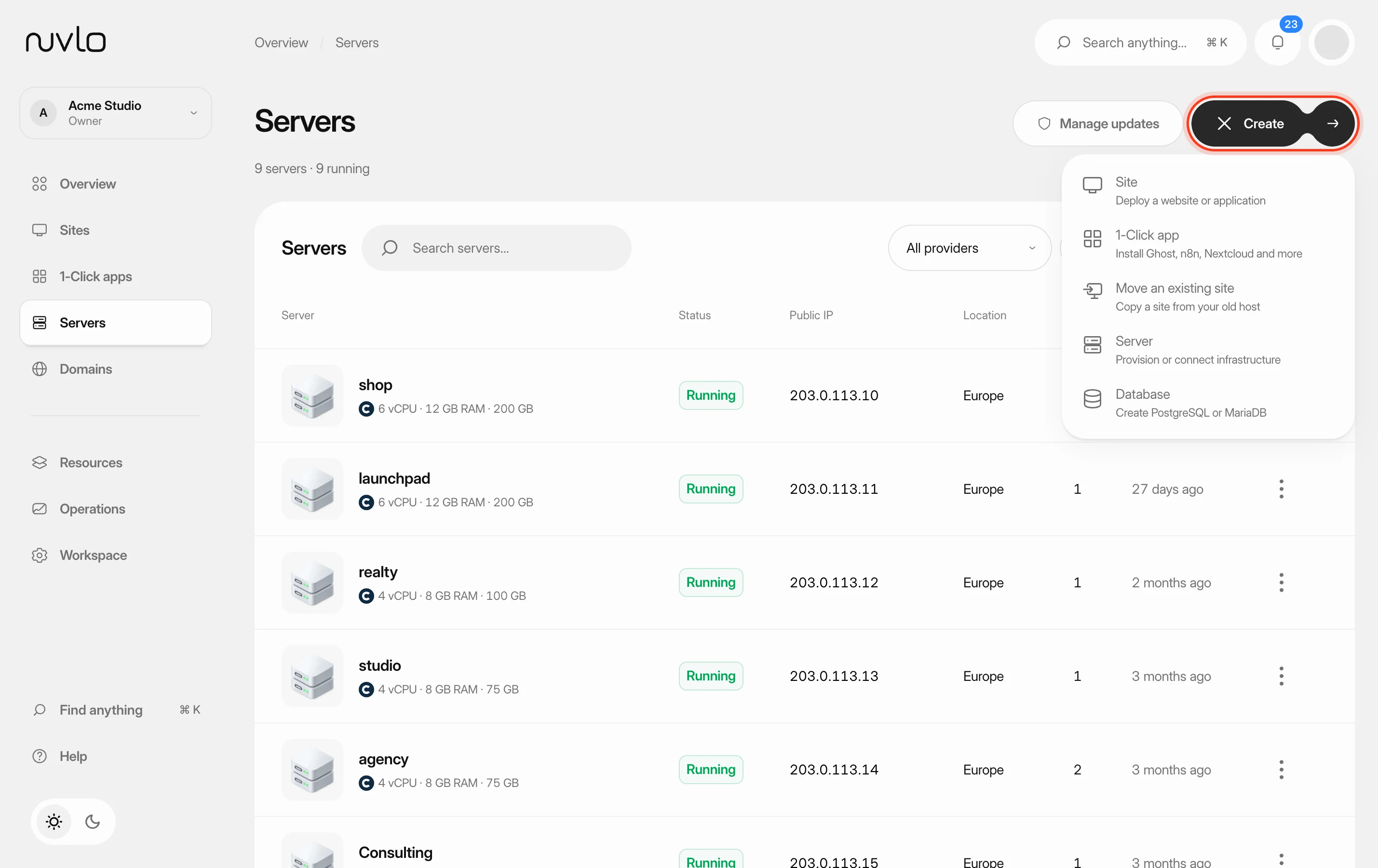 Create a serverOrder a new server at your cloud provider from Nuvlo and have it set up with everything your sites need: web server, firewall, security hardening and the software for the projects you plan to host.
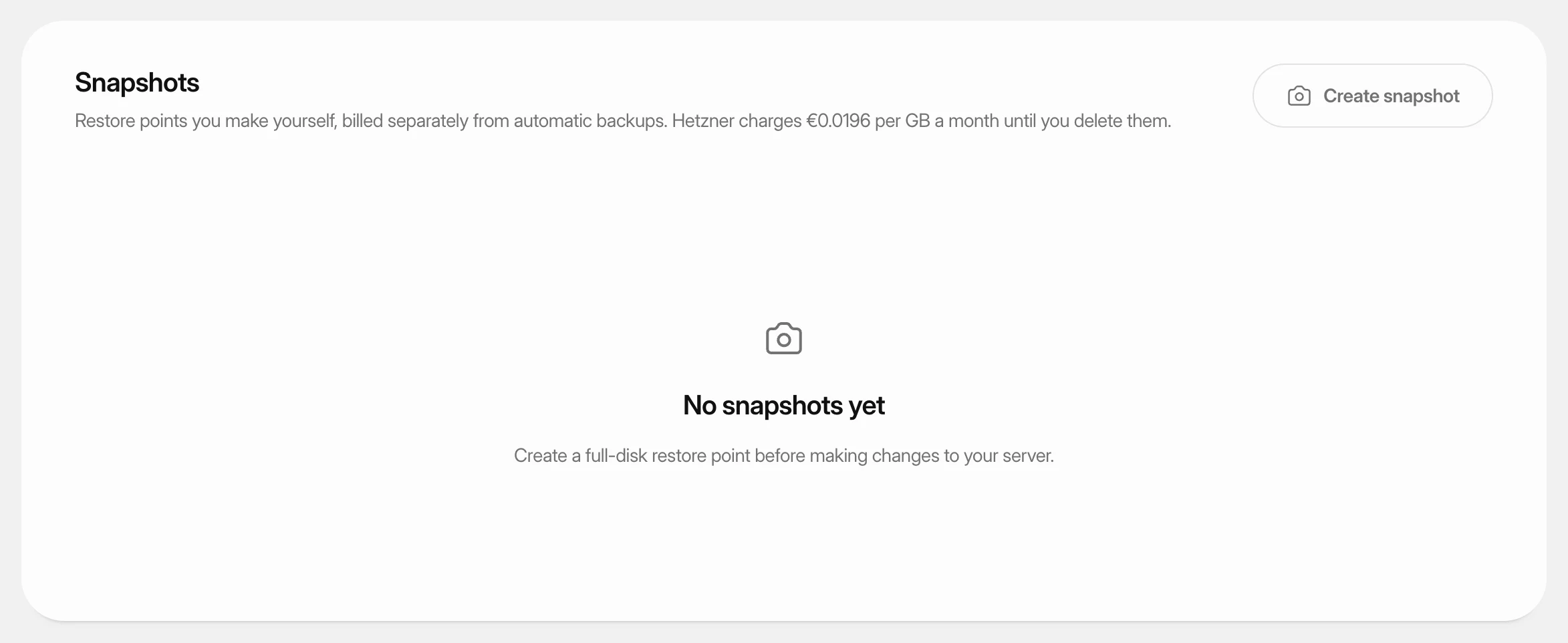 Create and restore server snapshotsSave a full-disk restore point of a server at its cloud provider, choose when it deletes itself, and restore it over the server or into a new one.
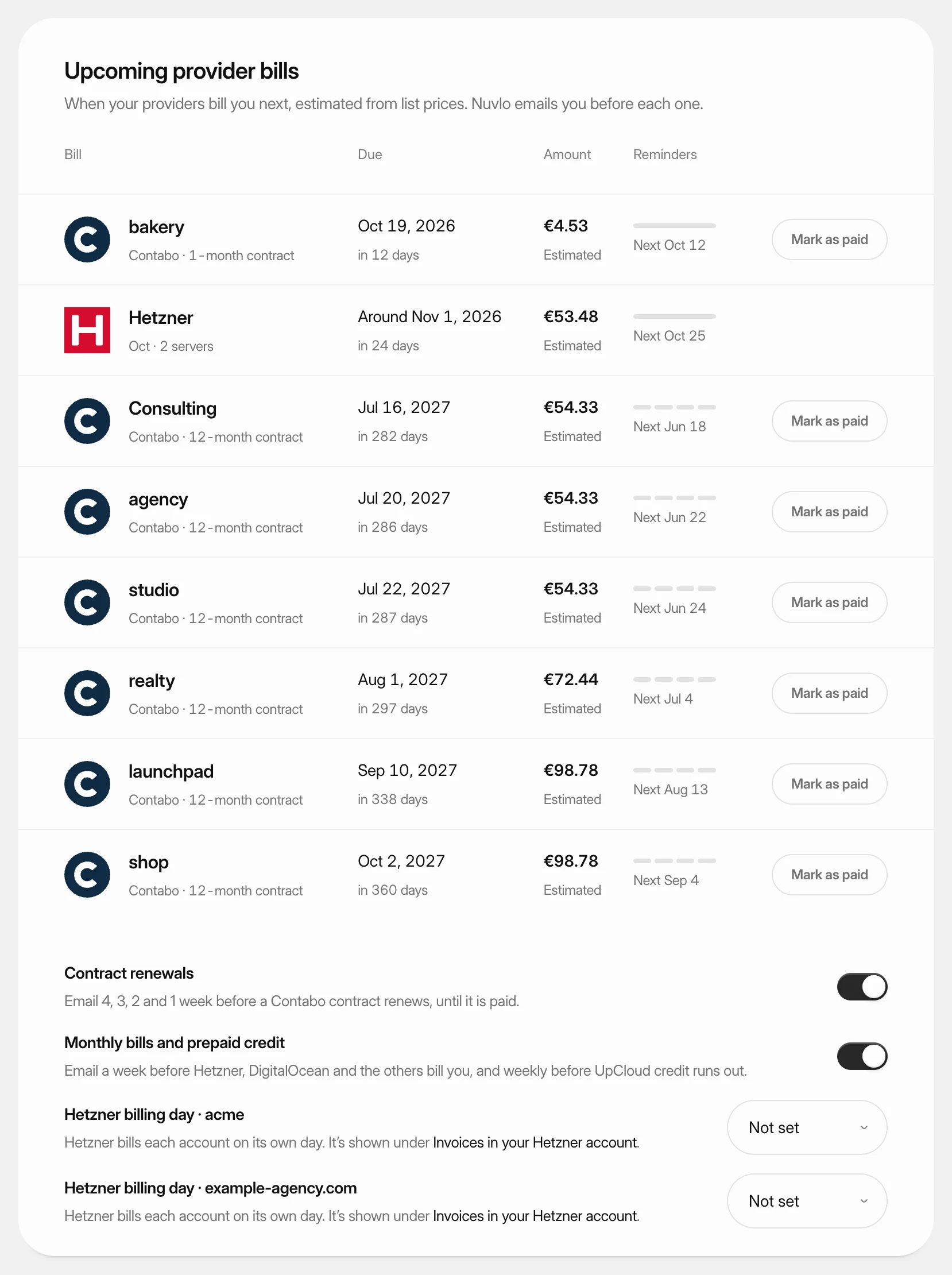 Get reminders before provider billsSee when each cloud provider bills you next and get an email before it happens, so a server never stops over a missed payment.