



Run scheduled tasks and cron jobs
See which scheduled tasks a WordPress site has, run the ones that are due, and set up cron jobs for PHP sites.
On this page
Before you start
- A WordPress site or a PHP site in Nuvlo.
- A role that can manage sites to run tasks or change cron jobs. See Roles and permissions.
How scheduled tasks work on WordPress
WordPress and its plugins schedule their own tasks, such as publishing a planned post, sending emails or checking for updates. Nuvlo runs the tasks that are due every five minutes, so they don't depend on visitors loading the site.
Step 1 Open Scheduled tasks
In the sidebar, select Operations and then Scheduled tasks. The page lists your WordPress sites. Click Open next to a site.
Step 2 Review the tasks
The site's Settings tab opens. Scroll to the Scheduled tasks card. It lists each task by its name in WordPress, when it runs next and how often it Repeats. One-time tasks show Once.
The card shows the first six tasks. Click Show all followed by the number of tasks to see the rest.
Step 3 Run due tasks now
Click Run due tasks now to run every task that is due right away, for example after you fixed a plugin whose tasks were stuck. The list reloads when they're done.
If the card says Tasks can’t be read right now, WordPress isn't reachable, for example because the site is still deploying. Click Try again a little later.
Cron jobs for PHP sites
On a PHP site you add your own cron jobs. Open the site, select the PHP tab and find Background processes and cron.
- Under Cron jobs, click Add job.
- Enter the Schedule in cron syntax, such as
*/15 * * * *for every 15 minutes, or a shortcut such as@daily. - Enter the Command, for example
php scripts/cleanup.php. It runs in the live release of your site. - Click Save processes and cron.
A site can have up to 20 cron jobs. For Laravel, the scheduler is set up under the PHP settings instead. Output from cron jobs appears in the site's runtime logs. See Site processes for queue workers and daemons.
Related guides
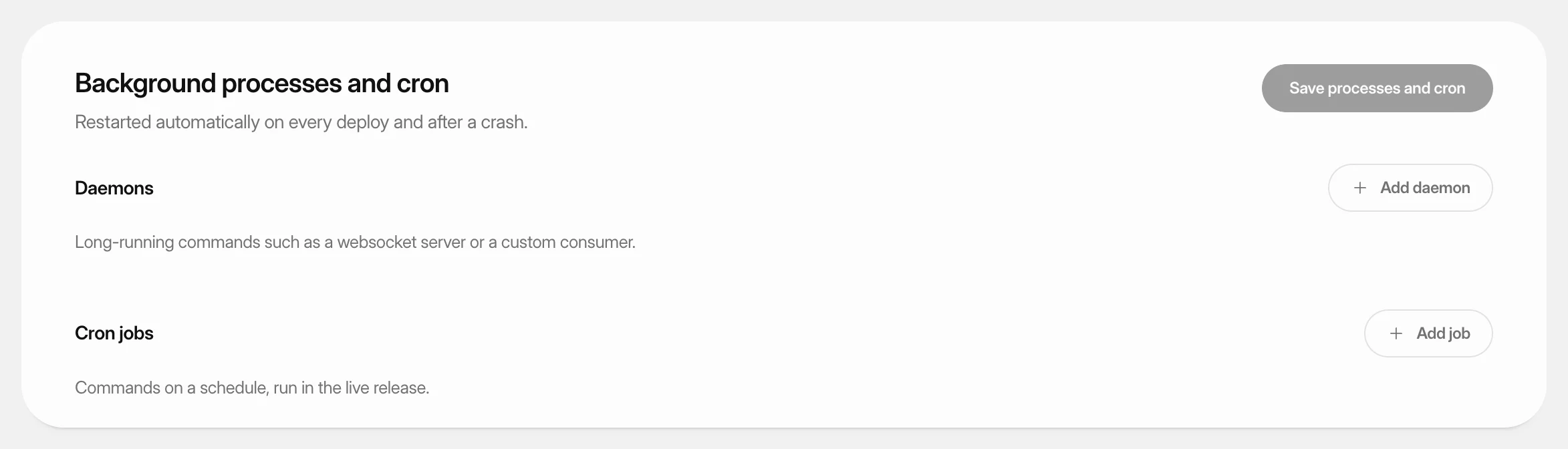 Run background processes and cron jobsKeep Laravel queue workers and other long-running commands running for a PHP site, and run commands on a schedule.
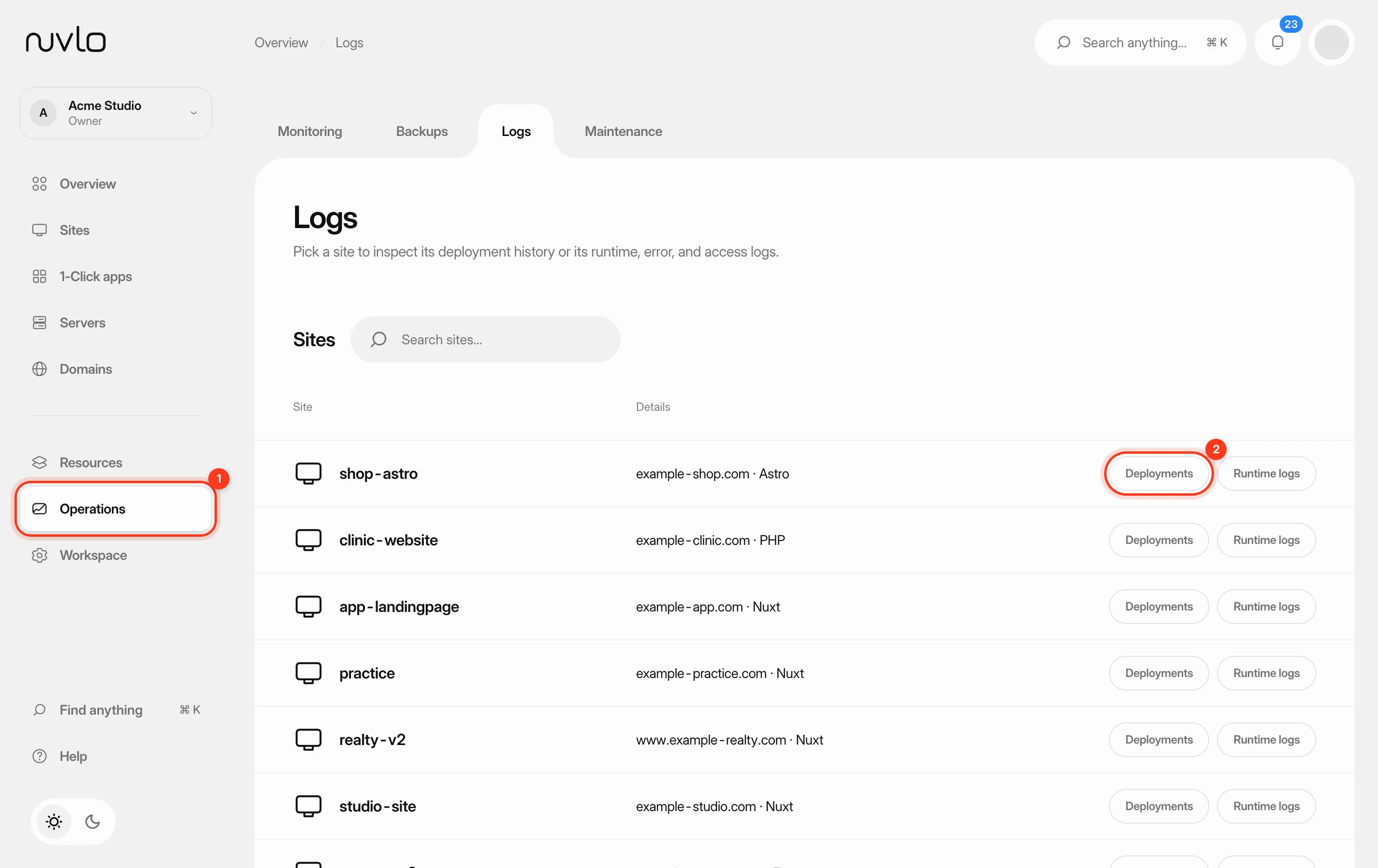 Read deployment and runtime logsFind out why a deploy failed or what your app is doing right now, using the build logs of each deployment and the live runtime logs of a site.
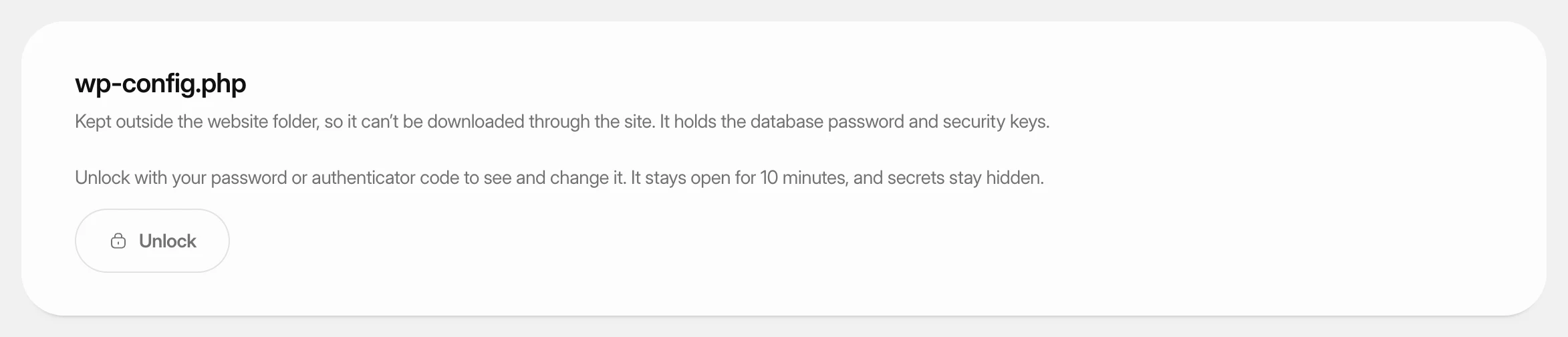 Change wp-config.php settingsView and change the settings in a WordPress site’s wp-config.php from the dashboard, and add your own constants, without touching the file by hand.
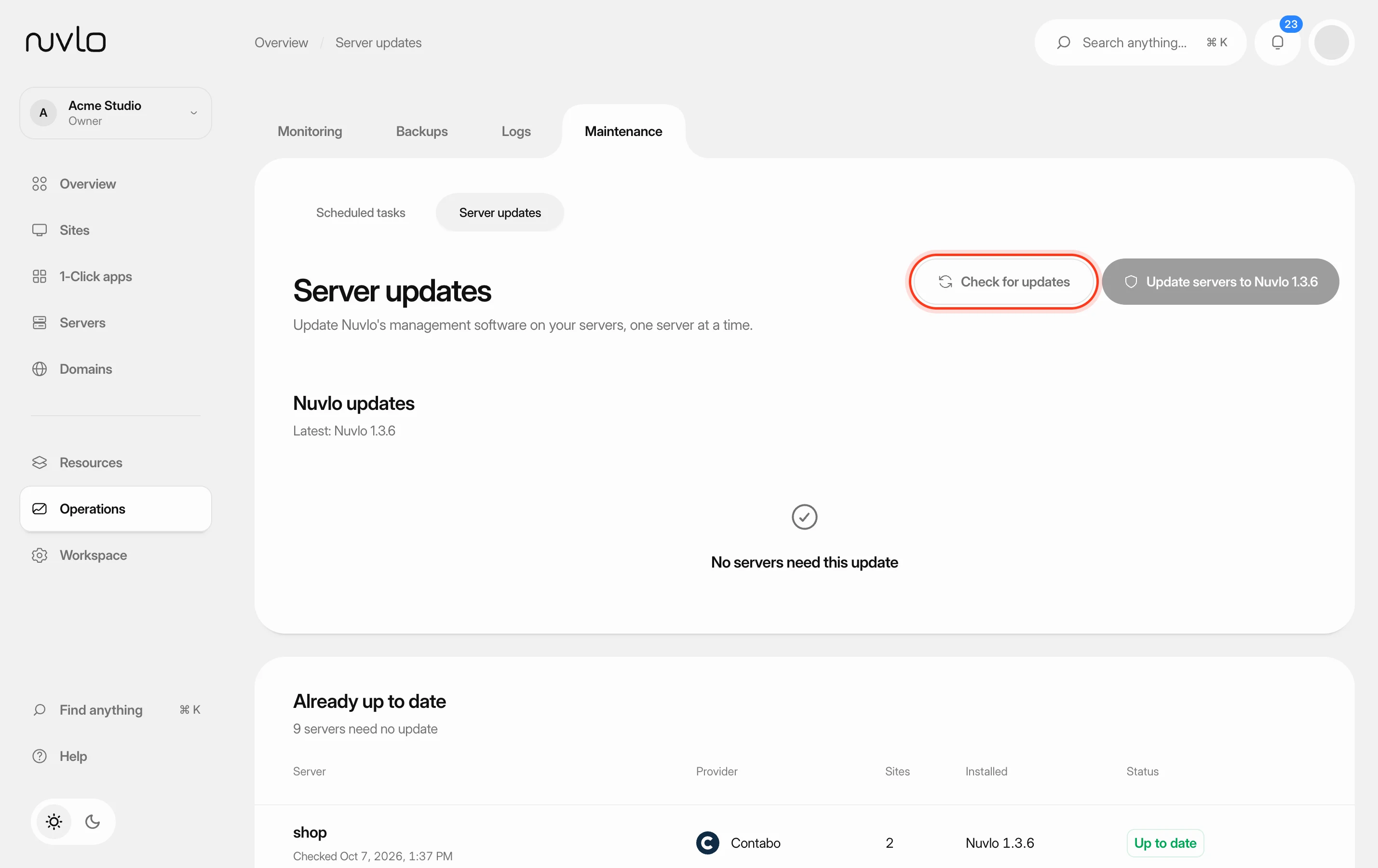 Update Nuvlo's server softwareBring Nuvlo's management software on your servers up to the latest version, one server at a time, with health checks between servers.