



Erase an existing server and set it up with Nuvlo
Reuse a server you already have at Hetzner or Contabo: Nuvlo wipes it, reinstalls the operating system and sets it up like a new Nuvlo server.
On this page
Before you start
- A Hetzner or Contabo account connected to Nuvlo. See Connect Hetzner or Connect Contabo.
- The owner or admin role in your Nuvlo account.
- A copy of anything you want to keep from that server. Everything on it is deleted.
Step 1 Choose the provider and erase mode
Go to Create server and choose Hetzner or Contabo. Under Server source, click Erase an existing server. Then click Choose server and software.
Step 2 Select the server
Under Select existing server, Nuvlo lists the servers in your provider account with their status, IP address, size and region. Use the search box to filter by name, IP or region, and click the server to erase.
Below the list, choose What will you host? and the Operating system, the same way as for a new server. See Create a server for what each option installs. Click Configure server.
Step 3 Name it and confirm the wipe
Enter the Server name in Nuvlo. It defaults to the server's current name.
Tick the box that confirms the server will be completely wiped and reinstalled. Click Review server.
ImportantAll files, databases and settings on the server are permanently deleted. Erasing can't be undone.
Step 4 Review and erase
Check the summary, then click the red Erase button, which names the server, for example Erase web-old-01 and install Nuvlo.
The setup progress then works the same as for a new server. When it's done, you can create sites on it.
Good to know
- A server that already has sites in Nuvlo can't be erased this way. Move or delete those sites first.
- The database engine choice isn't offered here. Add databases after setup, see Create a database.
- On Contabo, a new root password for the VNC console is generated and shown once after setup.
Related guides
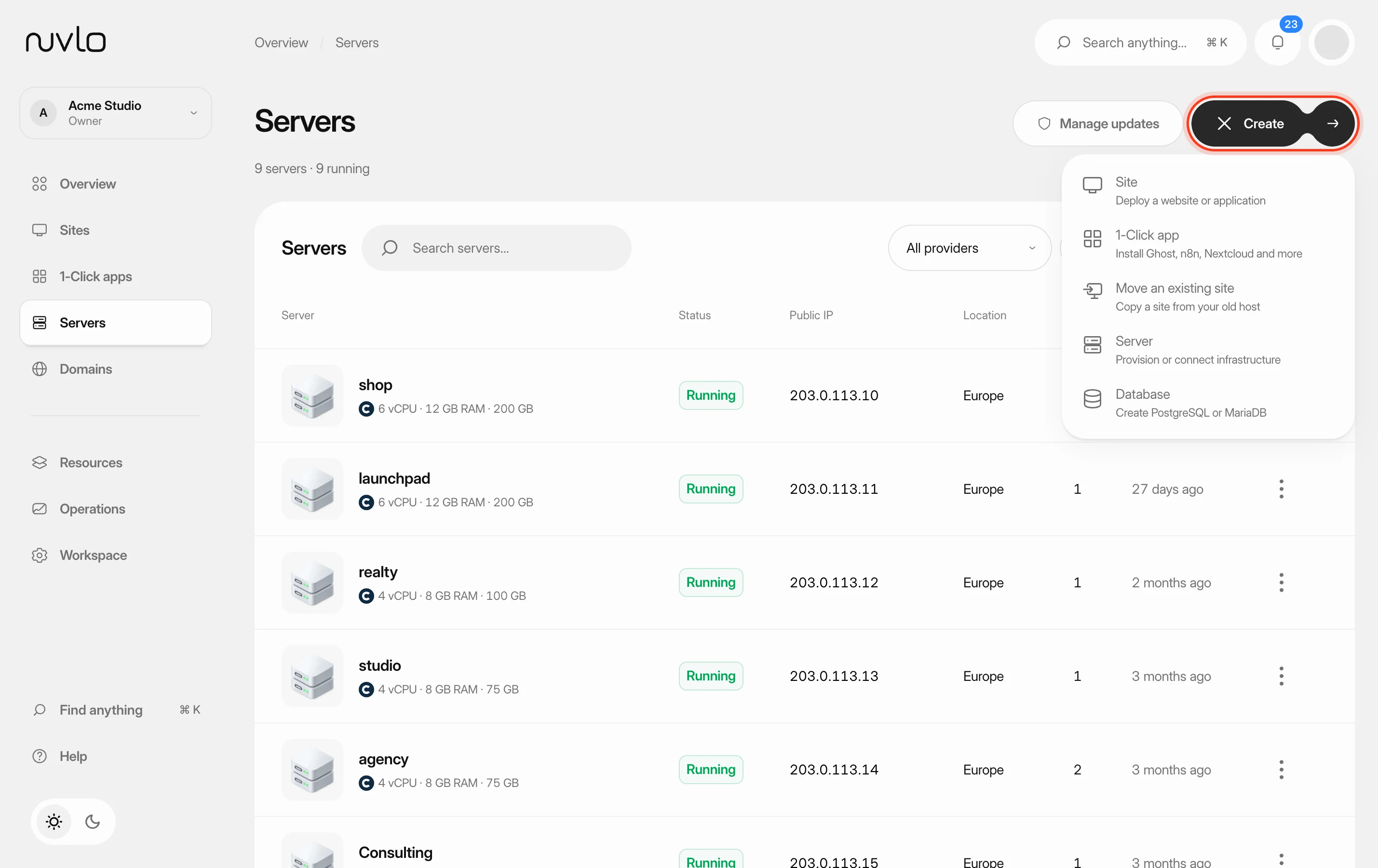 Create a serverOrder a new server at your cloud provider from Nuvlo and have it set up with everything your sites need: web server, firewall, security hardening and the software for the projects you plan to host.
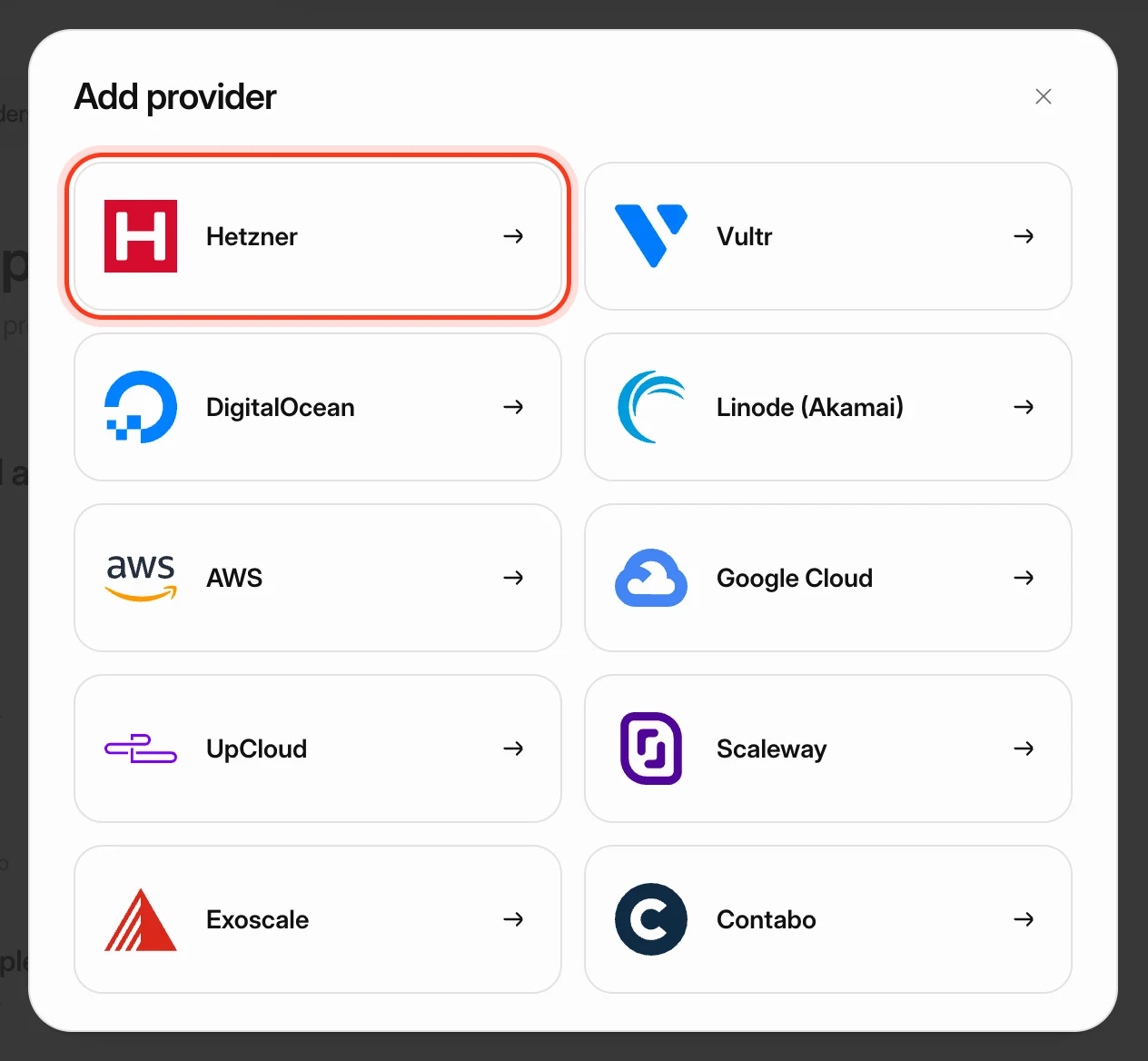 Connect your Hetzner accountCreate a Read & Write API token in the Hetzner Console, connect it to Nuvlo, and create your first Hetzner server.
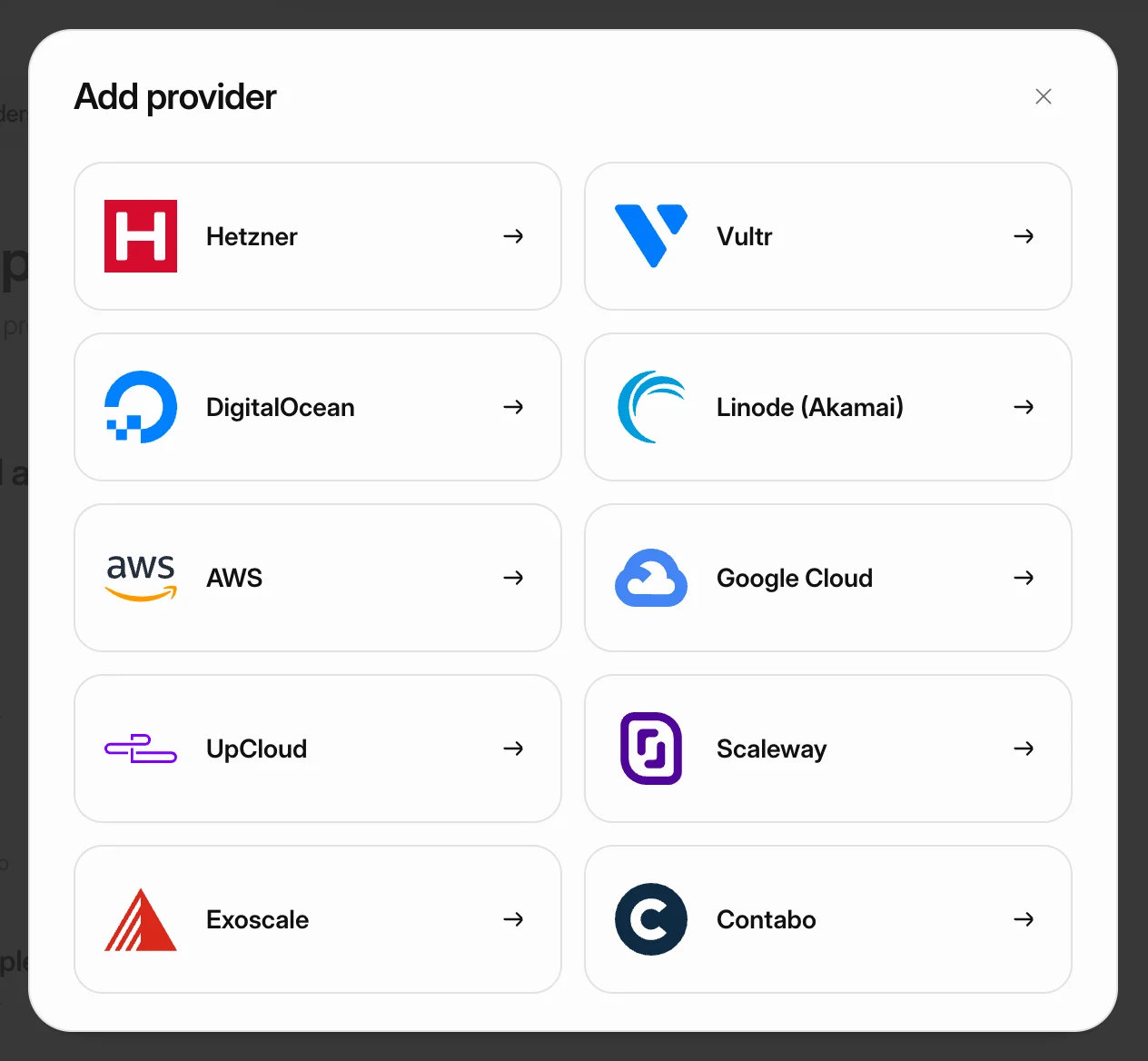 Connect your Contabo accountConnect Contabo with its four API credentials, choose a contract term, and order your first Cloud VPS or Cloud VDS from Nuvlo.