



Keep data between releases
Make sure uploads, SQLite databases and other files your Node.js app writes survive every deploy and rollback, by keeping their folders in shared storage.
On this page
Before you start
- A Node.js app that deploys with atomic releases (the default for new apps).
- Permission to manage sites in your Nuvlo account.
Why this matters
Every deploy builds a fresh release from your repository. Files the running app wrote into its own folder, such as user uploads or an SQLite file, would be left behind in the old release.
A persistent path is a folder that lives in shared storage instead. Every release uses the same copy, so its content survives deploys and rollbacks.
PHP sites don't need this for the usual cases: their .env and, for Laravel, the storage folder are kept between releases automatically.
Step 1 Open the persistent storage settings
Open the app from Sites, go to Settings, General, and scroll to Persistent storage at the bottom of the Build and deployment card.
Step 2 Add the folders
Click Add path and enter the folder relative to the app's root directory, for example data or public/uploads. The root directory is shown in front of the field for monorepos.
- Up to 20 paths per app.
- Paths can't be inside each other:
dataanddata/blogcan't both be listed. - Use letters, numbers, dots, dashes and underscores. Paths can't start with
/or contain...
To stop keeping a folder, click the bin next to it. That applies when you save.
Step 3 Save and redeploy
Click Save build settings, then Redeploy to apply. The next deploy moves the folders into shared storage and links them into every release from then on.
When Nuvlo finds unknown folders
Before each deploy, Nuvlo compares the running release with the code it was built from. If the app wrote files into a folder that isn't a persistent path, the deploy pauses before anything changes and gets the status Action required. The current release stays live.
Persistent storage then lists each folder with its number of files and size. For each one, decide:
- Make persistent keeps all listed folders in shared storage, starting with the next deploy. Choose this for uploads, databases and content.
- Ignore treats a folder as disposable; it may be replaced on each deploy. Choose this only for cache, log or temporary folders.
Once every folder is classified, redeploy. Ignored folders are listed under Ignored, may be replaced during deployments; click the cross next to one to have Nuvlo check it again on the next deploy.
ImportantAn ignored folder's data can be lost with the next deploy. If unsure, choose Make persistent.
Related guides
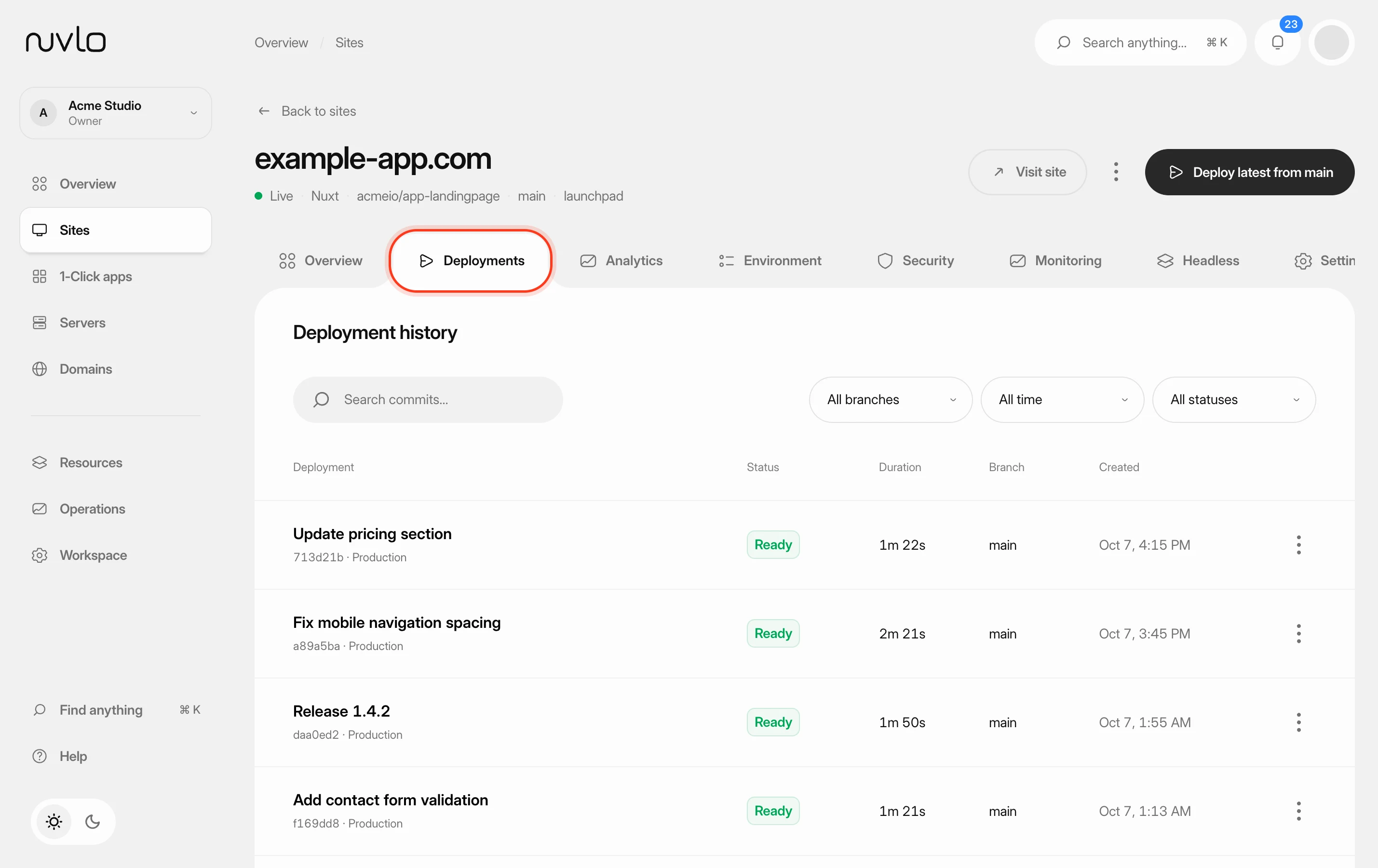 Roll back to an earlier releasePut a previous version of a Node.js app, static site or PHP site back online in seconds, without rebuilding it, and choose how many releases Nuvlo keeps.
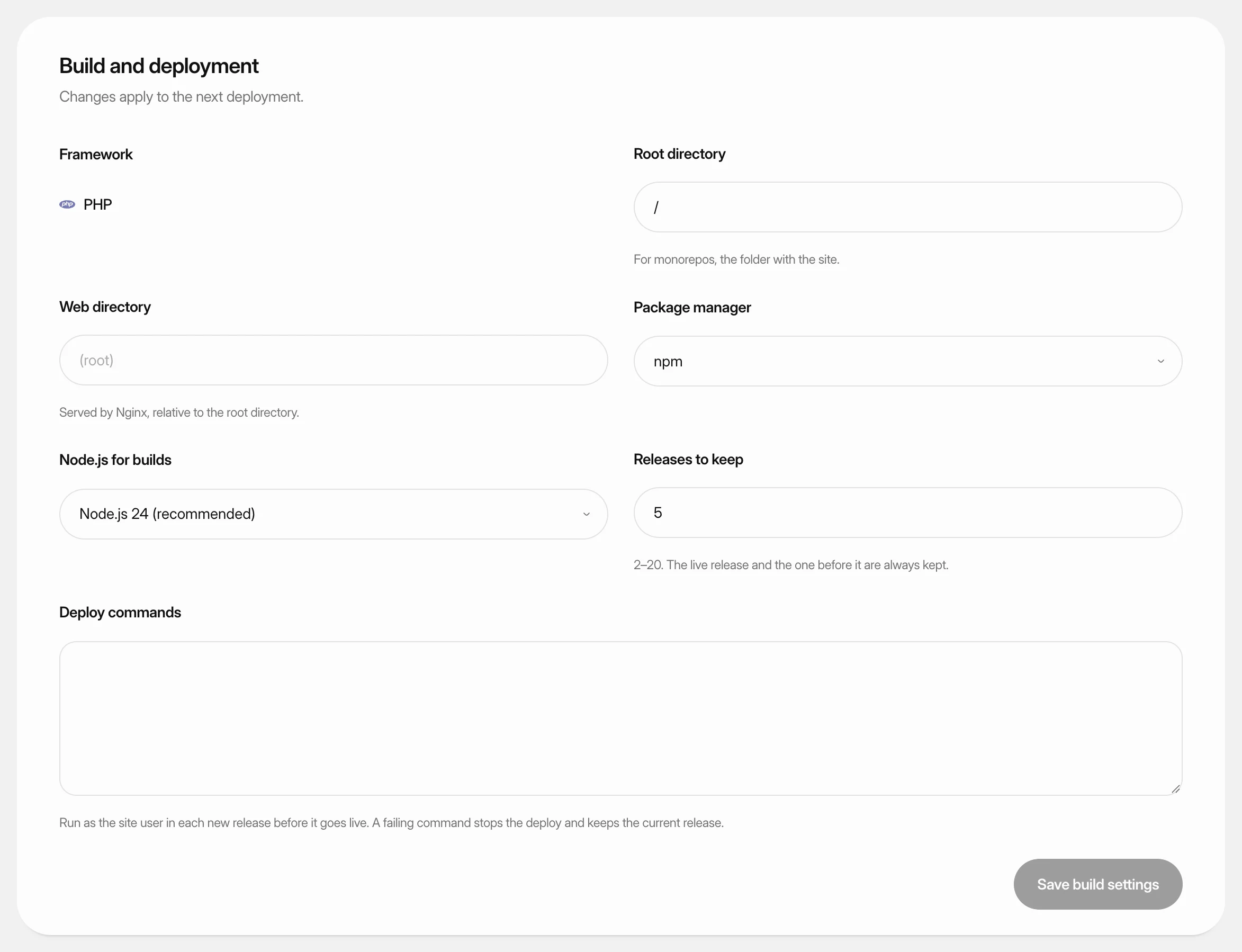 Change build settingsAdjust how Nuvlo builds and releases a static site, PHP site or Node.js app: folders, build command, package manager, Node.js version and how many releases to keep.
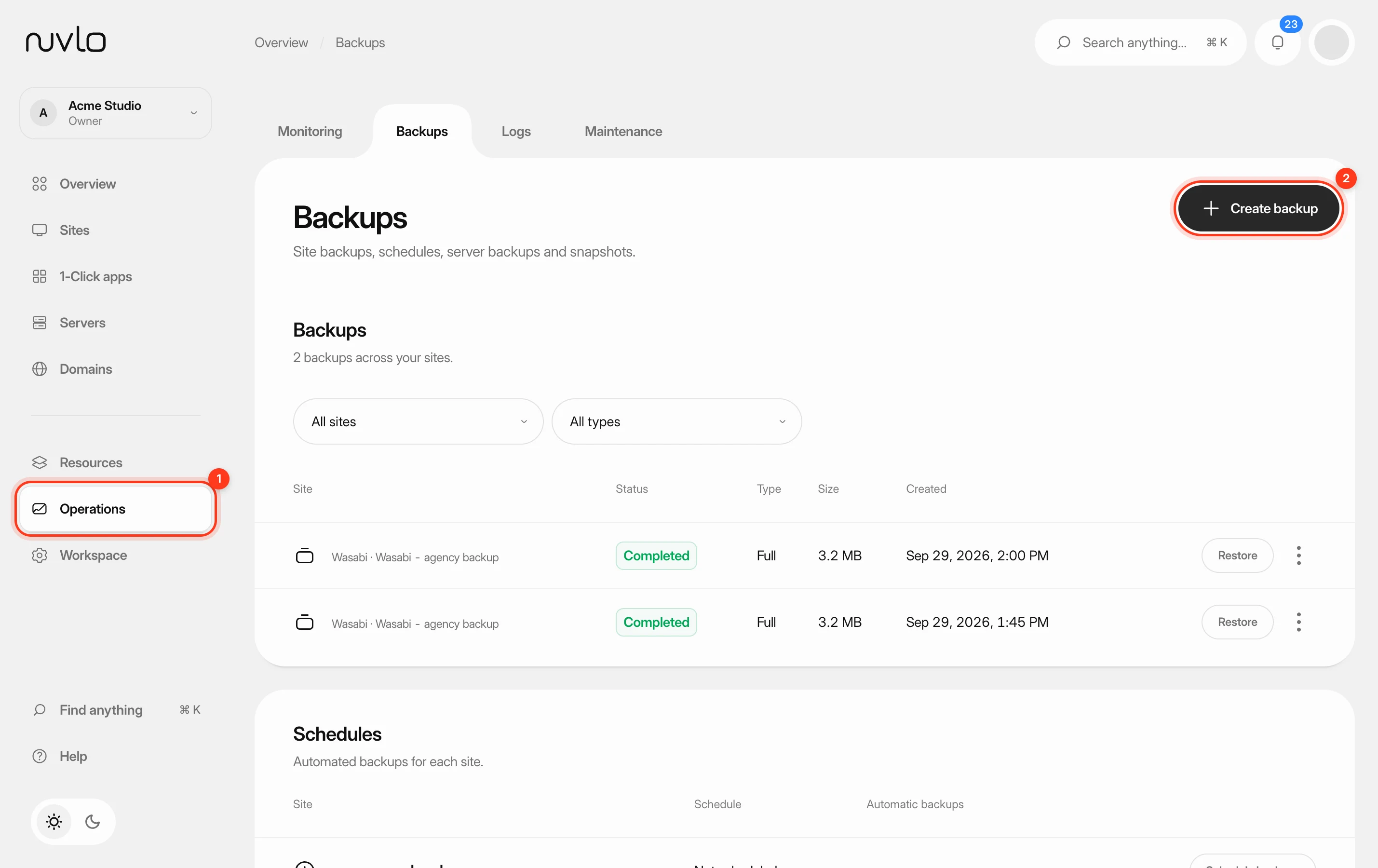 Back up a siteMake a backup of a site’s database, files or both whenever you need one, stored in your own backup storage.