



Get invoices and update payment details
Download the invoices Nuvlo sends you, pay an open one, and change the card, billing address or VAT ID they are issued to.
On this page
Before you start
- The Owner or Admin role on the account. Other members see Only the account owner or an admin can see invoices.
- At least one payment to Nuvlo. Before that, the cards read No invoices yet and No payment details yet.
Step 1 Open your invoices
Open Billing in the sidebar and choose Invoices in the menu on the left. The list shows the date, what it was for, the amount and a status for each invoice.
Click PDF to download an invoice.
| Status | Meaning |
|---|---|
| Paid | Paid in full. |
| Unpaid | The payment did not go through. Use Pay invoice to pay it. |
| Refunded or Partly refunded | Money was returned. A partial refund shows the refunded amount under the total. |
| Credit | A credit note. |
| Cancelled | The invoice was voided and is not owed. |
This list covers only what Nuvlo charged you. Your cloud providers send their own invoices for your servers.
Step 2 Pay an unpaid invoice
If an invoice shows Unpaid, click Pay invoice. A secure Stripe payment page opens in a new tab, where you can pay it.
Step 3 Check your payment details
Choose Payment details in the menu on the left. The card shows the Payment method Nuvlo charges, who it is Billed to, the Billing address and your VAT ID, if you added one.
Step 4 Change your card, address or VAT ID
Click Edit payment details. A secure Stripe page opens where you can change the card, the name and email on invoices, the billing address and the VAT ID, and see past invoices.
When you are done, use the link back to Nuvlo on that page. Card details are entered on Stripe's form; Nuvlo never sees or stores your full card number.
VAT and business purchases
All prices include VAT. The VAT inside the price depends on the country in your billing address.
When you buy for a company, check I'm buying for a business in the checkout, enter the Business name and VAT ID, and click Add VAT ID. The button changes to VAT ID added once the ID is accepted. You can only pay after that.
VAT IDs are supported for EU countries, the United Kingdom, Switzerland, Norway, Liechtenstein, Iceland, Australia and New Zealand. For other countries, the checkbox is not available.
ImportantA monthly plan bought as a business can't be refunded. See the refund policy.
Related guides
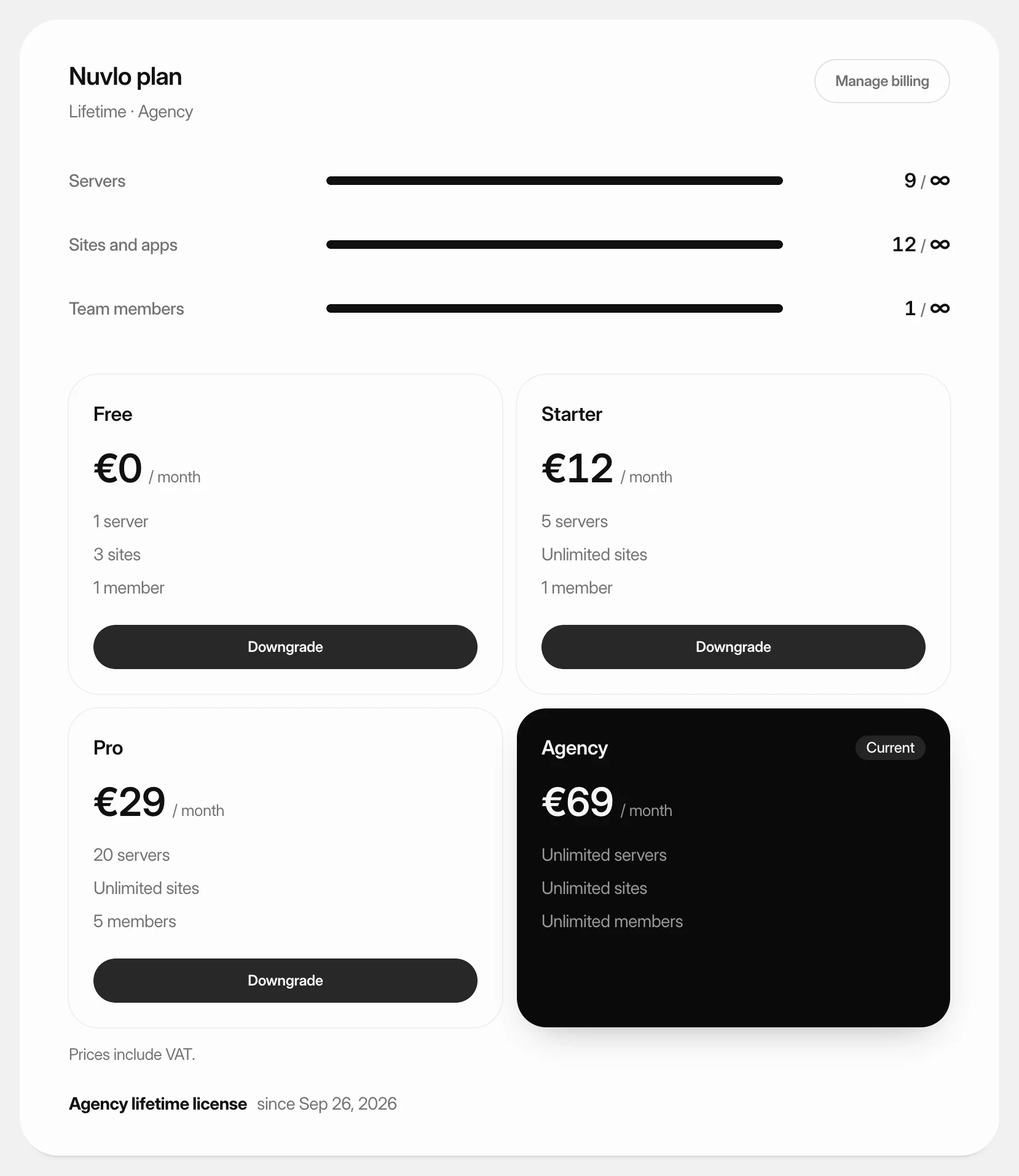 Choose or change your planPick the Nuvlo plan that fits how many servers, sites and team members you run, subscribe to it, and move up or down later.
- Cancel your plan or withdraw from a purchaseStop your monthly plan at the end of the period, or withdraw from a recent purchase and get your money back where the refund policy allows it.
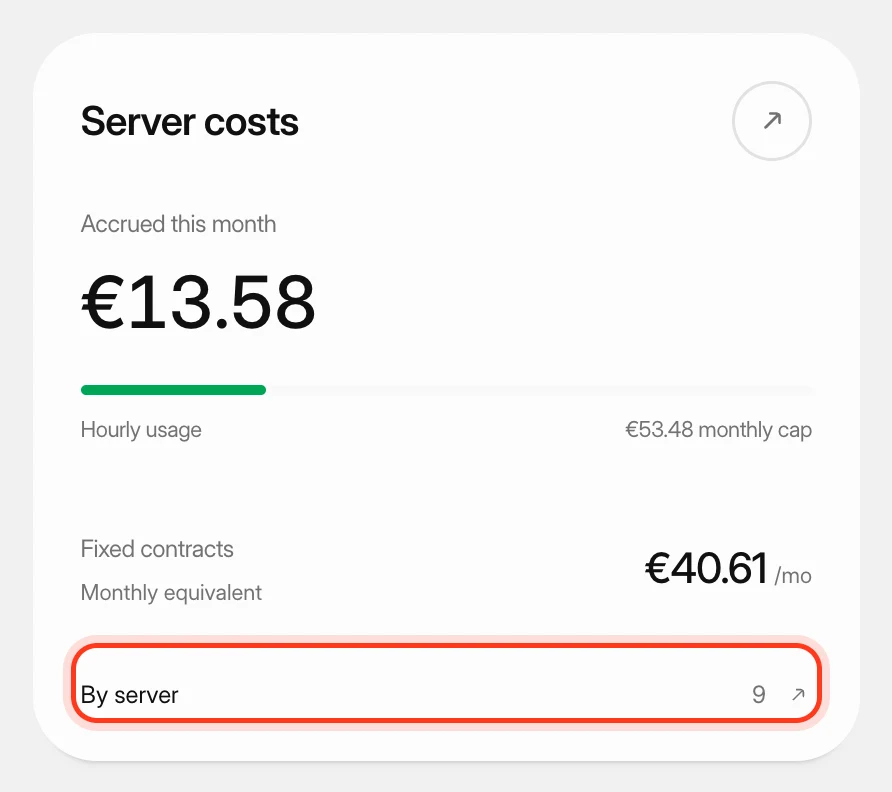 Track what your servers costSee what your servers cost at your cloud providers this month and in past months, apart from what you pay Nuvlo.