



Read deployment and runtime logs
Find out why a deploy failed or what your app is doing right now, using the build logs of each deployment and the live runtime logs of a site.
On this page
Before you start
- A site deployed from Git or an upload, or a 1-Click app. WordPress sites log differently, see the last section.
Step 1 Open Logs
In the sidebar, select Operations and then Logs. The page lists the sites that have logs. Click Deployments for a site's deployment history or Runtime logs for what it is doing now.
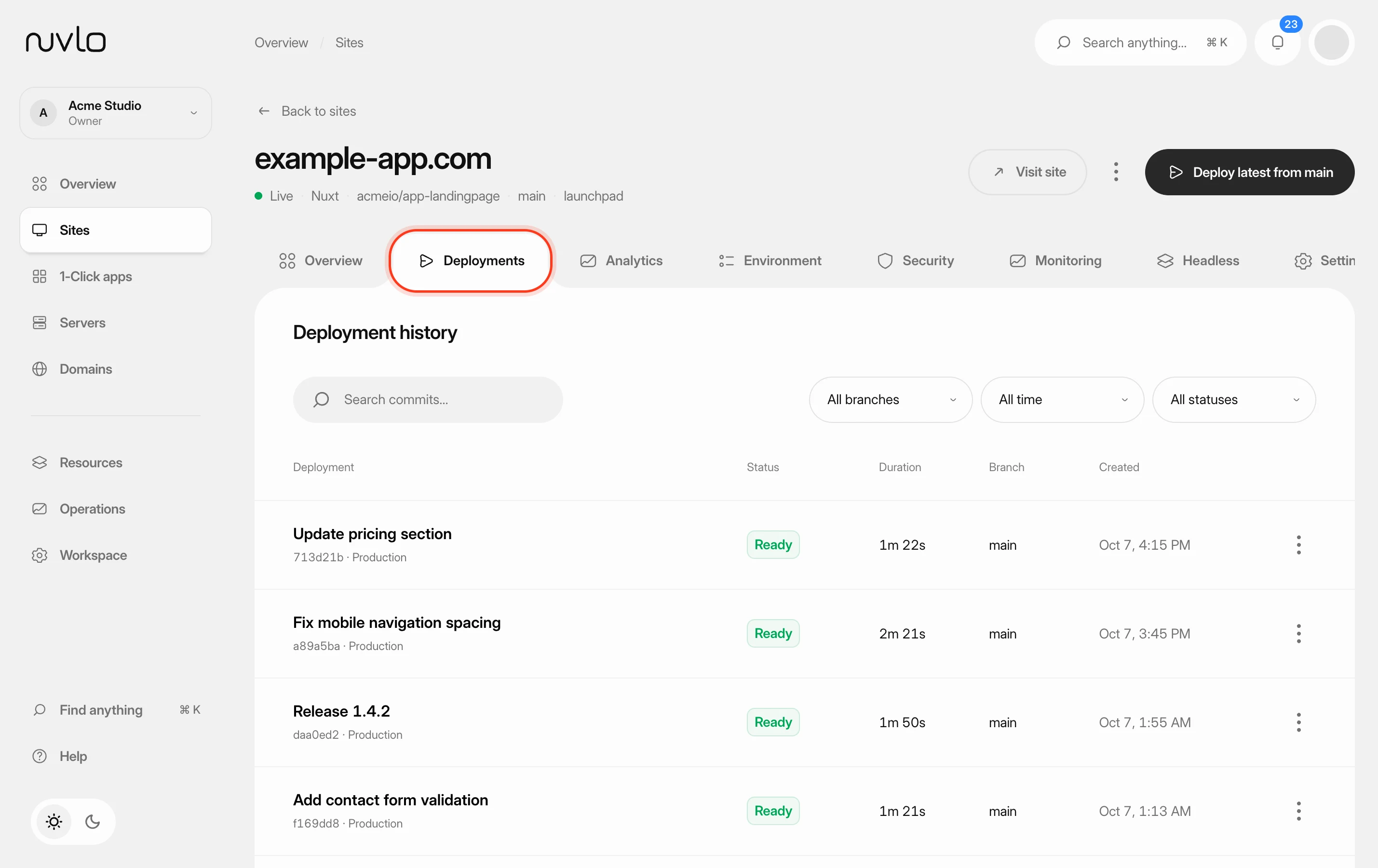
You can also open a site and select the Deployments or Monitoring tab.
Step 2 Find the deployment
The Deployment history lists every deploy with its commit, branch and date. Use Search commits…, the branch filter or the date filter to find the one you need.
Open the actions menu of a deployment and choose View build logs.
Step 3 Read the build log
If the build printed errors or warnings, a Problems section sits above the log with their count. Click a problem to jump to its line in the log.
The Build logs section holds the full output. You can search in it, download it or copy it, for example to share it with a teammate. Use the copy button in Problems to copy only the errors and warnings.
Step 4 Follow the runtime logs
Open the site's Monitoring tab and select Logs. The lines refresh every 5 seconds while the button says Live. Click it to pause.
- Type in Search runtime logs… to find a message.
- Filter by level: All levels, error, warn, info or debug.
- Show the Last 100 lines, Last 250 lines or Last 500 lines.
For a Node app, the logs are its own output, and a badge shows whether the process is online. For PHP and static sites, each line starts with its source, such as the web server's error log, the PHP error log, the Laravel log or the log of a queue worker or cron job.
Logs of 1-Click apps
Open the app and select the Logs tab. Filter by level and by source (Standard output or Standard error), and click Refresh to load new lines.
Logs of WordPress sites
WordPress sites don't appear on the Logs page. To record PHP errors, open the site's Settings tab and turn on Debug log in the PHP card. Switching it restarts the site's PHP for a moment.
Errors are then written to wp-content/debug.log, which visitors can't see. Open it in the file manager, and turn Debug log off again when you're done.
Related guides
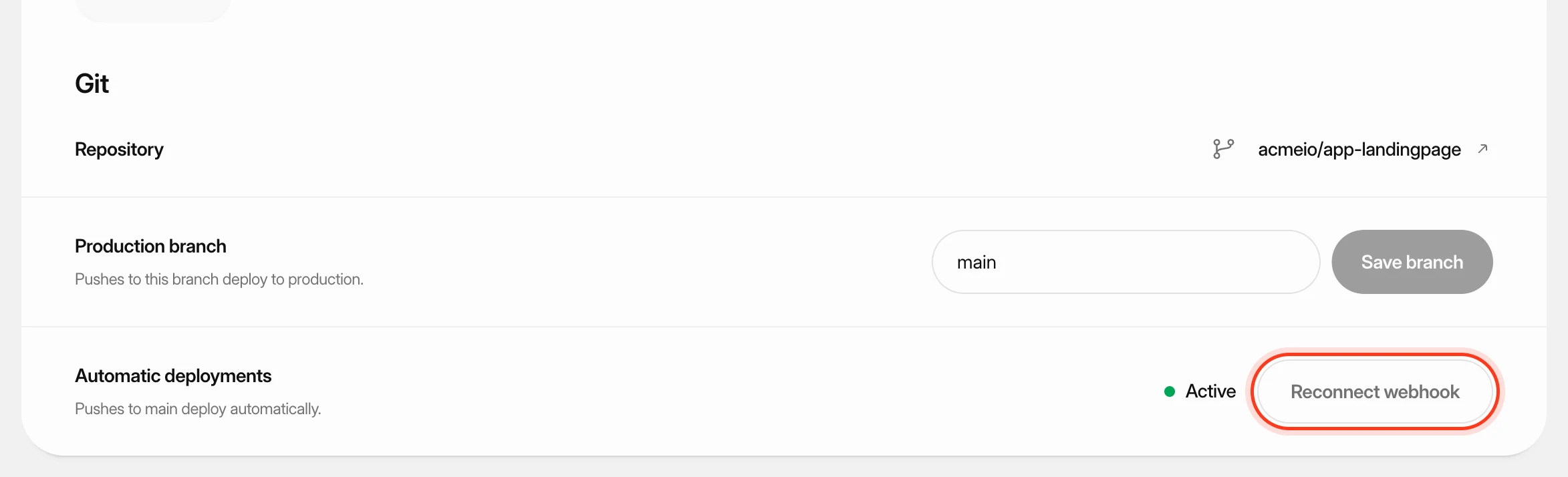 Deploy from GitKeep a site up to date with its GitHub repository: deploy automatically on every push, start a deploy yourself or from another tool, and read the build log when something goes wrong.
 Roll back to an earlier releasePut a previous version of a Node.js app, static site or PHP site back online in seconds, without rebuilding it, and choose how many releases Nuvlo keeps.
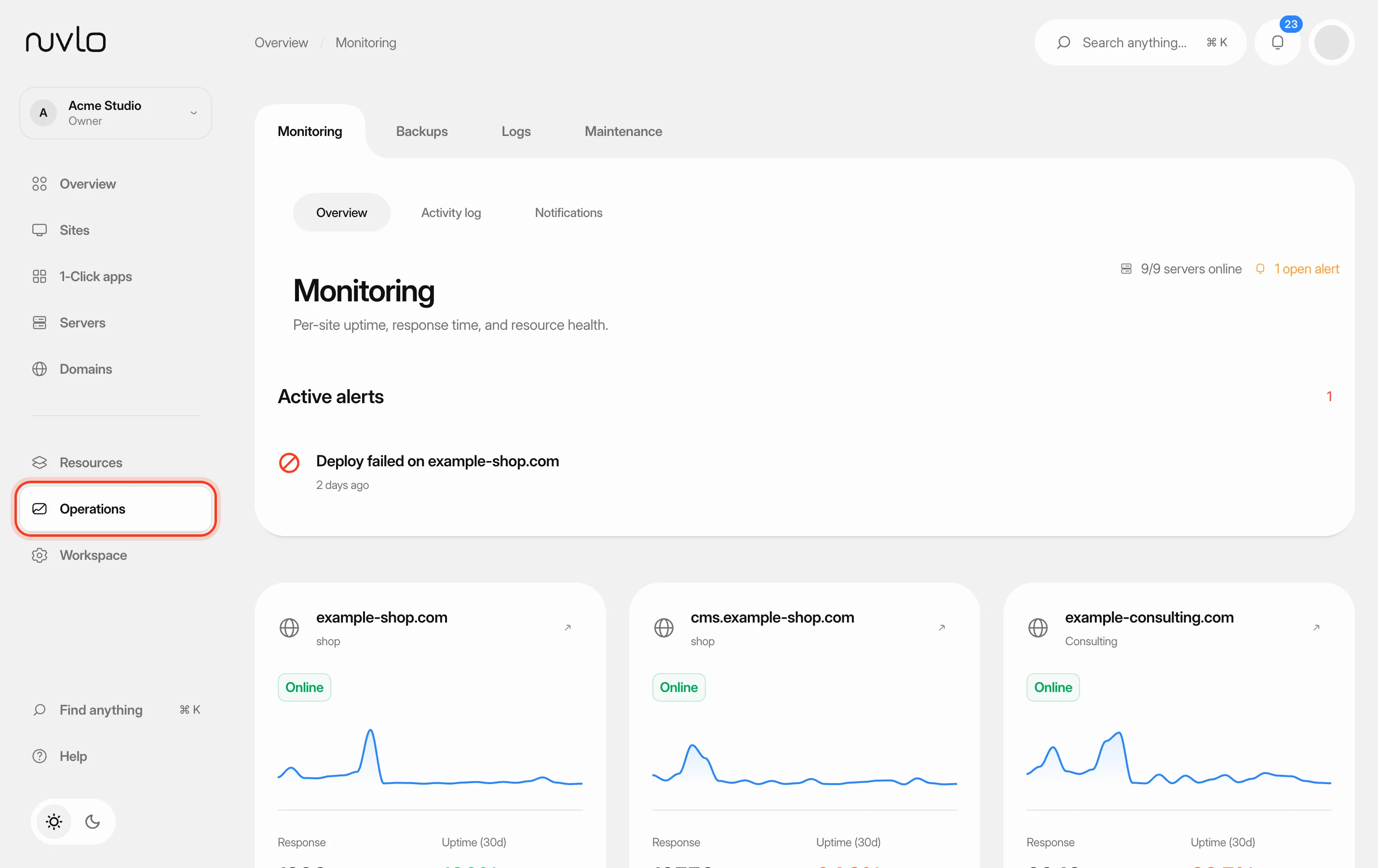 Monitor your sites and serversUse the Monitoring page to see which sites are up, how fast they answer and which problems need your attention, then drill into a single site or server.
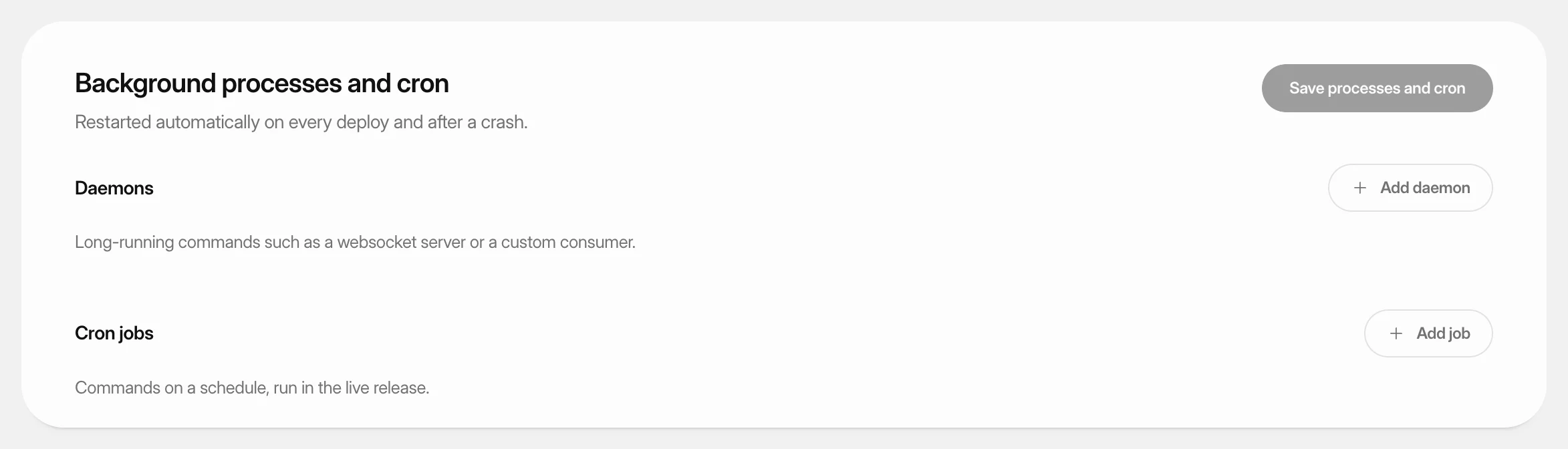 Run background processes and cron jobsKeep Laravel queue workers and other long-running commands running for a PHP site, and run commands on a schedule.