



Set up firewall rules
Turn on the firewall of a server and decide which ports accept connections, and from which IP addresses. You can allow or block a port for everyone or for a single address or range.
On this page
Before you start
- A running server in Nuvlo. The firewall can only be read and changed while the server is running. See Create a server.
- A role that can manage servers. See Roles and permissions.
How the firewall works
Each server has its own firewall. It controls inbound connections: traffic that reaches the server from the internet. Outgoing traffic from the server is not limited.
When the firewall is on, every incoming connection is refused unless a rule allows it. Nuvlo always keeps ports 22 (SSH), 80 (HTTP) and 443 (HTTPS) open, so it can manage the server and your sites stay reachable.
There are no separate allow lists or block lists. To let one IP address in, or to keep one out, you add a rule for that address on the port it uses.
Step 1 Open the server's firewall
In the sidebar, select Resources and then Firewall rules. The page lists your servers. Click Open next to the server you want to protect.
You land on the server's Firewall tab. You can also get there from any server page by selecting the Firewall tab.
Step 2 Turn on the firewall
The Firewall card shows the current state. If it says The firewall is off, so every port on this server is open., click Turn on firewall.
Read the confirmation and click Turn on firewall again. From now on, only ports 22, 80 and 443 and the ports your rules allow accept connections.
ImportantTurning on the firewall closes every other port right away. Add allow rules first for ports people still need, such as a database you reach from your office.
If the card already says Firewall is active. Inbound connections are denied unless a rule allows them., the firewall is on and you can go to the next step.
Step 3 Add a rule
In the Inbound rules card, click Add rule. The New inbound rule dialog opens.
- Port: a single port number between 1 and 65535, for example
8080. Each rule covers one port. - Protocol: TCP, UDP or TCP/UDP. Most web and database traffic uses TCP.
- From IP address: leave it empty to apply the rule to connections from anywhere. Enter one address, such as
203.0.113.10, or a range in CIDR notation, such as203.0.113.0/24. IPv6 addresses work too. - Action: Allow lets matching connections in. Deny blocks them.
Click Review rule.
Step 4 Confirm the change
Nuvlo shows what the rule will do, for example Allow inbound traffic on port 8080?, and which addresses it applies to. Click the confirm button, such as Allow port 8080, to apply it to the live server.
The rule appears in the Inbound rules table with its Port, Protocol, From and Action. Deny rules are placed ahead of allow rules, so blocking an address works even when the port is open to everyone.
A Deny rule for port 22 is refused, because Nuvlo needs that port to manage the server.
Step 5 Remove a rule
Open the actions menu at the end of the rule's row and choose Remove rule. Confirm with Remove rule for port followed by the port number.
ImportantRemoving the allow rule for port 22 can lock Nuvlo out of the server, which stops deploys, backups and repairs. Removing it for port 80 or 443 can make the server's sites unreachable.
Good to know
- Rules you add while the firewall is off are saved on the server but only take effect once you turn the firewall on.
- If someone changed the firewall since you opened the page, Nuvlo doesn't remove anything. It reloads the rules so you can check them and try again.
- Click Re-check firewall to read the current rules from the server again.
- The server's Overview tab shows whether the firewall is On or Off.
- Your cloud provider may have its own firewall in its console. If a port stays closed after you allow it here, check the provider's firewall too.
Related guides
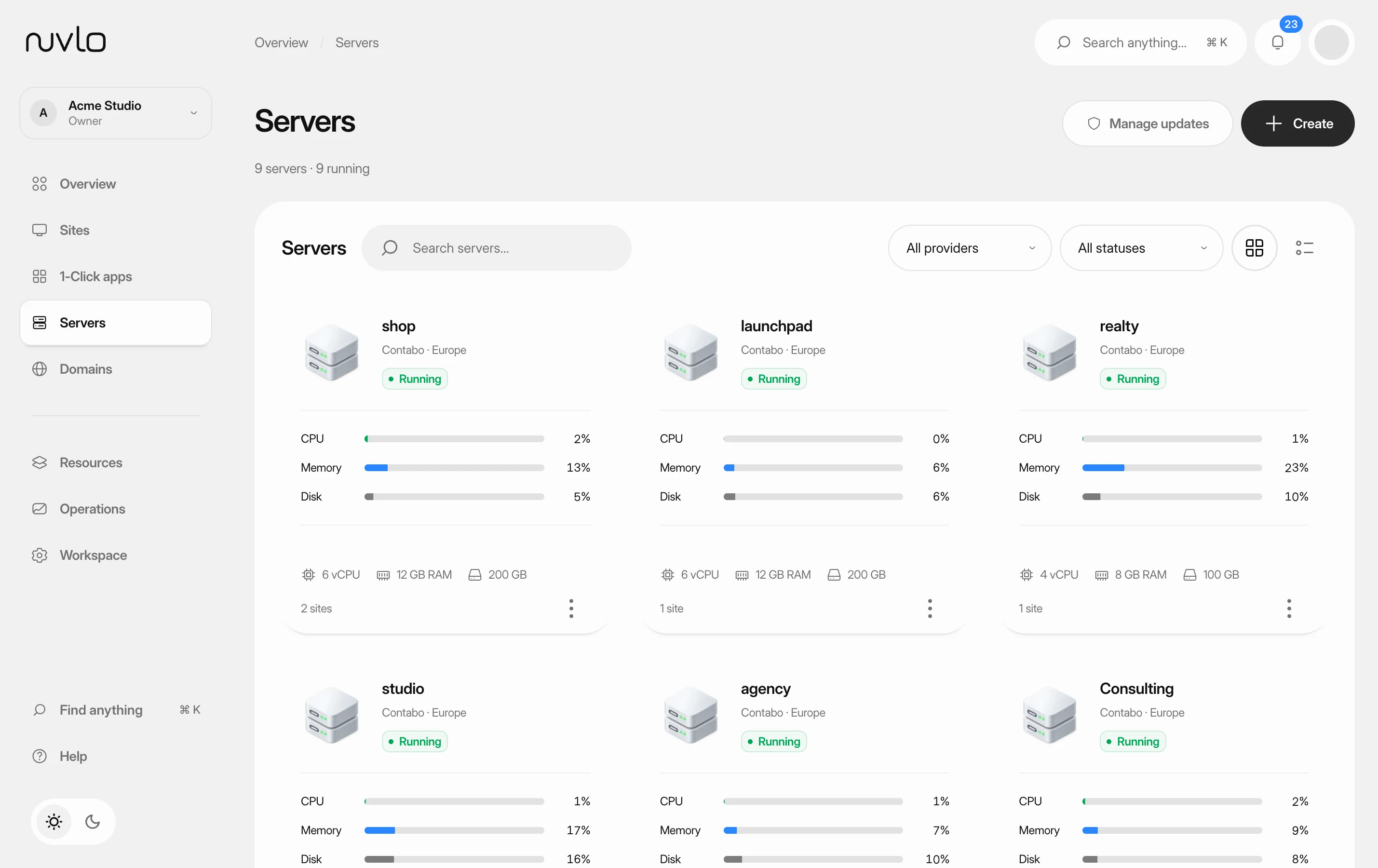 Read your server pageFind a server, check whether it's healthy, and know where each setting lives on its page.
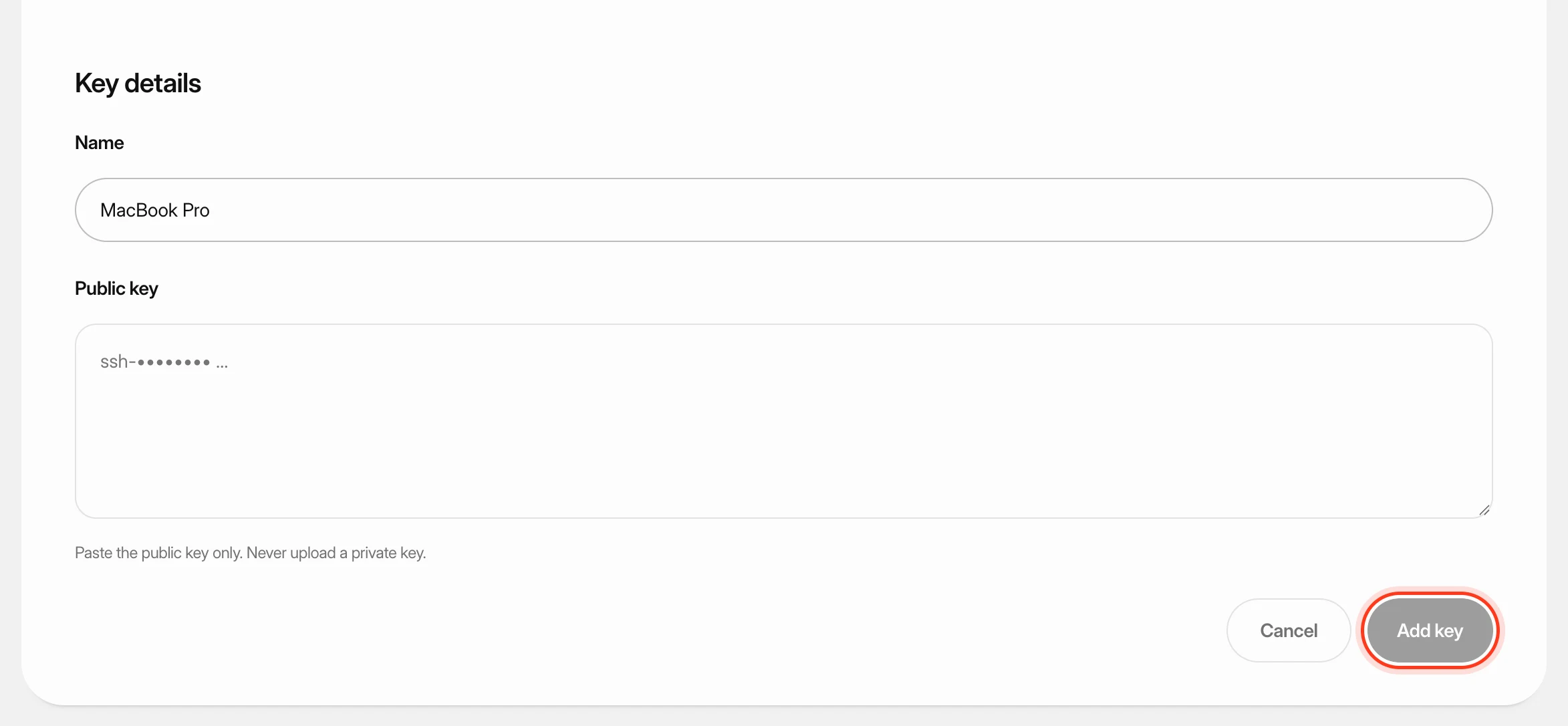 Add SSH keys to your serversSave your public SSH keys in Nuvlo and pick them when you create a server, so you can sign in to that server from your own computer. You'll also learn what happens when you delete a key.
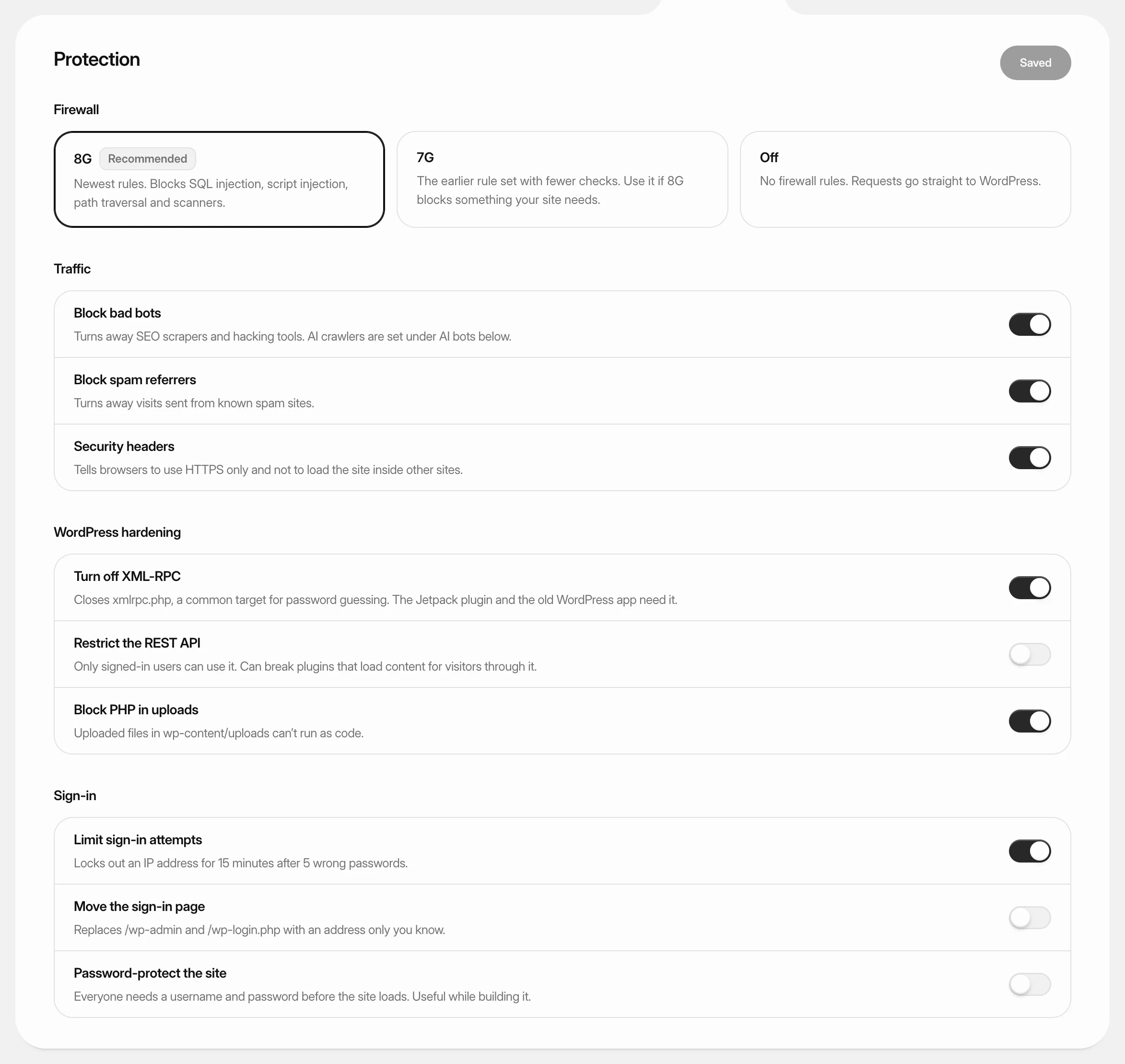 Protect a WordPress siteTurn on a firewall, block bad bots, harden WordPress and protect the sign-in page from a WordPress site’s Security tab.
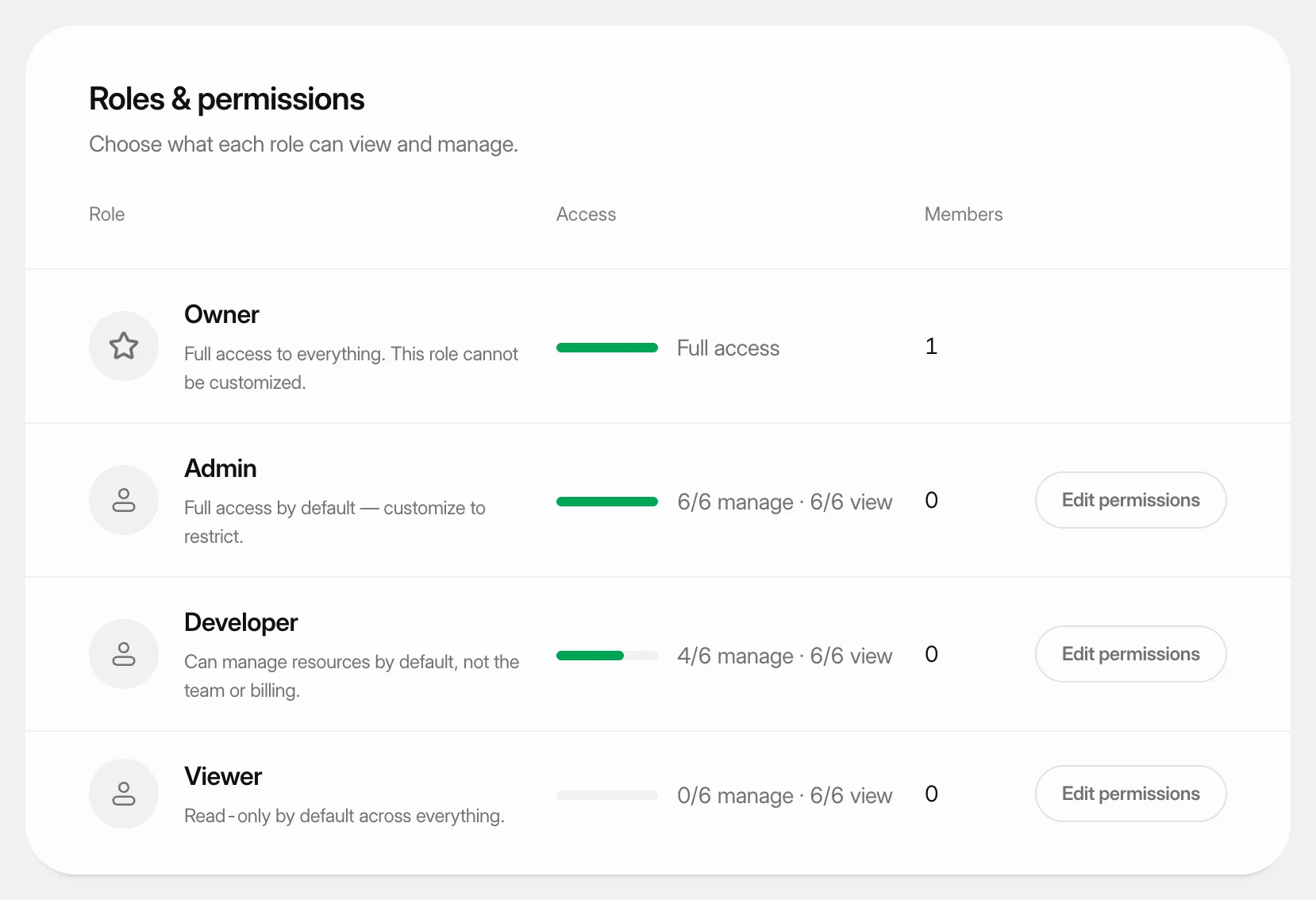 Set what each role can doUnderstand the four team roles and change what the Admin, Developer and Viewer roles may view and manage in your workspace.