



Remove data left by deleted plugins
Find settings, tables and content that deleted plugins and themes left in a WordPress database, remove what you choose, and put the database back if you need to.
On this page
Before you start
- A running WordPress site in Nuvlo.
- Permission to manage sites.
Step 1 Find unused data
Open the site and click the WordPress tab. Scroll to Unused plugin and theme data and click Find unused data.
Nuvlo reads the site’s code and database. Nothing is removed until you choose it. If everything is in use, the card says Nothing left behind.
Step 2 Choose what to remove
The card lists the leftovers in groups, with their size. Expand a group to see its entries. Tick whole groups or single entries.
Step 3 Remove them
Click Remove … entries, then Save a copy and remove. Nuvlo saves a copy of the whole database on the server first, then removes the selected data.
Step 4 Put the database back
If something stops working, open Earlier copies of the database (the ⋯ menu on the card) and choose Put back the copy from …. Confirm with Put the copy back.
ImportantPutting a copy back replaces the whole database: new posts, orders and comments since then are lost. The site is offline while it runs.
Nuvlo keeps the last three copies.
Good to know
Entries that come back after removal, because something still creates them, are no longer offered. The card says how many.
Related guides
 Update WordPress, plugins and themesSee which updates a WordPress site has, install them one by one or all at once, and manage plugins and themes without opening WordPress admin.
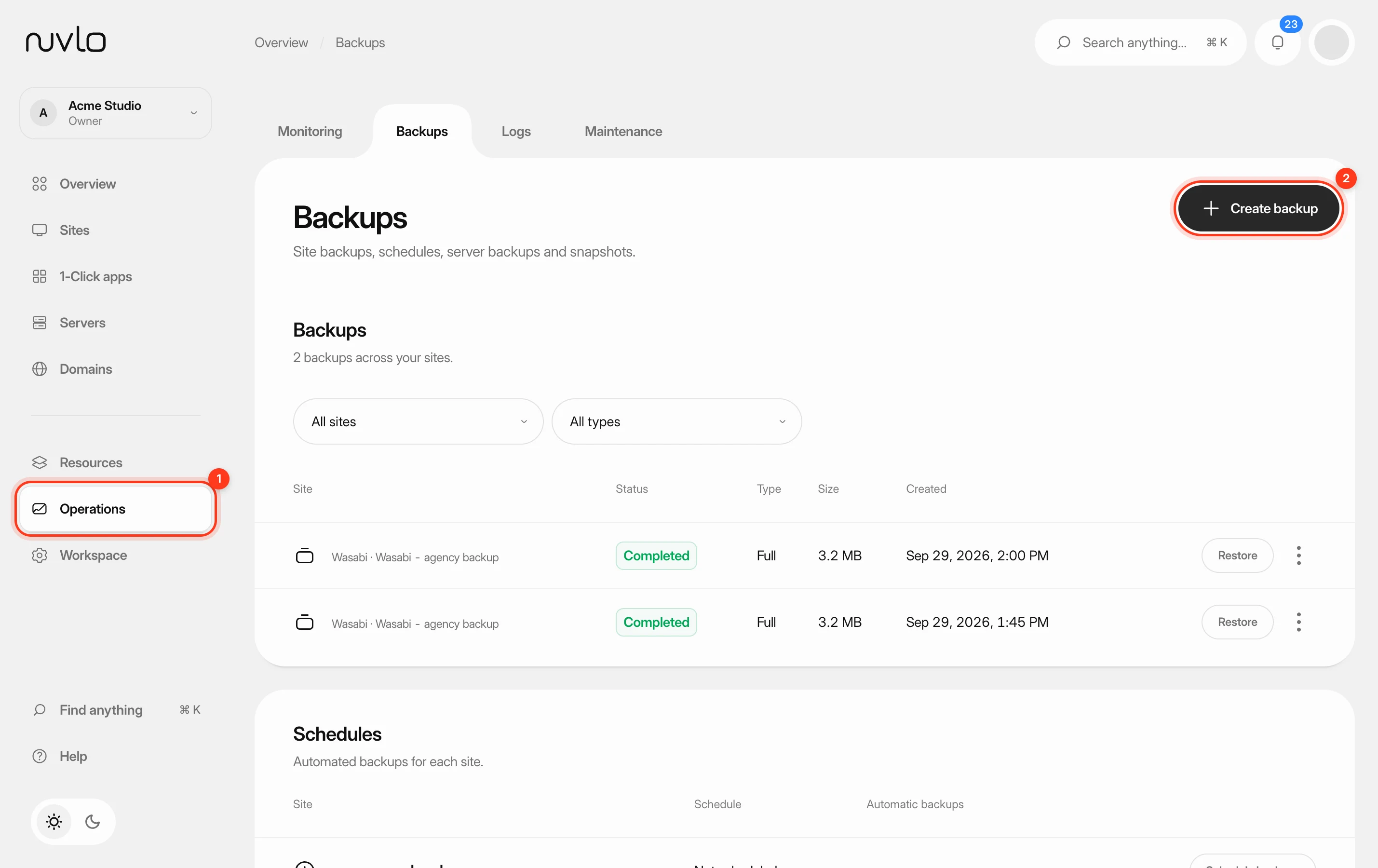 Back up a siteMake a backup of a site’s database, files or both whenever you need one, stored in your own backup storage.
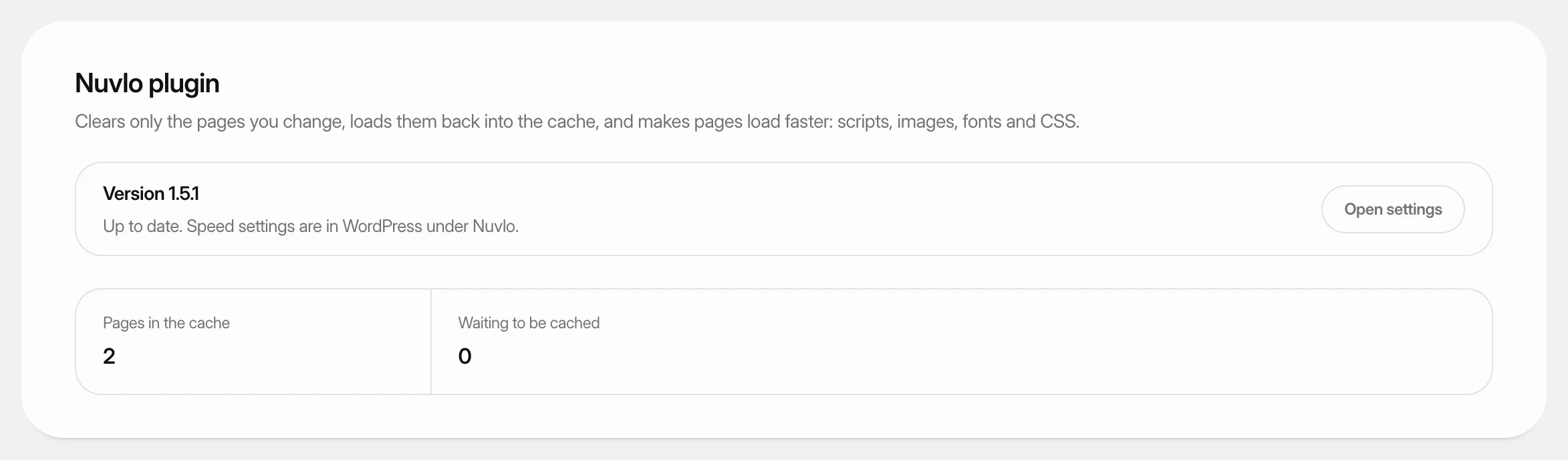 Use the Nuvlo plugins for WordPressLearn what the Nuvlo plugin and Nuvlo SEO do on your WordPress sites, how to install or update them from the dashboard, and where their settings are.