



Move a Lovable or Bolt app to your own server
Put a Vite app made with Lovable or Bolt on a server in your own cloud account, for example at Hetzner in Germany. Keep its Supabase cloud project or connect a Supabase you host yourself, and check it for leaked keys, open tables and missing backups.
On this page
Before you start
- The project synced to a GitHub repository. In Lovable and Bolt this is the GitHub connection in the project settings.
- GitHub connected in Nuvlo. See Connect GitHub, GitLab or Bitbucket.
- A server in your cloud account. Any server type works. See Create a server.
Which apps can move this way
Nuvlo builds the app once with npm run build and serves the files from Nginx, with every address loading the app. That works for apps that run entirely in the browser:
| Project | How to deploy it |
|---|---|
| Lovable project with React and Vite (projects created before May 2026) | This guide |
| Bolt project with Vite and React | This guide |
| Lovable project with TanStack Start (projects created since May 2026) | Renders pages on a server: Deploy a Node.js app |
| Bolt project with Next.js | Deploy a Node.js app |
Nuvlo reads the repository and tells you which case applies before anything is created.
Step 1 Start the import
Go to Sites, click Create and choose Site. Below the site types, click Import from Lovable or Bolt.
Step 2 Choose the repository
Pick the server, then the repository. Nuvlo reads it and shows What Nuvlo found: whether it was made with Lovable or Bolt, the build, and how the app connects to Supabase.
Read the notes below the list before you continue:
- Written into the code: older Lovable projects have the Supabase address and key in
src/integrations/supabase/client.ts. The app keeps using that project. To connect another Supabase, change the file to readglobalThis._importMeta_.env.VITE_SUPABASE_URLandglobalThis._importMeta_.env.VITE_SUPABASE_PUBLISHABLE_KEYfirst. - Edge Functions: functions in
supabase/functionsrun on Supabase, not on your server. - A secret key in the repository: rotate it in Supabase now. Anyone who can read the code can use it.
Step 3 Choose where the data lives
- Keep Supabase cloud: the app keeps using the Supabase project it uses today, including a Lovable Cloud or Bolt Cloud backend. Only the frontend moves.
- Self-hosted Supabase: the app connects to a Supabase on one of your servers. Install it first as a 1-Click app (see 1-Click apps), with HTTPS on its domain. Then pick it here.
For a self-hosted Supabase, Nuvlo sets its address and anon key as build variables, under the names the app reads. Its service role key stays on that server.
ImportantSwitching to a self-hosted Supabase does not copy tables, users or files. Run the files from supabase/migrations in its SQL editor (Supabase Studio, on its domain), move the data yourself, and deploy any Edge Functions there. Lovable's own export also leaves data and uploaded files behind.
Step 4 Choose the address
Temporary address is chosen by default: the app gets an address with HTTPS right away, without DNS. Enter a Name or leave it empty for a random one. Move it to your own domain later with Change a site's domain.
Choose Your domain to use your own domain now and point its DNS at the server.
Step 5 Check the build variables
Open Build variables to see the values the build gets. Nuvlo fills them from the .env file in the repository; Lovable usually commits VITE_SUPABASE_URL, VITE_SUPABASE_PUBLISHABLE_KEY and VITE_SUPABASE_PROJECT_ID there, Bolt usually uses VITE_SUPABASE_URL and VITE_SUPABASE_ANON_KEY.
These values end up in the JavaScript every visitor downloads. Nuvlo refuses a Supabase service role key or secret key (sb_secret_…) here, under any name.
Step 6 Deploy
Click Deploy app and follow the steps. Leave Deploy on push on so every change you make in Lovable or Bolt goes live after it reaches GitHub.
When it is live, click Open to try it: sign up, sign in and load a page that reads data.
After the move
The launch check runs after the deploy. For these apps it looks at:
- A Supabase service role key or secret key in the site's JavaScript.
- Tables anyone can read with the public key the site ships, on Supabase cloud and on a self-hosted Supabase in your account. Nuvlo only reads; it never writes.
- No backups for a self-hosted Supabase the site uses, or for the site's own database.
For a self-hosted Supabase, turn on a daily schedule on its site in Nuvlo, see Backup schedules. Backups of a Supabase cloud project are managed in Supabase; Nuvlo cannot see them.
Related guides
 Run a launch checkFind leaked keys, databases anyone can read and files that shouldn't be public on a static site, PHP site or Node.js app, and fix them from the dashboard.
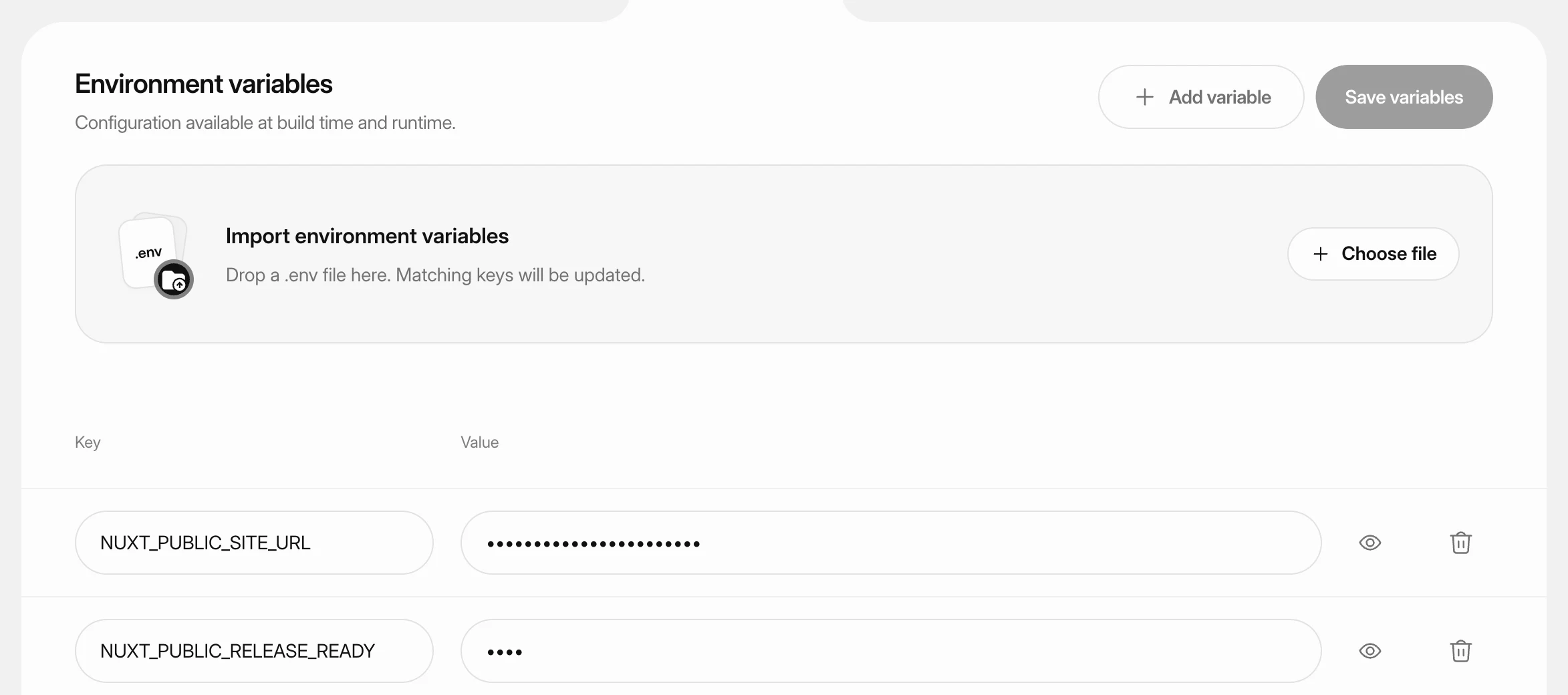 Set environment variablesStore API keys, database settings and other configuration for a static site, PHP site or Node.js app, and apply them with the next deploy.
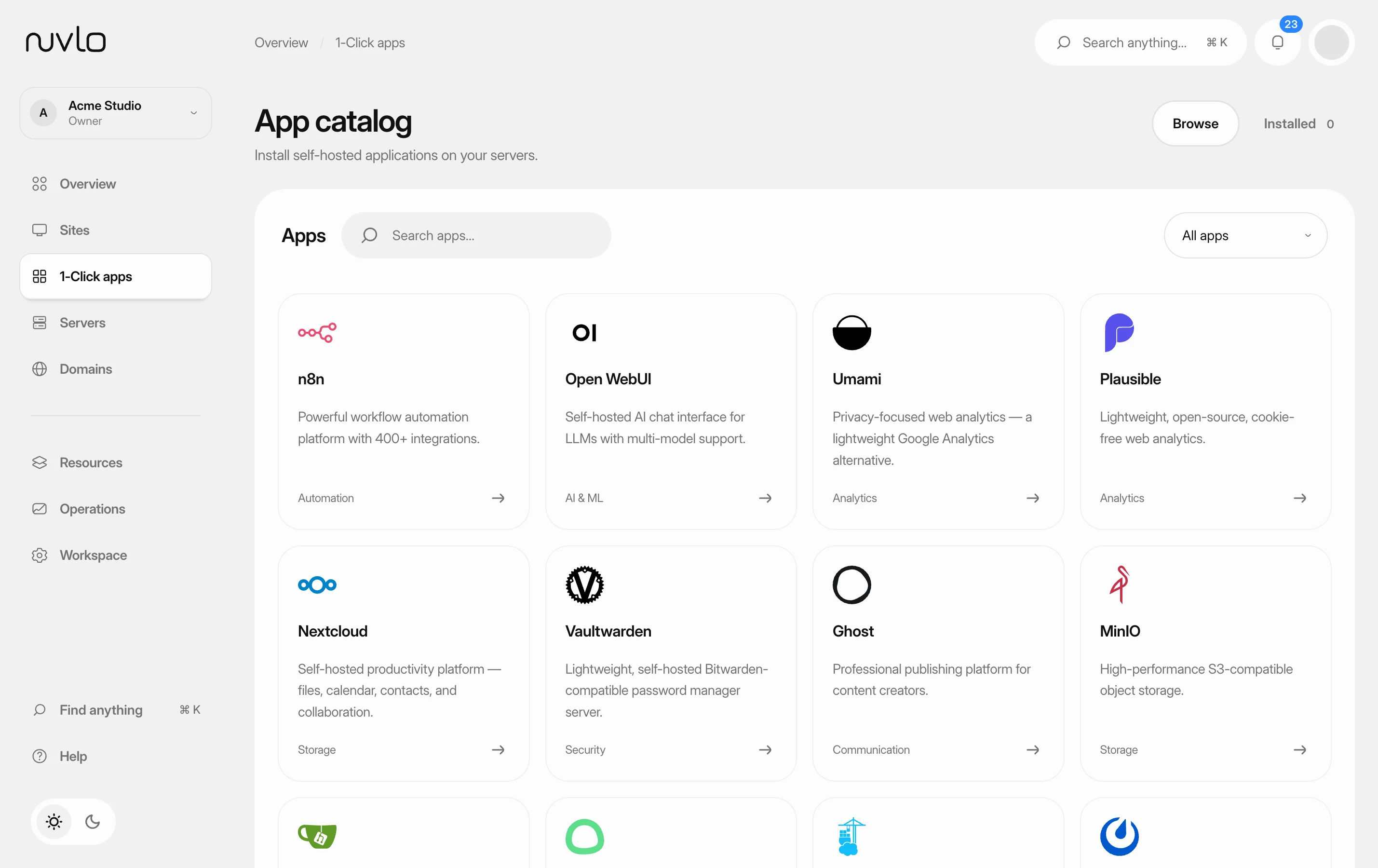 Install a 1-Click appInstall a self-hosted app such as n8n, Ghost, Nextcloud, Uptime Kuma or Supabase on one of your servers, or on a new one, with its own address and HTTPS.
 Change a site's domainMove a WordPress site or an application to a different domain, or from its temporary address to your own domain, without creating a new site.