



Schedule automatic backups
Back a site up automatically every hour, day, week or month, and keep only as many backups as you need.
On this page
- Step 1: Open Schedules
- Step 2: Open the schedule for a site
- Step 3: Choose the storage
- Step 4: Set what, how often and how many
- Step 5: Save the schedule
- How often backups run
- Schedule a WordPress site from its page
- Leave folders out of WordPress backups
- How old backups are removed
- Pause or remove a schedule
- Good to know
Before you start
- Backup storage connected to Nuvlo. See Connect backup storage.
- A role that can manage sites. By default that is Owner, Admin and Developer.
Step 1 Open Schedules
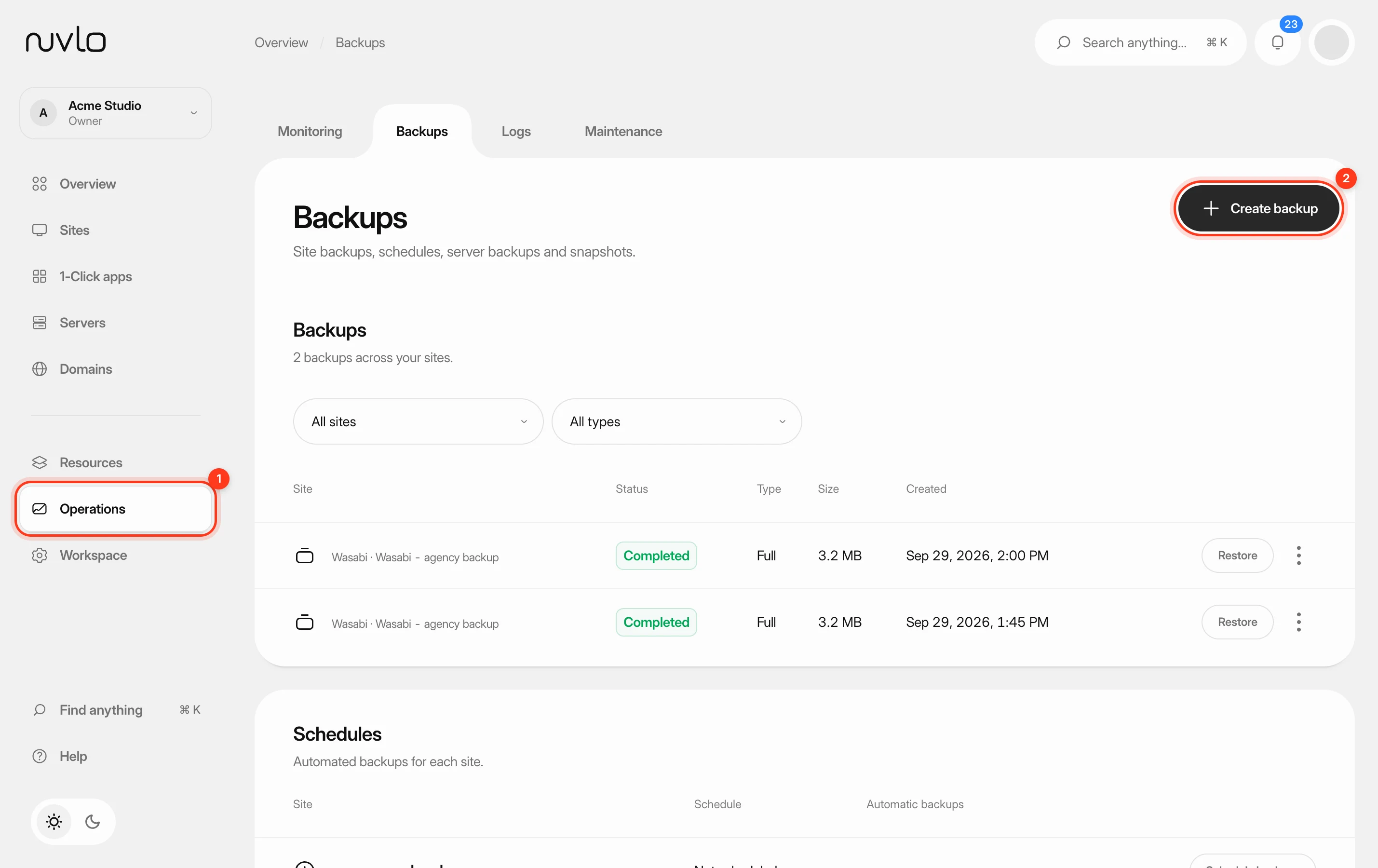
In the sidebar, select Operations and then Backups, and scroll to the Schedules card on the Backups page. It has one row per site.
Each row shows the site’s schedule and the next run, or Not scheduled.
Step 2 Open the schedule for a site
Click Schedule backups on the site’s row, or Edit schedule if it already has one. The button stays disabled until you have connected backup storage.
Step 3 Choose the storage
Pick the Storage provider. Bucket name is filled in with that account’s default bucket; change it if you want this site’s backups somewhere else.
Step 4 Set what, how often and how many
- Backup type: Full, Database only or Files only. Sites without a database only offer Files only.
- Frequency: how often a backup is made. See the table below.
- Hour: the hour of the day, from 0 to 23, in the timezone shown in the label. New schedules use your browser’s timezone.
- Backups to keep: from 1 to 365. The default is 14.
Step 5 Save the schedule
Click Save schedule. The row now shows the schedule, how many backups are kept, and Next: with the date and time of the first run.
Automatic backups appear in the backup list like any other, marked Automatic on a WordPress site’s Backups tab.
How often backups run
| Frequency | When it runs |
|---|---|
| Every hour | Once an hour. No time to choose. |
| Every 6 hours | Four times a day, 6 hours apart. Pick 02:00 and it runs at 02:00, 08:00, 14:00 and 20:00. |
| Every 12 hours | Twice a day, 12 hours apart. |
| Every day | Once a day at the hour you pick. |
| Every week | Once a week on the day you pick, at the hour you pick. |
| Every month | Once a month on a day from the 1st to the 28th, so every month has that day. |
A backup starts within the hour you pick. Nuvlo spreads sites across the hour so they don’t all start at once.
The Schedules card has no day picker: weekly schedules made there run on Mondays and monthly ones on the 1st. For a WordPress site, choose the day on the site’s own Backups tab, described below.
Schedule a WordPress site from its page
Open the WordPress site, go to Backups and click Schedule and settings. The Backup schedule for dialog has everything from the Schedules card, plus:
- Back up automatically: switch automatic backups on or off without losing the settings.
- Day for weekly backups and Day of the month for monthly ones.
- Timezone: the timezone the Time is in. For 6- and 12-hour schedules the field is called First backup of the day.
- Advanced: leave folders out of file backups: see the next section.
Click Save schedule. The card’s subtitle then shows the schedule and the next run, or Automatic backups are off.
Leave folders out of WordPress backups
Caches and the archives of other backup plugins can make every backup much larger. Under Advanced: leave folders out of file backups, list them in Folders and files to leave out, one per line:
wp-content/cache
wp-content/ai1wm-backups- Each path must be inside
wp-content. Wildcards are not allowed. - You can leave out up to 30 paths.
- The list applies to manual backups too, not only automatic ones.
- When you restore such a backup, the left-out folders stay as they are on the site.
How old backups are removed
After each automatic backup finishes, Nuvlo deletes the oldest automatic backups of that site beyond Backups to keep, from your bucket and from the list.
Only automatic backups in the schedule’s own storage account and bucket count. Backups you made by hand, and backups stored somewhere else, are never removed by a schedule.
Pause or remove a schedule
To pause, turn off the switch in the Automatic backups column. The schedule is kept; turn the switch back on to resume.
To remove it, open the row’s … menu, choose Remove schedule and confirm with Stop automatic backups. Backups already made are kept.
Good to know
- While a site is stopped, or paused because the account is over its plan, its scheduled backups are skipped. They continue at the next run after the site is back.
- Application sites can only be backed up with Files only.
- If you disconnect the storage account a schedule uses, the schedule is removed. Set it up again with another storage account.
Related guides
 Back up a siteMake a backup of a site’s database, files or both whenever you need one, stored in your own backup storage.
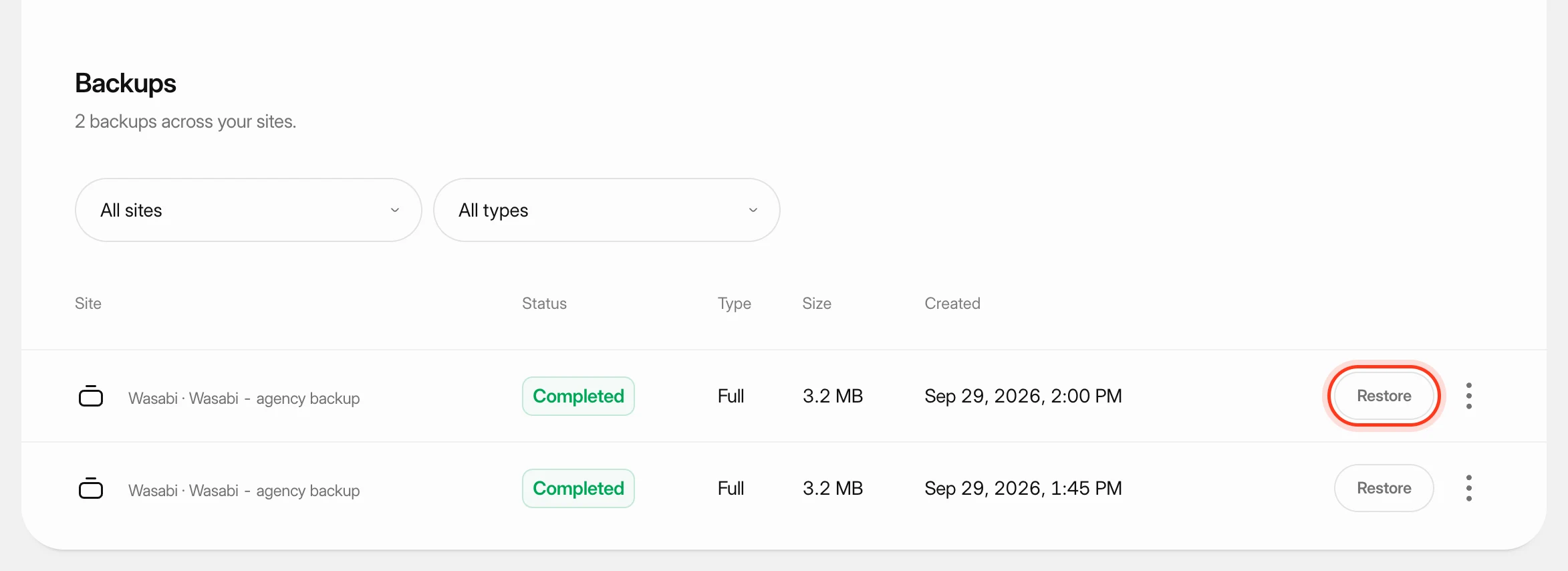 Restore a site backupRoll a site back to one of its backups: the database, the files, or both.
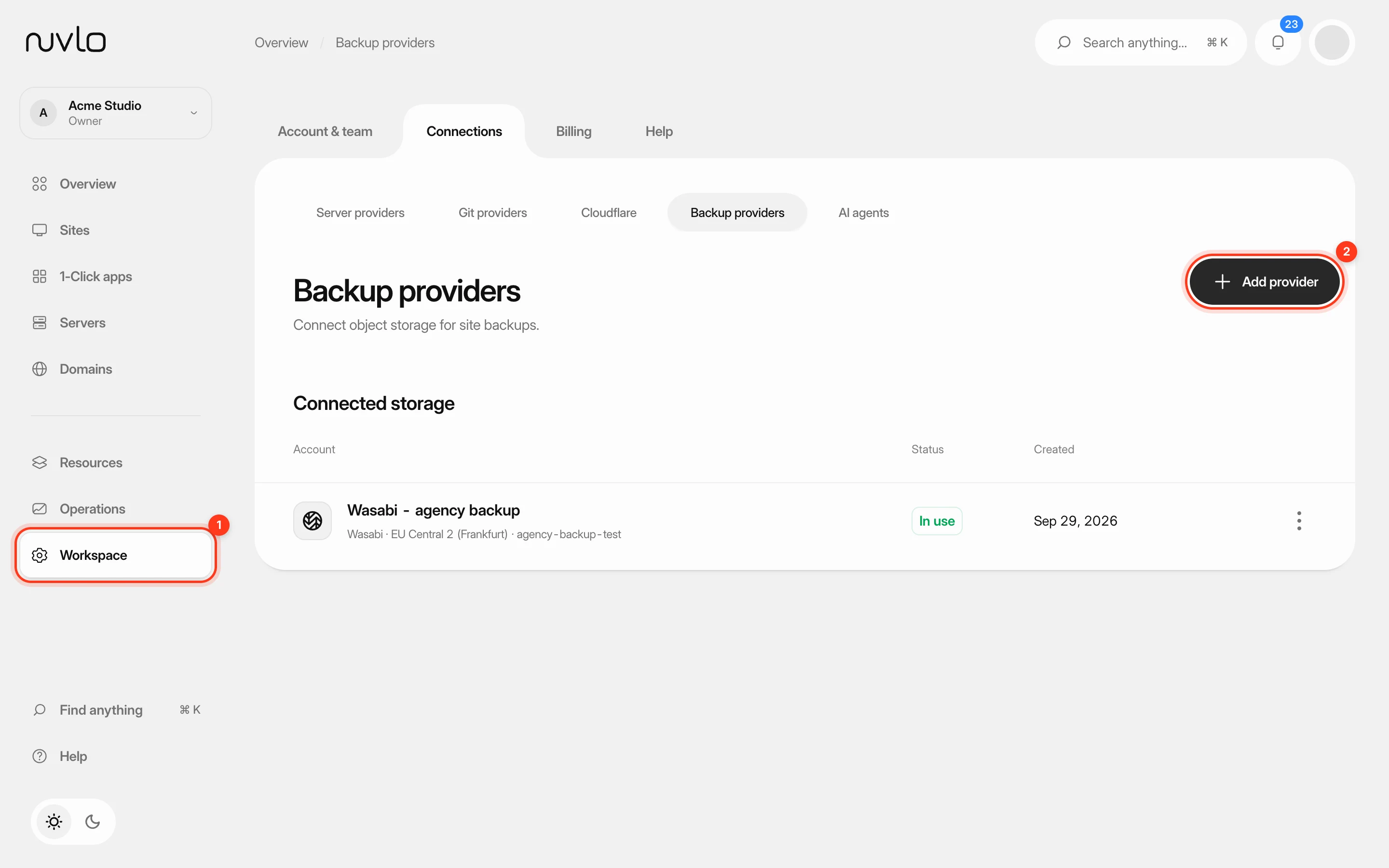 Connect backup storageConnect an S3-compatible storage account such as Wasabi, Cloudflare R2 or Amazon S3, and choose the bucket your site backups go to.
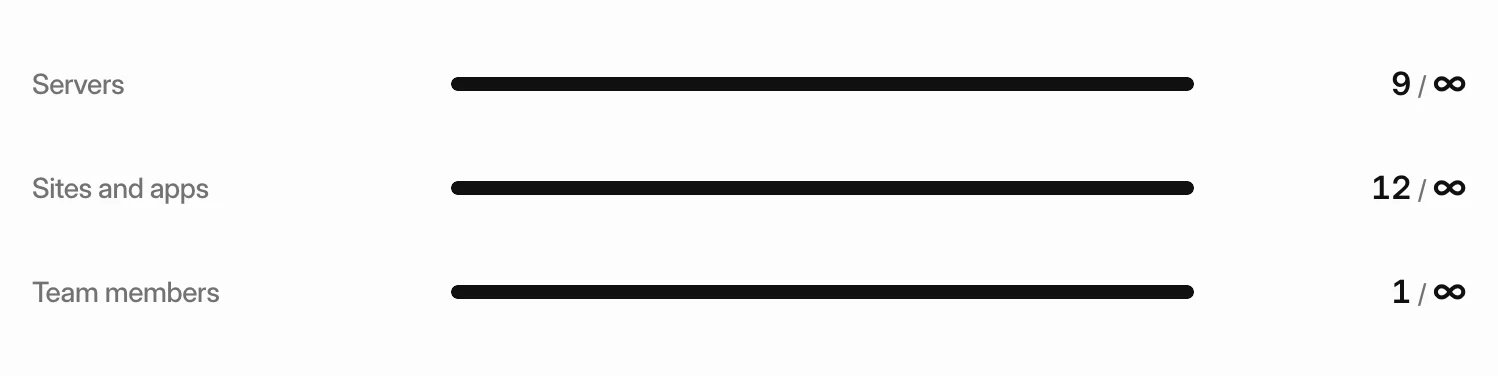 Stay within your plan limitsSee how much of your plan you use, what happens when you reach a limit, and how to choose what stays active if your account goes over.