



Back up a site database
Back up only the database of a site to your own storage, now or on a schedule, and restore only the database when you need to.
On this page
Before you start
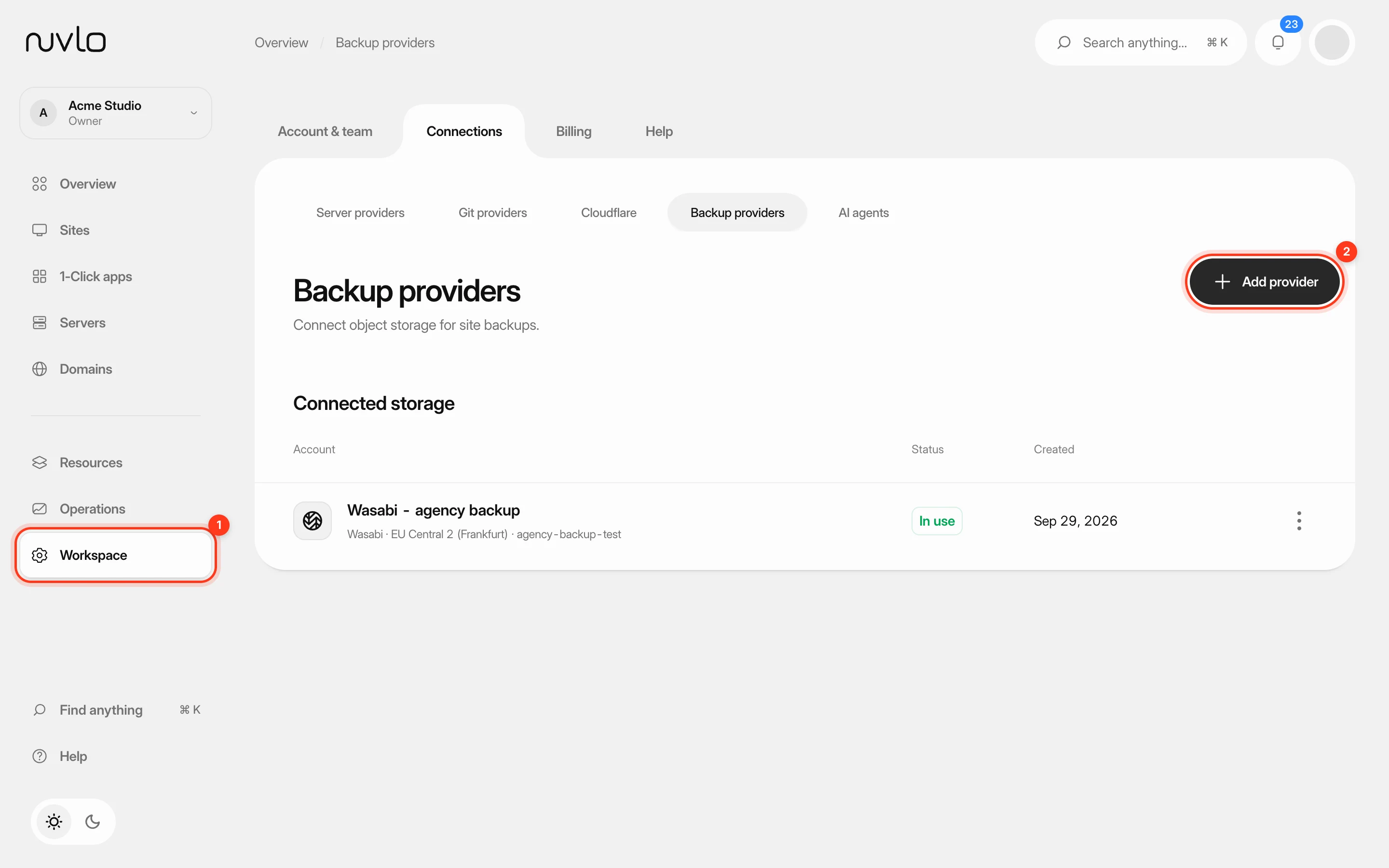
- Backup storage connected to Nuvlo. See Connect backup storage.
- A site with a database: a WordPress site, a 1-Click app, or a PHP site whose database Nuvlo created. Applications and static sites only offer file backups.
- A role that can make changes. Viewers can't create or restore backups.
Which databases are backed up
Database backups cover the databases that belong to your sites. Standalone databases you create under Databases aren't included in backups yet. Export those yourself, for example with pg_dump or mariadb-dump through an SSH tunnel. See Find database credentials.
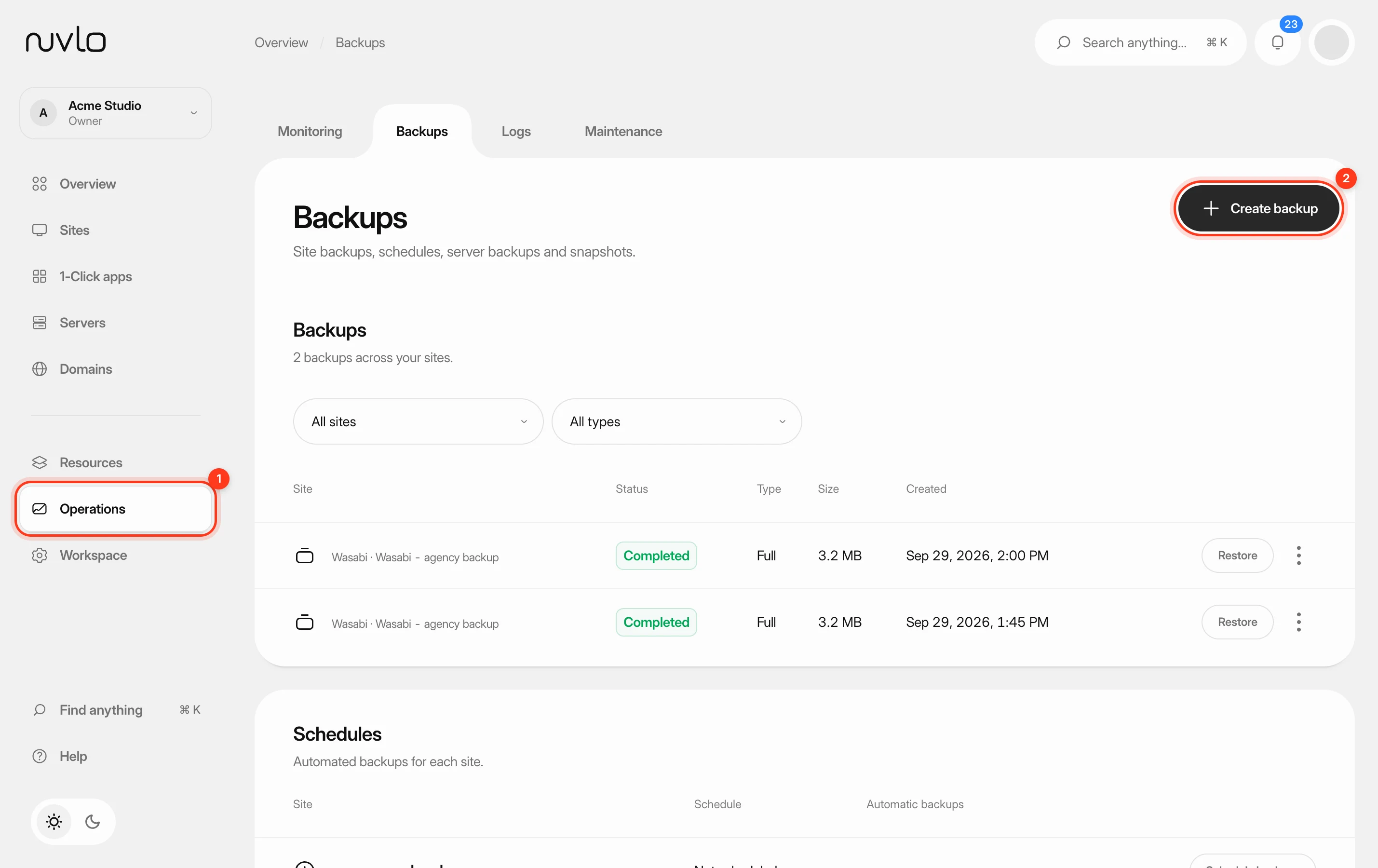
Step 1 Open Backups
Open Backups. To list only backups that contain a database, set the type filter to Includes database. This shows Database backups and Full backups, which contain the database and the files.
Step 2 Start a database backup
Click Create backup. In the dialog:
- Site: the site whose database you want to back up.
- Backup type: Database only.
- Storage provider: where the backup is stored.
- Bucket: the bucket to use. If Nuvlo can't list your buckets, type the Bucket name instead.
Click Create backup.
Step 3 Wait for the backup to complete
The backup appears in the list as Pending or Running and the page updates by itself. When it shows Completed, the Type column reads Database and Size shows how large it is.
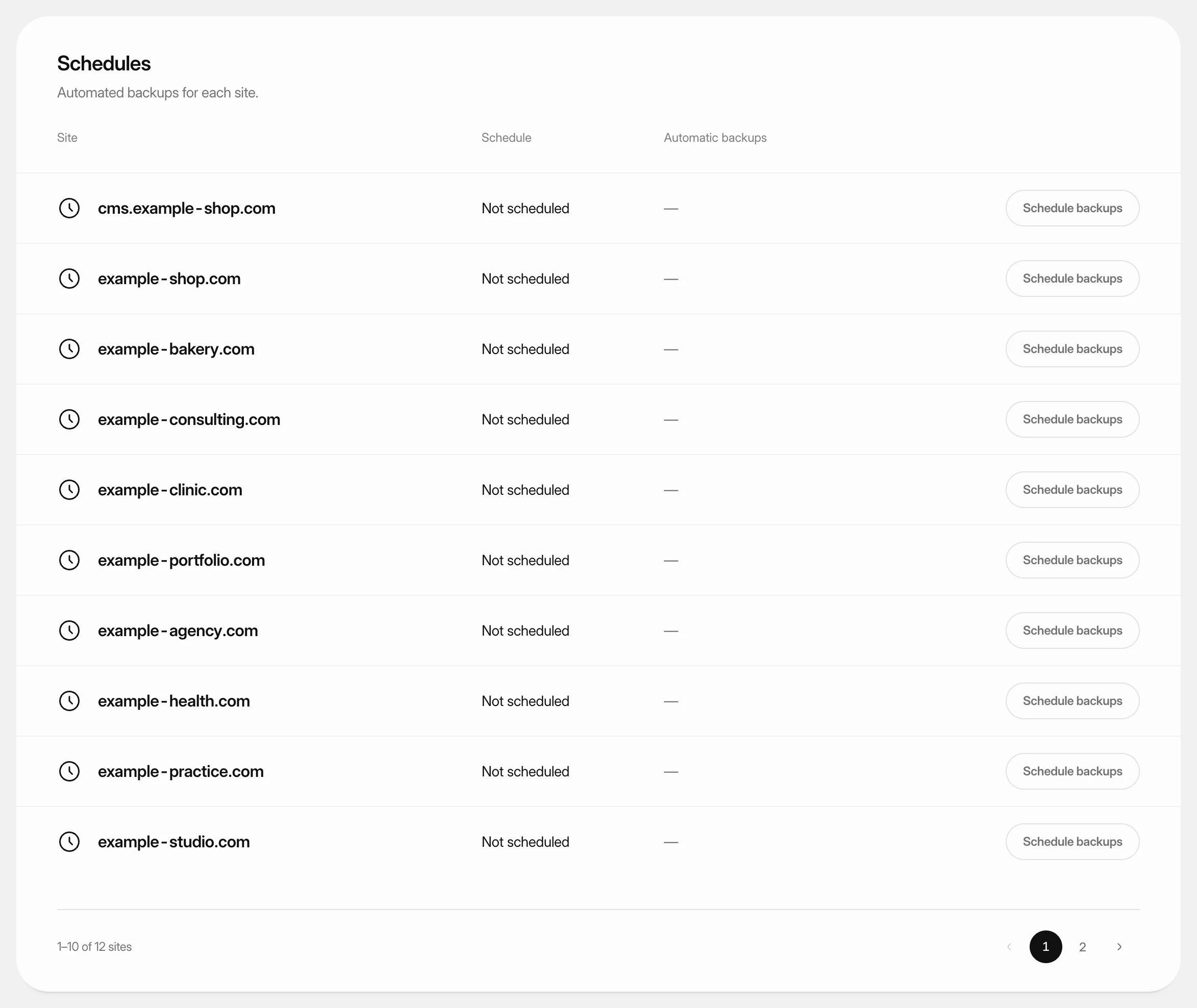
Step 4 Back up the database on a schedule
Scroll to the Schedules card and click Schedule backups (or Edit schedule) next to the site. Set Backup type to Database only, then choose the frequency and how many backups to keep. Databases change more often than files, so a database-only schedule is a cheap way to back up more often. See Schedule backups for every option.
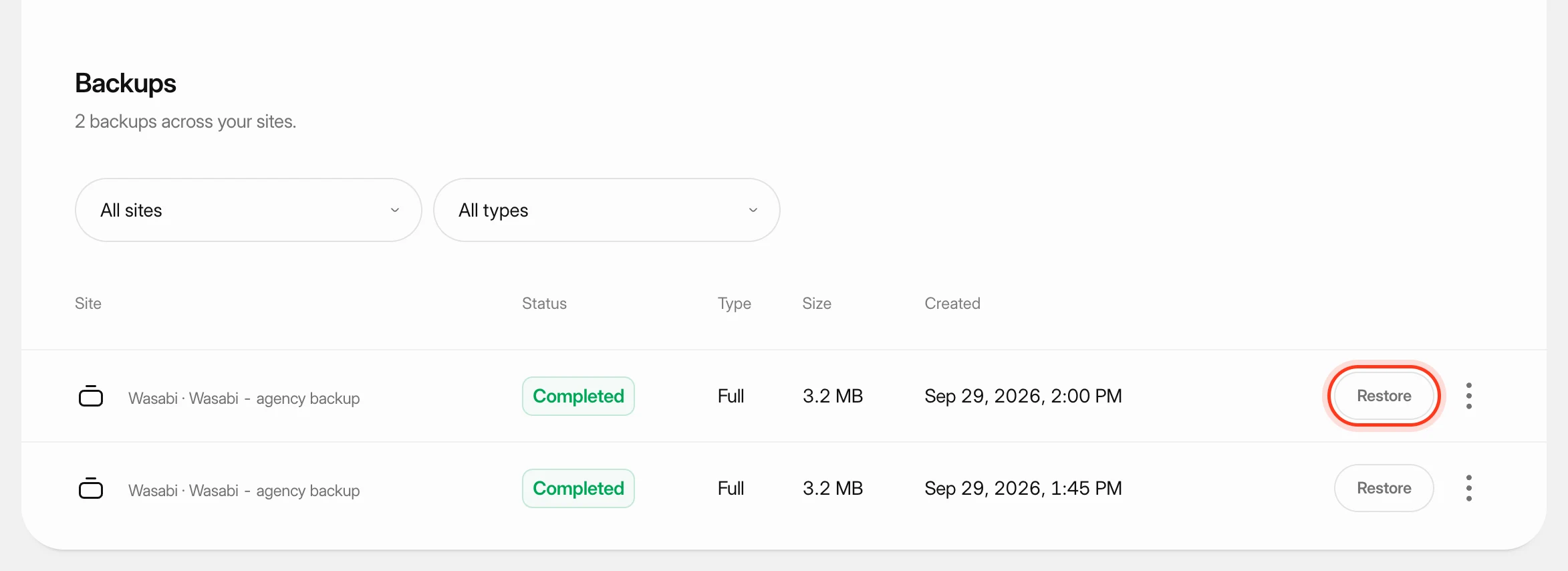
Step 5 Restore only the database
Click Restore next to a completed Database or Full backup. Under What to restore, choose Database only. The site's files stay as they are.
Type the site's domain to confirm, then click the Restore button that names the site.
ImportantChanges made since the backup, such as new orders or comments, are lost. The site stops briefly while its database is replaced.
Related guides
 Back up a siteMake a backup of a site’s database, files or both whenever you need one, stored in your own backup storage.
 Schedule automatic backupsBack a site up automatically every hour, day, week or month, and keep only as many backups as you need.
 Restore a site backupRoll a site back to one of its backups: the database, the files, or both.
 Connect backup storageConnect an S3-compatible storage account such as Wasabi, Cloudflare R2 or Amazon S3, and choose the bucket your site backups go to.