



Create a site
Choose the right site type for your project and put a static website or a PHP or Laravel site online from a GitHub repository or a ZIP file, with its own domain and HTTPS.
On this page
- Which site type to choose
- Step 1: Open the create page
- Step 2: Choose the server
- Step 3: Pick the site type
- Step 4: Choose the framework and source
- Step 5: Pick the repository or upload the ZIP
- Step 6: Set the domain and folders
- Step 7: Choose the options
- Step 8: Add environment variables
- Step 9: Deploy the site
- What happens next
- Troubleshooting
Before you start
- An active server. If you don't have one yet, follow Create a server.
- Room for another site on your plan. See Usage and limits.
- Your code in a GitHub repository, or as a folder or
.zipfile on your computer. - A domain you can point at the server, such as
example.comorwww.example.com.
Which site type to choose
Nuvlo deploys five kinds of sites. The type decides how the code is built and served, and which servers can run it. Static and PHP sites run on any server; the others need a server set up for them.
| Site type | Use it for | Runs on |
|---|---|---|
| WordPress | A managed WordPress site with its own database and Redis cache. See Install WordPress. | Docker host or general-purpose servers |
| Node.js app | Nuxt, Next.js, Express and other Node apps from GitHub, built and kept running. See Deploy a Node.js app. | Application or general-purpose servers |
| Headless | An Astro, Next.js or Nuxt frontend that loads its content from one of your WordPress sites. See Headless WordPress. | Application or general-purpose servers |
| PHP & Laravel | Laravel, Symfony or plain PHP, including HTML sites with a PHP contact form. | Any server |
| Static website | Plain HTML, or a Vite, Astro or Eleventy build, served straight from Nginx. | Any server |
This guide walks through PHP & Laravel and Static website. The first PHP site on a server installs PHP-FPM and Composer on it.
Already have the site somewhere else? Use Move an existing site instead, described in Move a WordPress site. It works for WordPress, PHP and HTML sites and keeps the old site online while Nuvlo copies it.
Step 1 Open the create page
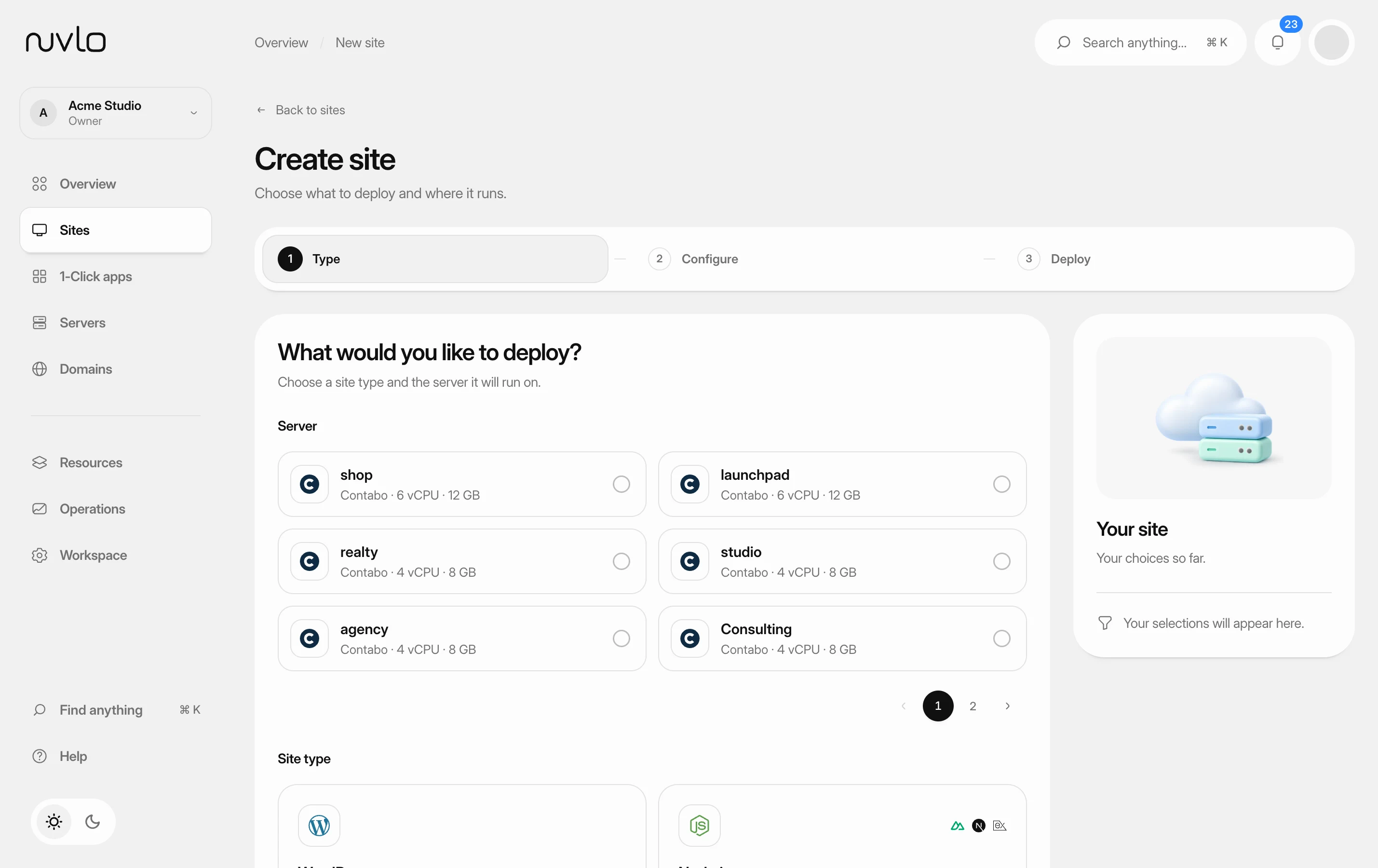
Go to Sites, click Create and choose Site. The page Create site opens with the question What would you like to deploy?
If your plan has no room for another site, the Site item shows your usage and links to Billing instead.
Step 2 Choose the server
Under Server, click the server the site should run on. Each card shows the provider, the number of vCPUs and the memory. If you have many servers, use the page numbers below the list.
If you opened the page from a server, that server is already chosen. Click Change server to pick another one.
With a server selected, site types that can't run on it are greyed out and show what they need, for example Requires an application or general-purpose server.
Step 3 Pick the site type
Under Site type, click PHP & Laravel or Static website. The setup continues on the Choose your project step.
You can also drop a project folder or a .zip file on the box Drop a folder or .zip. Nuvlo detects the type and fills in the settings. That path is described in Upload a site from your computer.
Step 4 Choose the framework and source
Under Framework, pick what the project is built with. The choice fills in sensible folders and build steps, which you can change on the next step.
| Site type | Frameworks |
|---|---|
| PHP & Laravel | Laravel, Symfony, PHP |
| Static website | HTML, Vite, Astro, Eleventy, Other |
Under Source, choose where the code comes from:
- GitHub repository deploys again on every push.
- ZIP upload deploys a
.zipfile you upload. To update the site later, you upload a new.zip.
If you skipped the server on the first step, pick it here from the Server list.
Step 5 Pick the repository or upload the ZIP
For GitHub repository: if GitHub isn't connected yet, click Connect GitHub and authorize Nuvlo in the window that opens. See Connect GitHub. Then search your repositories with Search repositories and click the one to deploy.
Nuvlo reads the repository and selects the matching framework, marked Detected. If the code looks like a different site type, a note says so, for example that the repository contains PHP code or looks like a Node.js application.
For ZIP upload: drop the .zip on Upload your site or click it to browse. The archive can be up to 100 MB. If it has a single top-level folder, Nuvlo unwraps it.
Click Next: configure site.
Step 6 Set the domain and folders
Enter the Domain the site answers on, for example example.com. Below it, choose how the www address behaves. Nuvlo picks the usual choice for the domain you typed; click an option to change it.
- No redirect serves both the www and the non-www address.
- www → root redirects
www.example.comtoexample.com. - root → www redirects
example.comtowww.example.com.
Then check the folders:
- Branch (Git only): the branch that is deployed. It defaults to the repository's default branch.
- Root directory: for monorepos, the folder that holds the site. Leave
/otherwise. - Web directory (PHP): the folder Nginx serves. Laravel and Symfony use
public. - Publish directory (static): the folder that is published. Leave it empty to publish the root directory.
- PHP version (PHP): the PHP version for this site.
- Build command (static): leave it empty to publish the files as they are. When you enter one, Package manager and Node.js appear so you can choose how it builds.
Step 7 Choose the options
Under Options, switch on what the site needs. Which options appear depends on the site type and framework.
| Option | What it does |
|---|---|
| Single-page app | Static sites. For React, Vue or Svelte apps that handle their own page links: every address loads index.html. |
| Links without .html | Visitors can open /about instead of /about.html. Old links with .html keep working. |
| Create a database | PHP sites, only when the server has MySQL, MariaDB or PostgreSQL. Creates a database and user on the server and adds the credentials as DB_* variables. |
| Update the database on deploy | Laravel. Runs php artisan migrate before the new version goes live. |
| Scheduled tasks | Laravel. Runs php artisan schedule:run every minute. |
| Build CSS and JavaScript | PHP sites that compile their styles and scripts first, for example with Vite. Plain HTML and PHP sites leave this off. |
| Send every page through index.php | Plain PHP. Needed for most CMSes; leave it off for sites made of separate .html or .php files. |
| Deploy on push | Git only. Every push to the branch updates the live site. |
Step 8 Add environment variables
Optional. Under Environment variables, drop a .env file to import it, or click Add variable and enter a name and value. Names may contain only letters, numbers and underscores, and each name can appear once.
You can change variables any time later. See Environment variables.
Step 9 Deploy the site
Click Deploy site. The Deploy step shows each stage as it runs: creating the site, preparing the server, fetching the code, installing dependencies, building, creating the release, going live, configuring Nginx and checking the site.
When it finishes, click Open site to go to the site's page.
If the deploy stops, the failed stage is marked. Click View deploy log to see the full output, or Back to settings if the site wasn't created.
What happens next
Point your domain at the server if you haven't yet: add an A record for the domain with the server's IP address at your DNS provider. If the domain is in a Cloudflare account you connected, Nuvlo can create the record for you; otherwise the deploy screen tells you what to add. HTTPS is issued automatically once the domain points at the server. See Add a domain and SSL certificates.
From the site's page you can follow deployments, change build settings and environment variables, and adjust PHP and routing settings.
Troubleshooting
- A site type is greyed out: the selected server can't run it. Pick another server, or create a server of the needed type.
- Another site on this server already uses this domain: delete the old site first, or redeploy that site instead of creating a new one.
- This server has no MySQL, MariaDB or PostgreSQL installed: create the site without Create a database, or choose a server with a database. See Create a database.
- Repositories could not be loaded or No repositories found: reconnect GitHub under Git providers and make sure Nuvlo has access to the repository.
Related guides
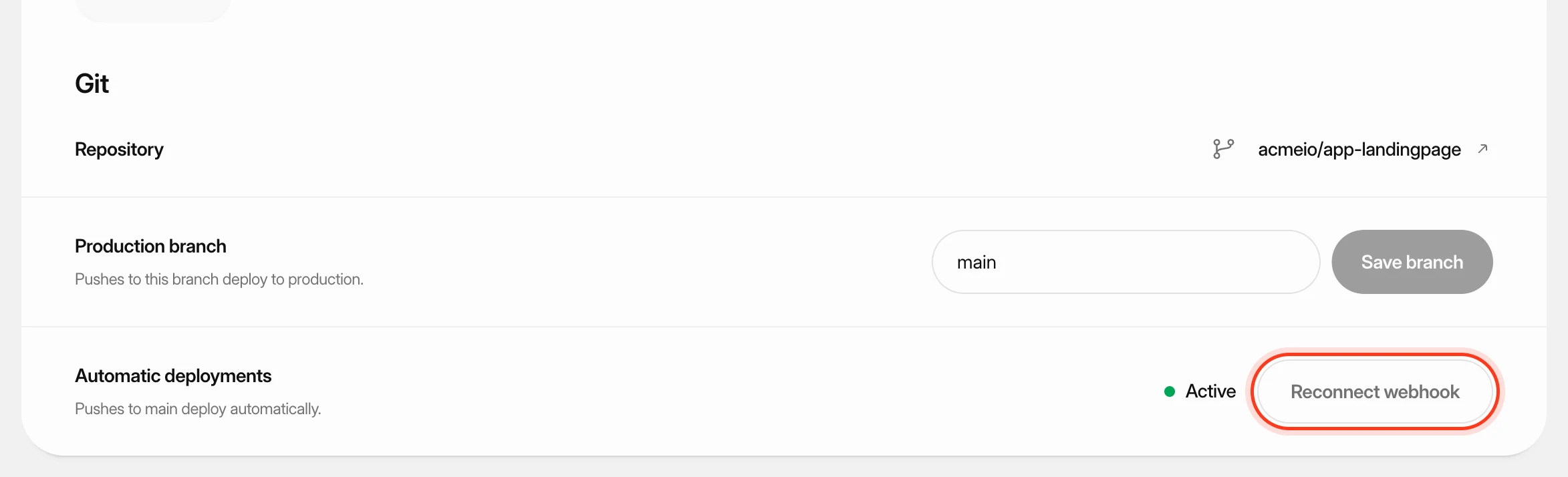 Deploy from GitKeep a site up to date with its GitHub repository: deploy automatically on every push, start a deploy yourself or from another tool, and read the build log when something goes wrong.
 Upload a site from your computerPut an HTML, PHP or Laravel project online by dropping its folder or a .zip file into Nuvlo, and update it later by uploading a new version.
 Deploy a Node.js appPut a Nuxt, Next.js, SvelteKit, Astro, Express or other Node.js app from GitHub online. Nuvlo detects how to build it, keeps it running and deploys every push.
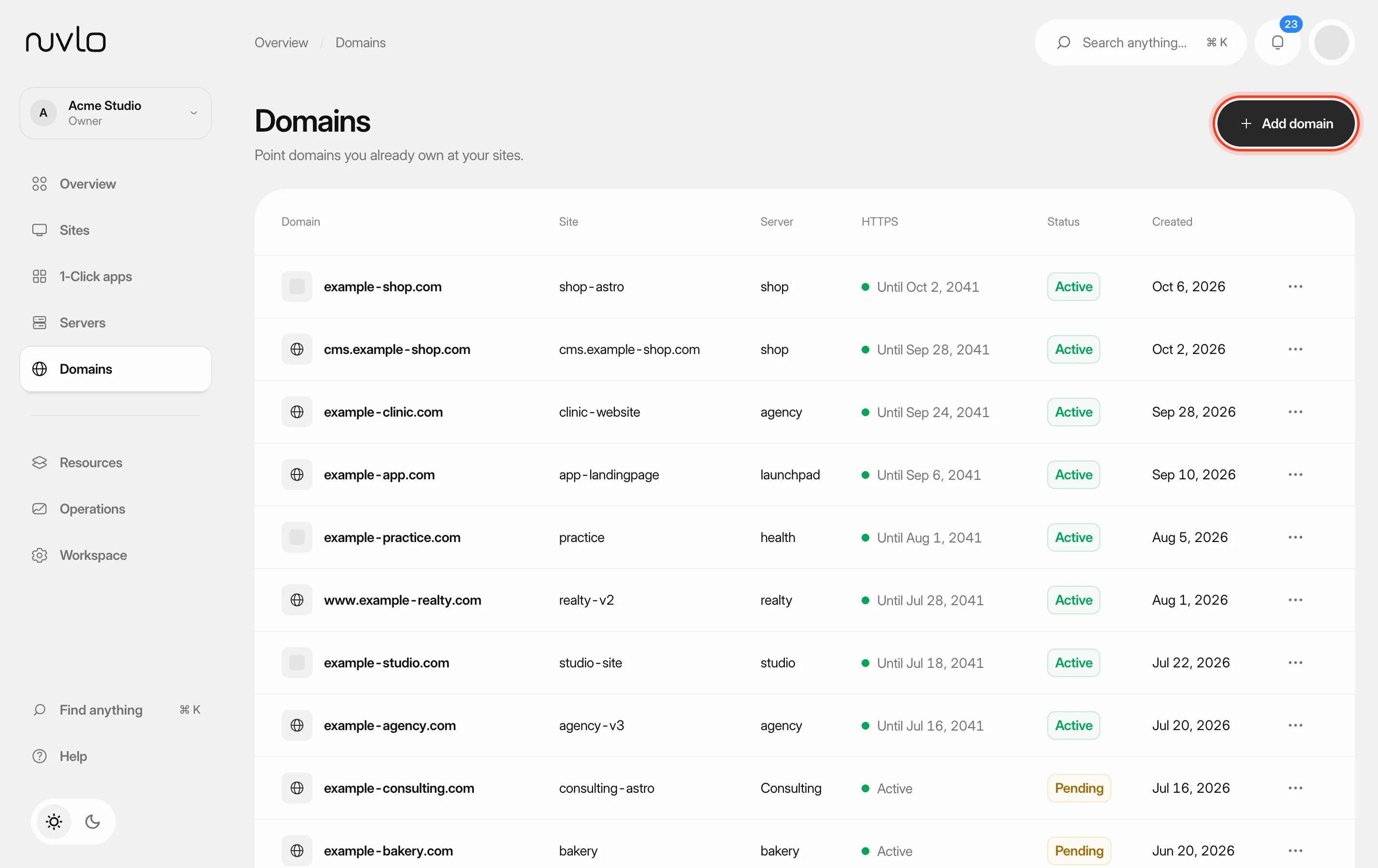 Add a domain to a sitePoint a domain you own at one of your sites. Nuvlo sets up the web server for it and issues a free HTTPS certificate as soon as the domain reaches your server.