



Deploy from Git
Keep a site up to date with its GitHub repository: deploy automatically on every push, start a deploy yourself or from another tool, and read the build log when something goes wrong.
On this page
Before you start
- A static site, PHP site or Node.js app that deploys from GitHub. See Create a site or Deploy a Node.js app.
- GitHub connected under Git providers. See Connect GitHub.
Step 1 Check automatic deployments
Open the site from Sites, go to the Settings tab and stay on General. The Git card shows the Repository, the Production branch and Automatic deployments.
When Automatic deployments shows Active, every push to the production branch deploys. If it shows Not connected, click Connect webhook. Nuvlo adds the webhook to the repository on GitHub and switches automatic deployments on. If deploys stopped arriving, click Reconnect webhook to replace it.
Step 2 Change the production branch
Optional. Type another branch into Production branch and click Save branch. Pushes to that branch now deploy.
The live site keeps running the old branch until the next deploy. Click Redeploy to apply to deploy the new branch right away.
Step 3 Push a commit
Push to the production branch as usual. GitHub notifies Nuvlo, and a new deployment starts within seconds. Pushes to other branches are ignored.
The live version keeps serving visitors while the new one builds. A failed build never goes live, and if the new version fails its checks after the switch, Nuvlo goes back to the previous release.
Step 4 Follow the deployment
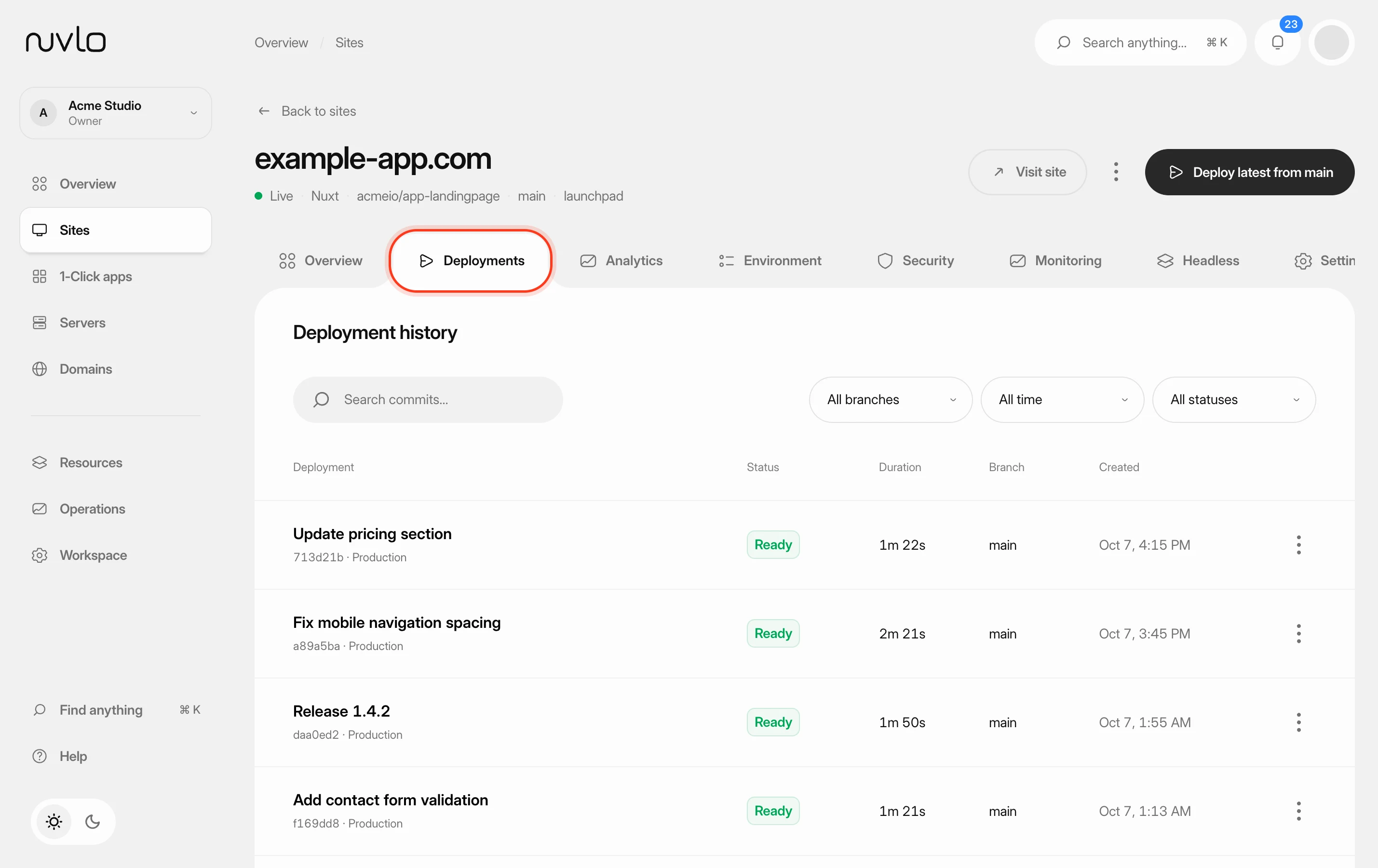
Open the Deployments tab. Deployment history lists every deployment with its commit, status, duration, branch and time. Use Search commits… and the branch, date and status filters to find one.
| Status | Meaning |
|---|---|
| Building | The deployment is running. |
| Ready | It finished and is live, or was live before a later deploy. |
| Failed | It stopped. The previous release stays live. |
| Cancelled | It was stopped before it finished. |
| Action required | Node.js apps only. The running app wrote files Nuvlo doesn't know about. See Keep data between releases. |
Step 5 Read the build log
Click a deployment, or choose View build logs from its menu. The log view has three parts:
- Problems lists the errors and warnings found in the log. Click one to jump to its line, or copy them all with the copy button.
- Build logs shows the full output. Use Find in logs (or ⌘F) to search, and the buttons on the right to download or copy the log.
- Deployment summary shows the commit, the build configuration, the checks and the domains of this deployment.
Click Deployments at the top left to go back to the list.
Deploy without a push
To deploy the latest commit yourself, click Deploy latest from followed by the branch name at the top of the site page (the button reads Deploy latest for long branch names). The progress appears below the header. If it fails, click View build logs.
Node.js apps also have Rebuild from scratch in the menu next to that button. It removes the installed dependencies and build caches, then installs and builds again. Releases and persistent data are kept. Use it when a build fails because of a stale cache.
Only one deployment runs per site at a time. A push or click while one is running doesn't start a second one.
Start deploys from another tool with a deploy hook
A deploy hook is a secret URL that starts a production deploy when it receives a POST request. Use it from a CI pipeline, a CMS or a scheduled job.
In Settings, General, find the Deploy hook card and click Create hook. Copy the URL right away: Copy it now. It won't be shown again.
curl -X POST "https://<your deploy hook URL>"Click Regenerate URL to replace the URL; the old one stops working immediately. Click Revoke hook to remove it. Each hook accepts a few requests per minute; extra calls while a deploy is running are answered as busy and don't start another one.
Good to know
Pushes are not deployed while the site is paused because the account is over its plan's limits. See Usage and limits.
Recent successful deployments are kept as releases on the server, so you can go back to one without rebuilding. See Roll back to an earlier release.
Related guides
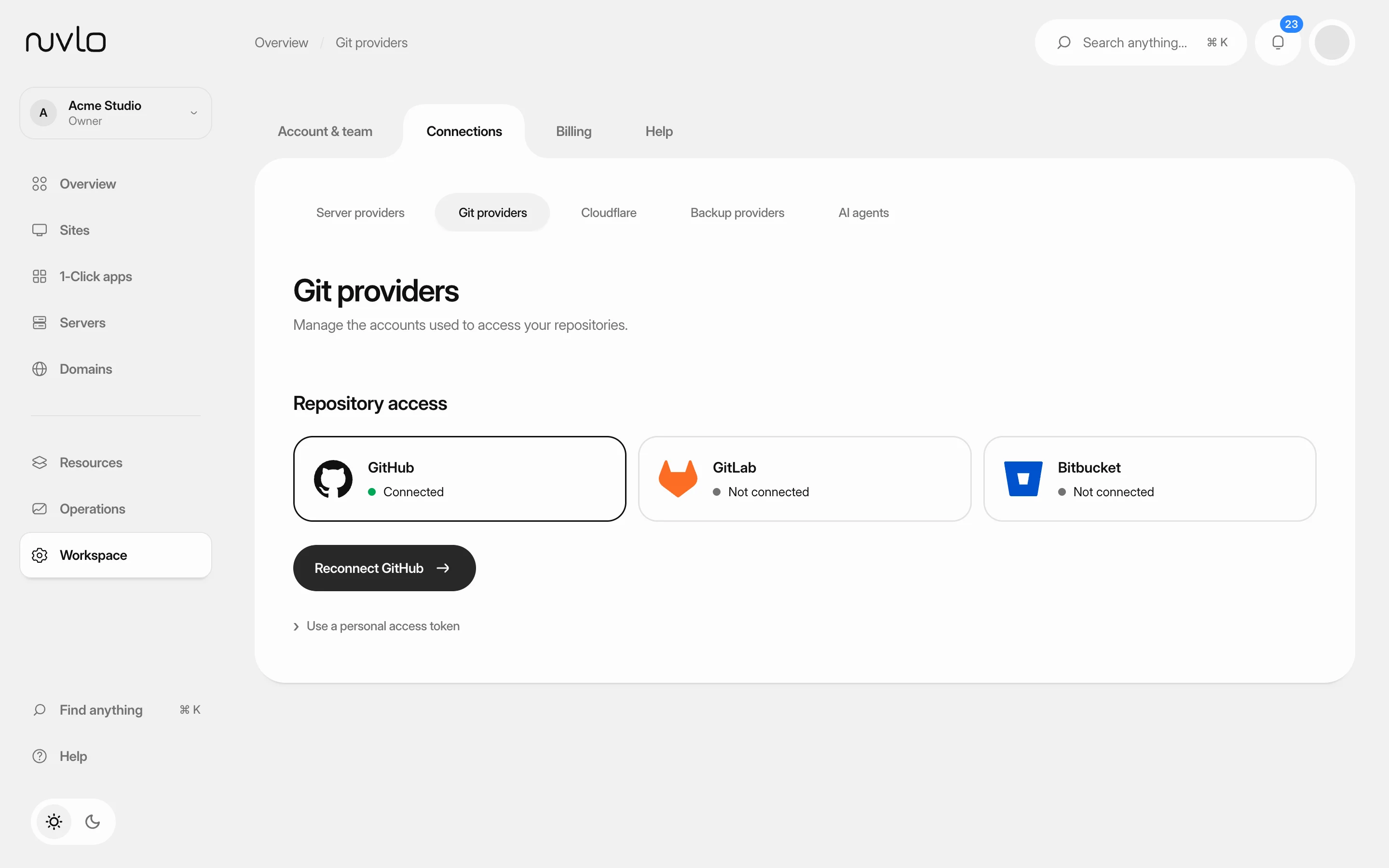 Connect GitHubGive Nuvlo access to your GitHub repositories, so you can deploy sites and apps from them and update them automatically on every push.
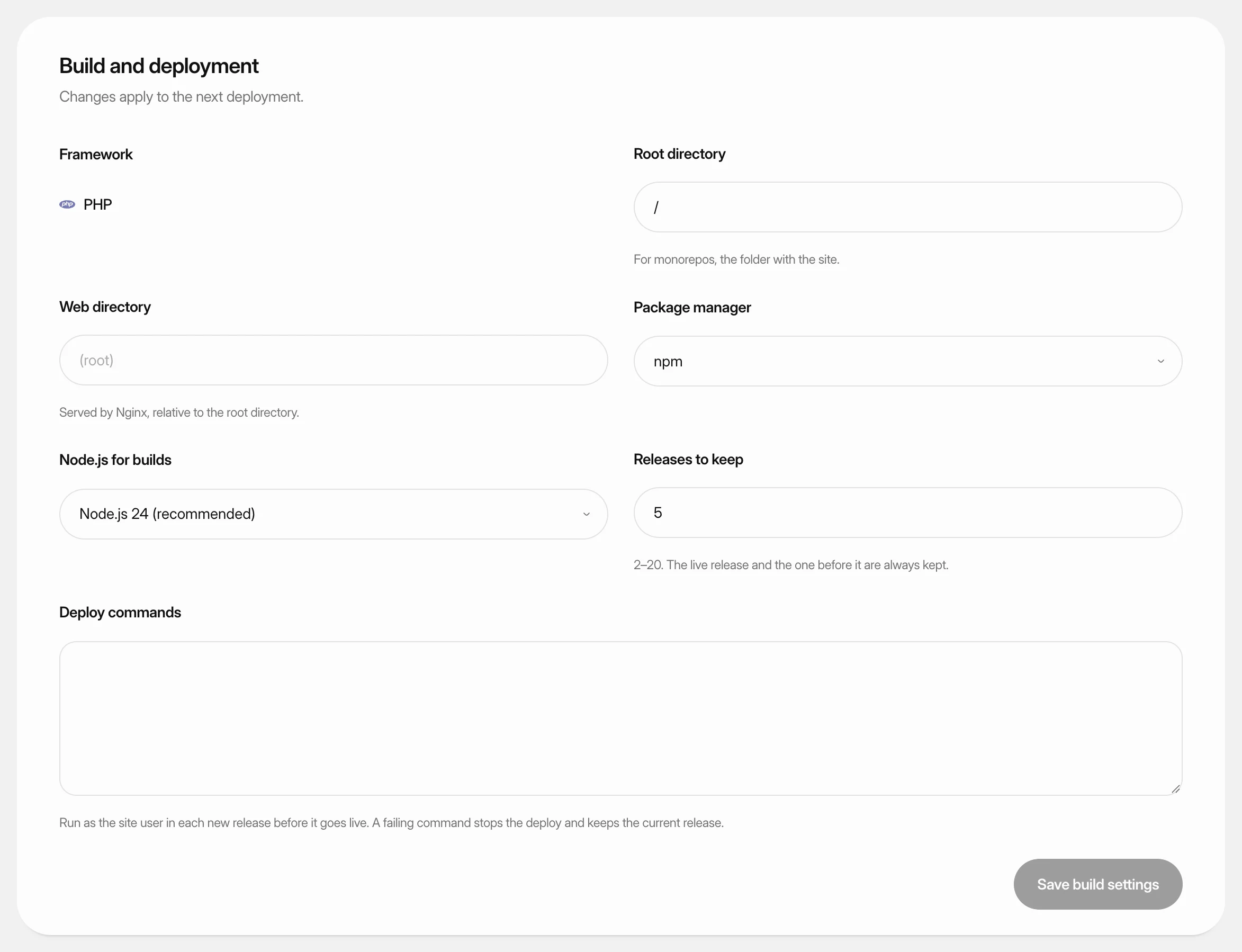 Change build settingsAdjust how Nuvlo builds and releases a static site, PHP site or Node.js app: folders, build command, package manager, Node.js version and how many releases to keep.
 Roll back to an earlier releasePut a previous version of a Node.js app, static site or PHP site back online in seconds, without rebuilding it, and choose how many releases Nuvlo keeps.
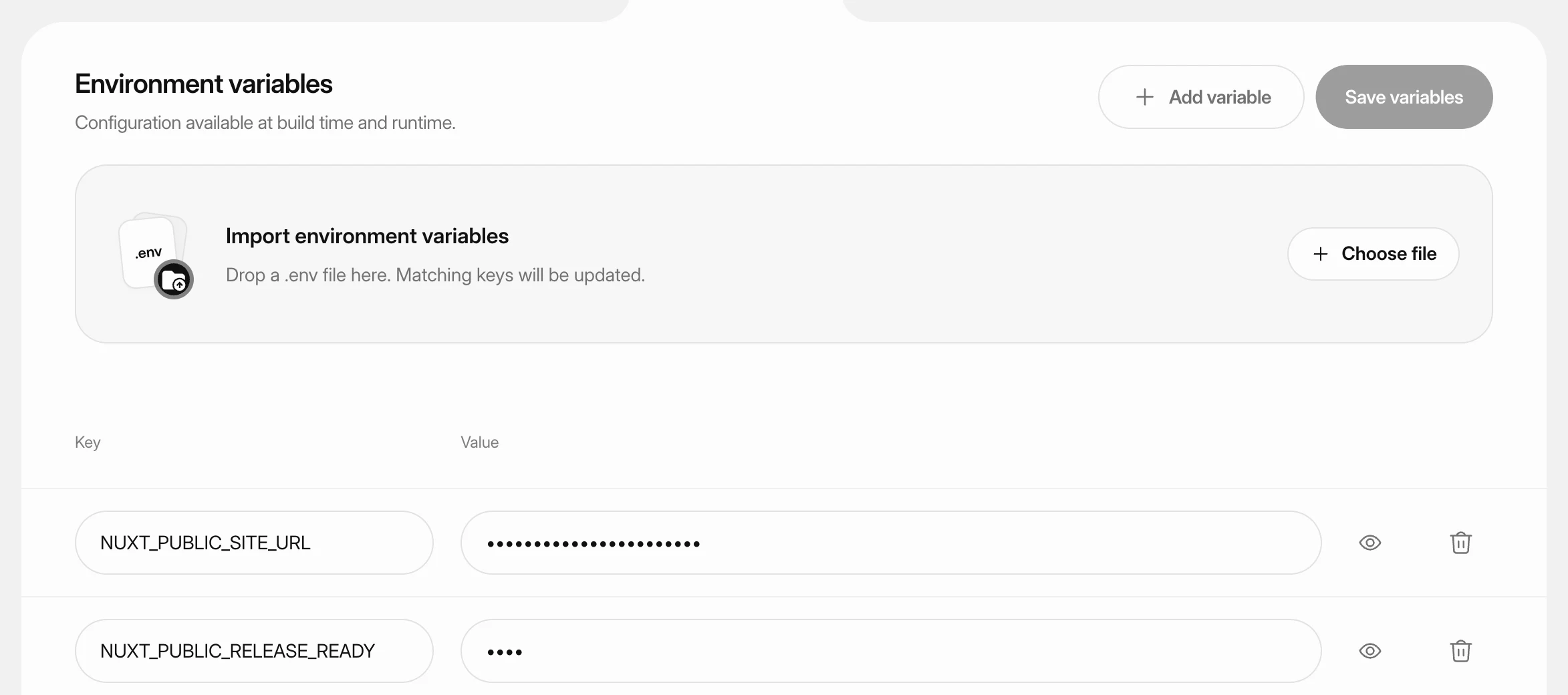 Set environment variablesStore API keys, database settings and other configuration for a static site, PHP site or Node.js app, and apply them with the next deploy.