



Restart a WordPress site’s services
Check the parts a WordPress site runs on, restart PHP, the web server, the database or Redis, fix file permissions, update their images, and stop or start the site.
On this page
Before you start
- A WordPress site in Nuvlo.
- Permission to manage sites. Viewers see the states but can’t use the buttons.
Step 1 Open the Services card
Open the site and click the Settings tab. The Services card lists what the site runs on, each with its state.
| Service | What it does |
|---|---|
| PHP | Runs WordPress. Restart it when pages show “Bad gateway” or never finish loading. On OpenLiteSpeed sites this row is PHP and LiteSpeed and there is no separate web server row. |
| Web server | Receives each request, serves cached pages and files, and hands the rest to PHP. |
| Database | Stores posts, pages, users and settings. |
| Redis | Keeps WordPress data in memory so pages build faster. |
Click Check status to read the states again. A state can be Running, Starting, Not responding, Keeps crashing, Stopped, Not started or Missing.
Step 2 Restart a service
Click Restart PHP, Restart web server, Restart database or Restart Redis. A stopped service shows Start instead. Confirm in the dialog, which says what visitors notice:
- PHP: an error for a few seconds.
- Web server: dropped requests for a second or two.
- Database: a database error for up to half a minute.
- Redis: slower pages for a moment while the cache fills again.
Nuvlo then checks that the site answers again. If it still fails, the card shows the service’s log below the list.
To restart everything together, click Restart all. The site is offline for up to a minute.
Step 3 Restart PHP from Overview
When the site answers with a server error or not at all, the Overview tab shows Restart PHP under the site’s state. It does the same as the button on the Services card.
Step 4 Fix file permissions
If uploads, updates or plugin installs fail with “could not write” or “permission denied”, click Fix permissions. Nuvlo gives WordPress back control of its files and says how many it fixed.
Step 5 Update the images
Click Update images to switch to the newest builds of the same PHP, web server, database and Redis versions, with security fixes. The site is offline for a few seconds.
If the site stops working on the new images, Nuvlo goes back to the current ones and shows why. To change the PHP version instead, see Change PHP settings.
Step 6 Stop or start the site
Click Stop site and confirm to take the site offline until you start it again. Files and the database are kept.
- Visitors can’t reach the site. Overview shows Stopped.
- Scheduled backups and security scans skip the site.
- Manual backups, scans and restores wait until you start it.
To bring it back, click Start site in the site’s header or on the Services card.
Related guides
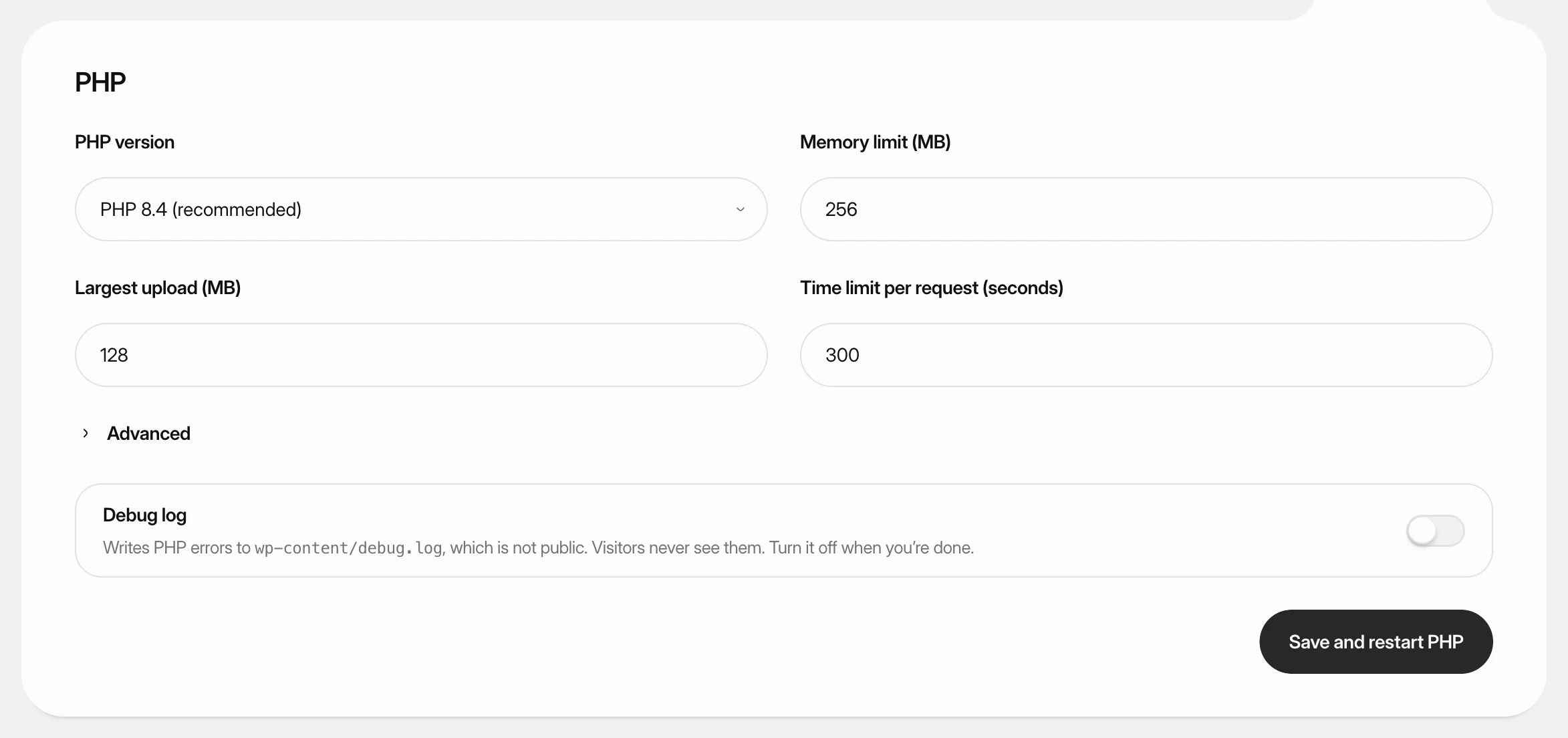 Change PHP settings for WordPressSwitch a WordPress site to another PHP version, raise its memory, upload and time limits, and turn on the debug log.
 Update WordPress, plugins and themesSee which updates a WordPress site has, install them one by one or all at once, and manage plugins and themes without opening WordPress admin.
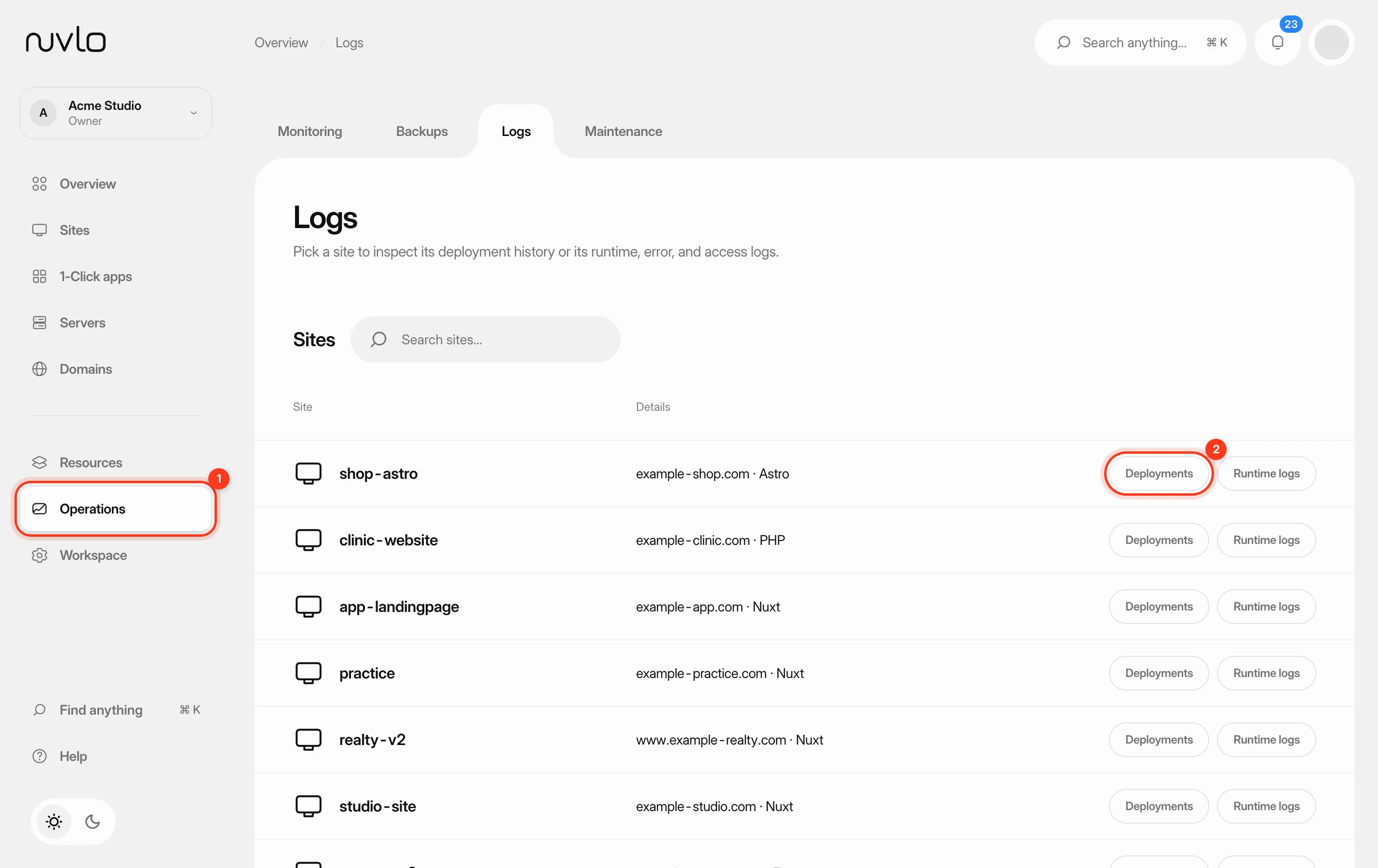 Read deployment and runtime logsFind out why a deploy failed or what your app is doing right now, using the build logs of each deployment and the live runtime logs of a site.
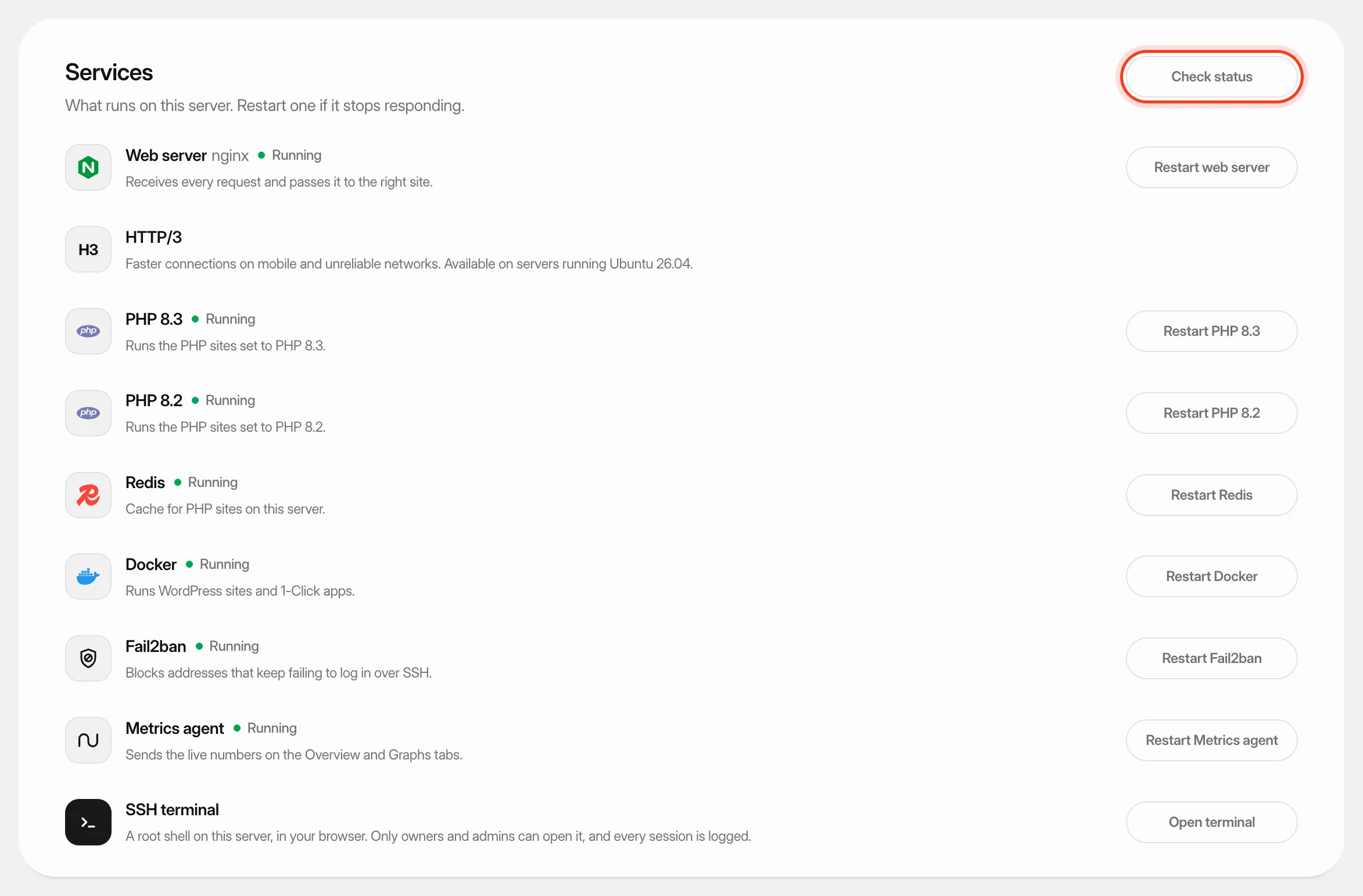 Check and restart server servicesSee which services run on your server, restart one that stopped responding, and turn HTTP/3 on or off.