



Stay within your plan limits
See how much of your plan you use, what happens when you reach a limit, and how to choose what stays active if your account goes over.
On this page
Before you start
- A Nuvlo account. Choosing what stays active needs the Owner or Admin role.
What counts toward your limits
- Servers: every server on the account, except servers that failed to set up.
- Sites and apps: every site, WordPress install and application, including 1-click apps.
- Team members: you, the owner, plus every member and every pending invitation.
AI answers have their own monthly allowance. See AI answers.
Step 1 Check your usage
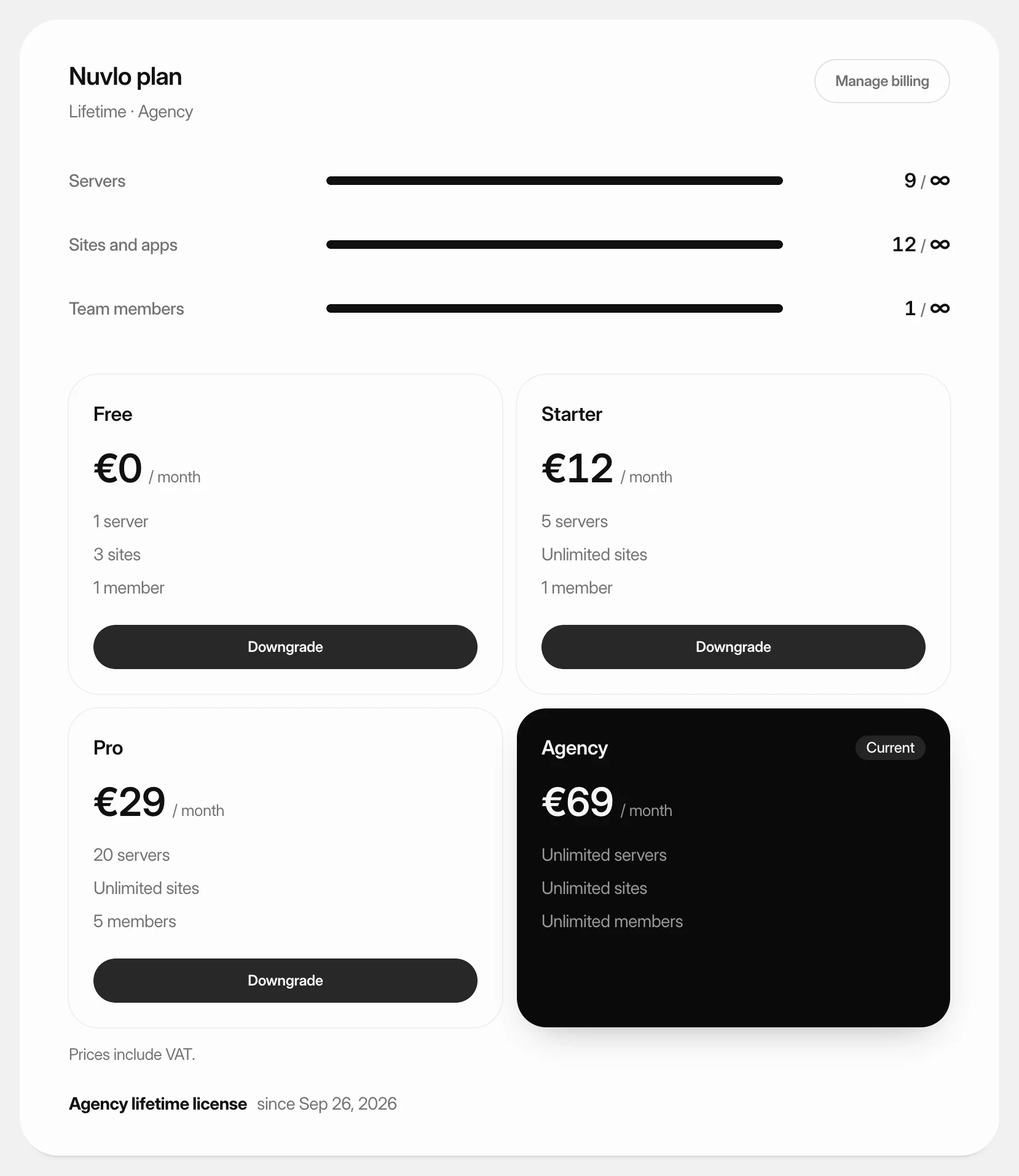
Open Billing in the sidebar. At the top of the Nuvlo plan card, a meter for each limit shows how many you use out of how many your plan allows. ∞ means unlimited. A count that reaches its limit turns red.
Step 2 When you reach a limit
At a limit, the Create menu points to Billing instead of the create page. The item shows how many you use, for example 1 of 1 used · see plans.
If you try to add one more anyway, Nuvlo stops before anything is created and tells you which limit you reached, for example The Free plan includes 1 server. Upgrade to add more. Nothing you already have changes.
To make room, upgrade your plan, add a lifetime license, or delete something you no longer need.
If your account goes over its plan
Your account can end up using more than its plan includes, for example after a withdrawal or refund, or when a payment keeps failing. When that happens:
- A warning appears at the top of every dashboard page, and the owner gets an email and a notification.
- You have three days. On the date shown, Nuvlo pauses the newest servers, sites or members that are over the limit.
- Before then, you can upgrade, delete what you do not need, or choose which ones stay active.
While a card payment is failing, your limits fall back to Free but nothing is paused. Your card is retried for about three weeks, and the three-day countdown only starts if the payment still has not gone through. Update your card under Payment details to avoid it.
Step 3 Choose what stays active
Click Choose what stays active in the warning, or open Billing. The Over your plan card lists your servers, sites and team members in groups.
In each group, check the ones to keep until the count reads, for example, 5 of 5 chosen. Then click the button below the group, for example Keep 5, pause 2 servers. Whatever you leave unchecked is paused right away.
Only the account owner can pause an admin. An admin choosing for the account must keep every admin active.
What paused means
- A paused server or site keeps running on your server and stays online.
- Nuvlo stops managing it: no deploys, backups, updates or other changes from Nuvlo.
- Its page shows that it is paused, with a link to Choose what stays active. A site on a paused server is paused too.
- A paused team member cannot open the account.
Step 4 Resume paused resources
Upgrade your plan or delete other resources to make room. Nuvlo then resumes paused ones automatically, oldest first.
To swap which ones are active, check different ones in Over your plan and save again.
Related guides
 Choose or change your planPick the Nuvlo plan that fits how many servers, sites and team members you run, subscribe to it, and move up or down later.
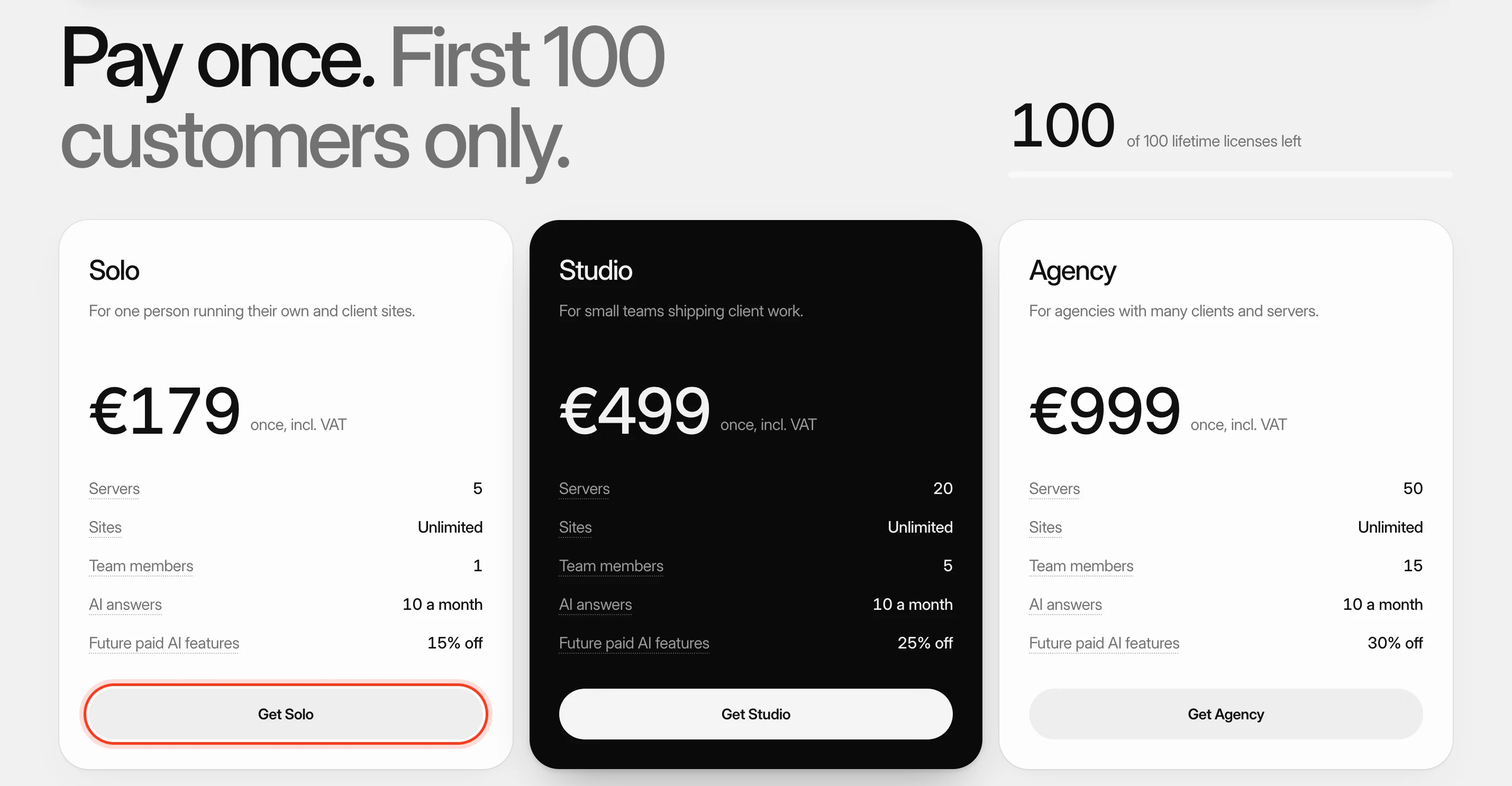 Buy a lifetime licensePay once instead of monthly and keep a fixed set of limits for as long as Nuvlo runs. Licenses stack when you need more.
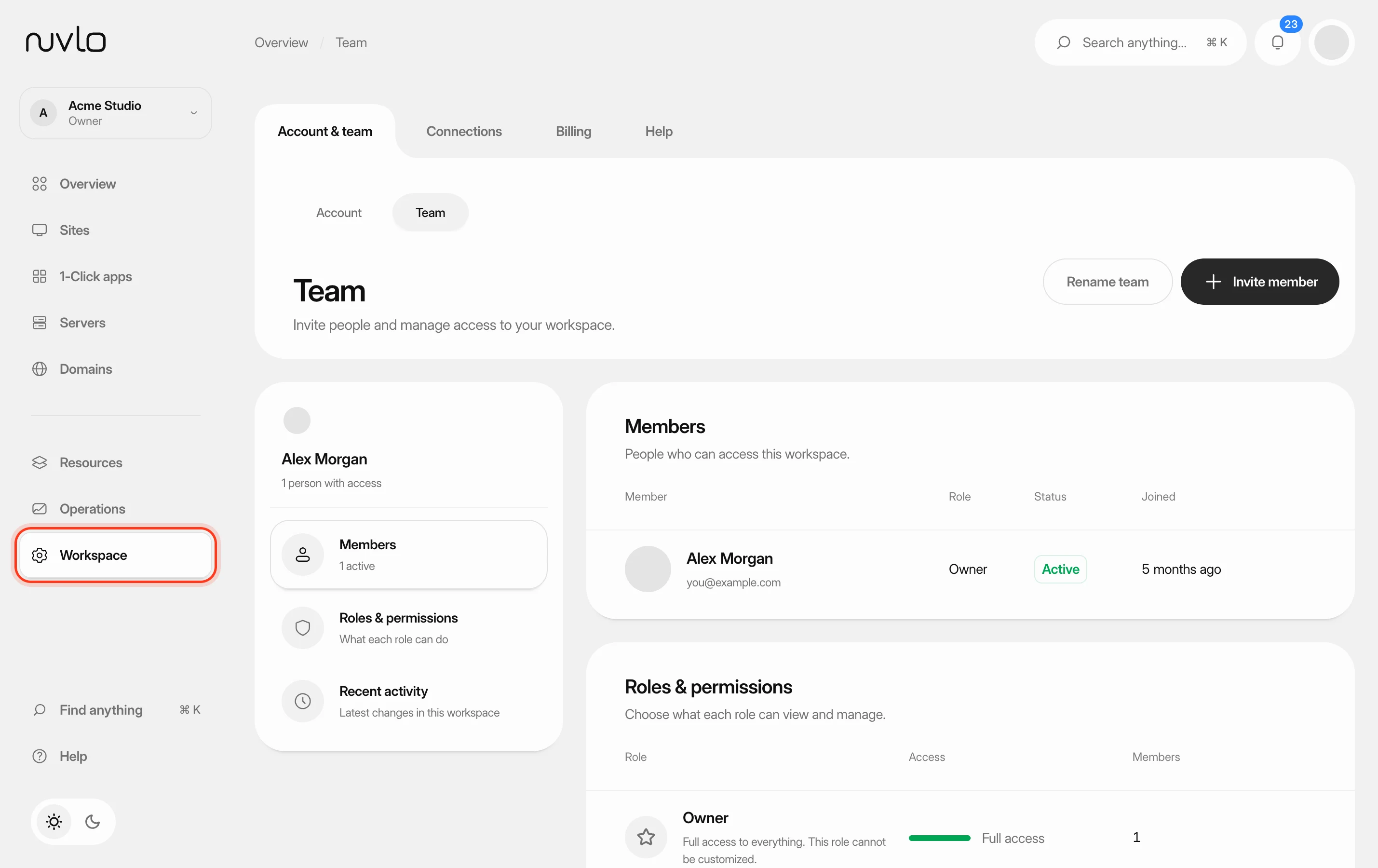 Invite and manage team membersInvite people to your workspace, choose their role, and change or remove their access later. You can also switch between your own workspace and the teams you belong to.
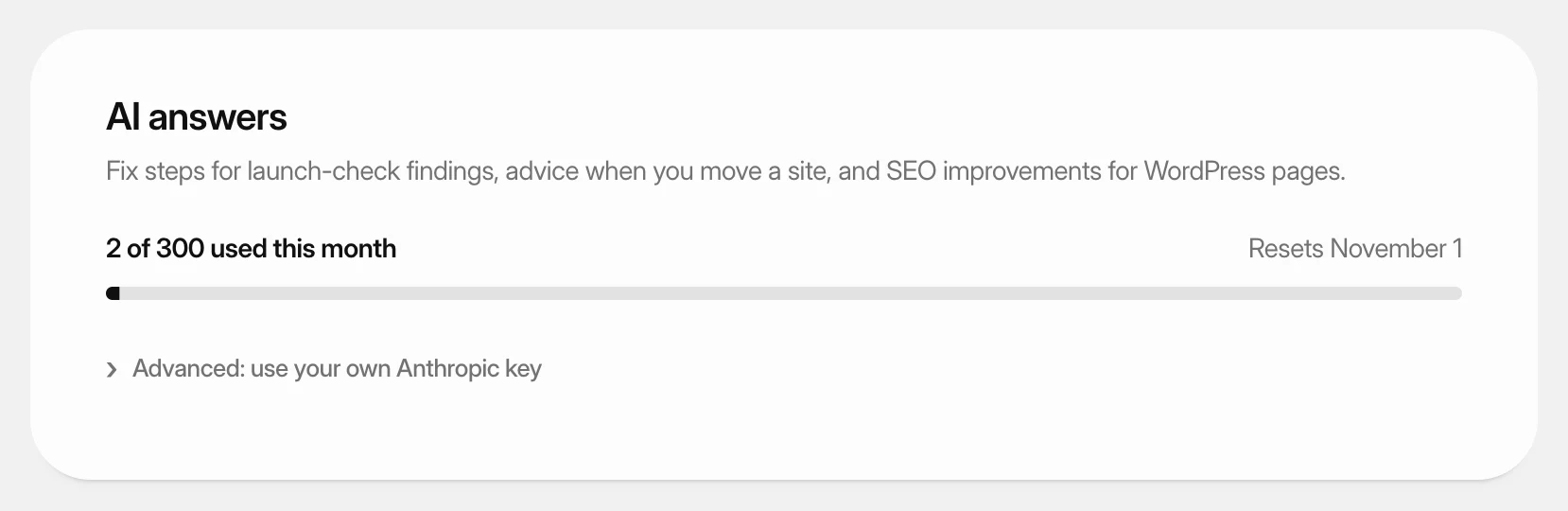 Use AI answersSee how many AI answers your plan includes this month, or use AI with your own Anthropic or OpenAI key.