



Upload a site from your computer
Put an HTML, PHP or Laravel project online by dropping its folder or a .zip file into Nuvlo, and update it later by uploading a new version.
On this page
Before you start
- An active server and room for another site on your plan.
- The project as a folder or a
.zipfile of up to 100 MB. - A domain you can point at the server.
Step 1 Open the create page
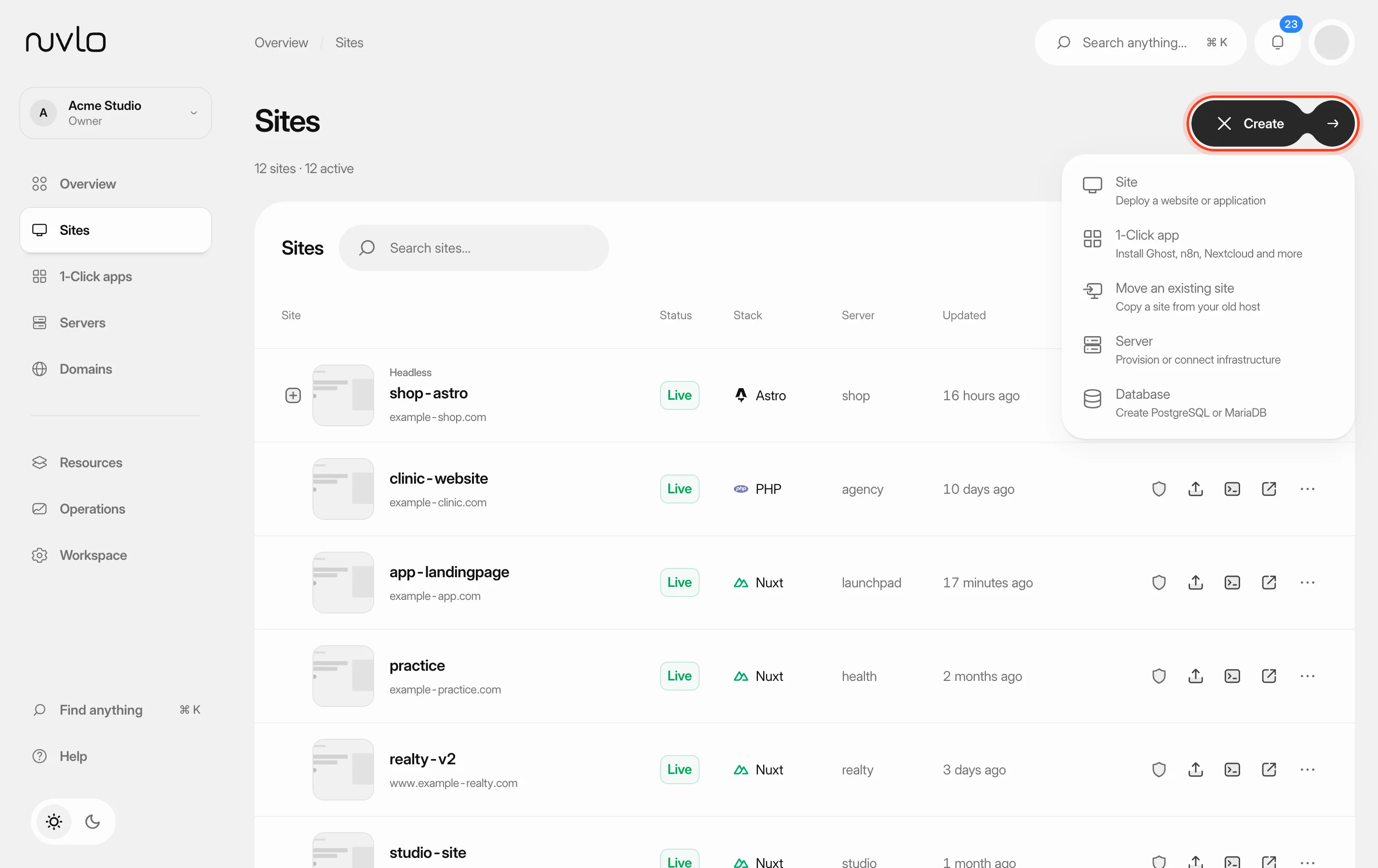
Go to Sites, click Create and choose Site. Under Server, select the server for the site.
Step 2 Drop the project
Drag the project folder or its .zip file onto the box Drop a folder or .zip below the site types. You can also click Choose folder or Choose .zip to pick it from your computer.
Nuvlo reads the project in your browser and works out what it is. A folder is packed into a .zip before upload. Version control folders (.git), node_modules and system files such as .DS_Store are left out. For PHP projects with a composer.json, the vendor folder is left out too, because Composer installs it again on the server.
Step 3 Check what Nuvlo detected
The setup opens on Configure your site with the right site type and framework filled in. The top line shows the file name and what was found, for example Laravel · PHP 8.4 · serves public/ · Composer install.
| Nuvlo finds | Result |
|---|---|
composer.json, artisan or .php files in the top two folder levels | PHP & Laravel: Laravel, Symfony or plain PHP. Laravel and Symfony serve public/. |
package.json with a build script | Static website built with Astro, Eleventy, Vite or another tool, using the package manager of the lock file. |
index.html in the top folder | Static website, served as it is. |
index.html inside dist, build, out, _site, public, site, www or html | Static website that publishes that folder. |
Check the Server list here as well and change it if needed.
Node.js apps such as Nuxt, Next.js or Express can't be uploaded; Nuvlo shows Node.js projects deploy from GitHub — pick Node.js app above. Deploy them from GitHub instead, see Deploy a Node.js app.
Step 4 Set the domain and deploy
Enter the Domain, check the folders and Options, and add environment variables if the site needs them. The fields are the same as in Create a site.
Click Deploy site and follow the stages. When it finishes, click Open site.
Upload a new version
On the site's page, click Upload new version. In Deploy a new version, drop the new .zip or click to choose it, then click Deploy this archive.
The files are unpacked into a new release. The current release stays live until the new one passes its checks.
To deploy the last uploaded files again, open the menu next to the button and choose Redeploy the last upload.
Troubleshooting
- Choose a .zip archive: only
.zipfiles are accepted. Pack other archive formats as.zipfirst. - The archive is … MB; the limit is 100 MB: remove large files you don't need online, such as videos or backups, and try again.
- No index.html or PHP files found — nothing to deploy.: the upload has no start page. Make sure
index.htmlor your PHP files are in the top folder or one level below.
Related guides
 Create a siteChoose the right site type for your project and put a static website or a PHP or Laravel site online from a GitHub repository or a ZIP file, with its own domain and HTTPS.
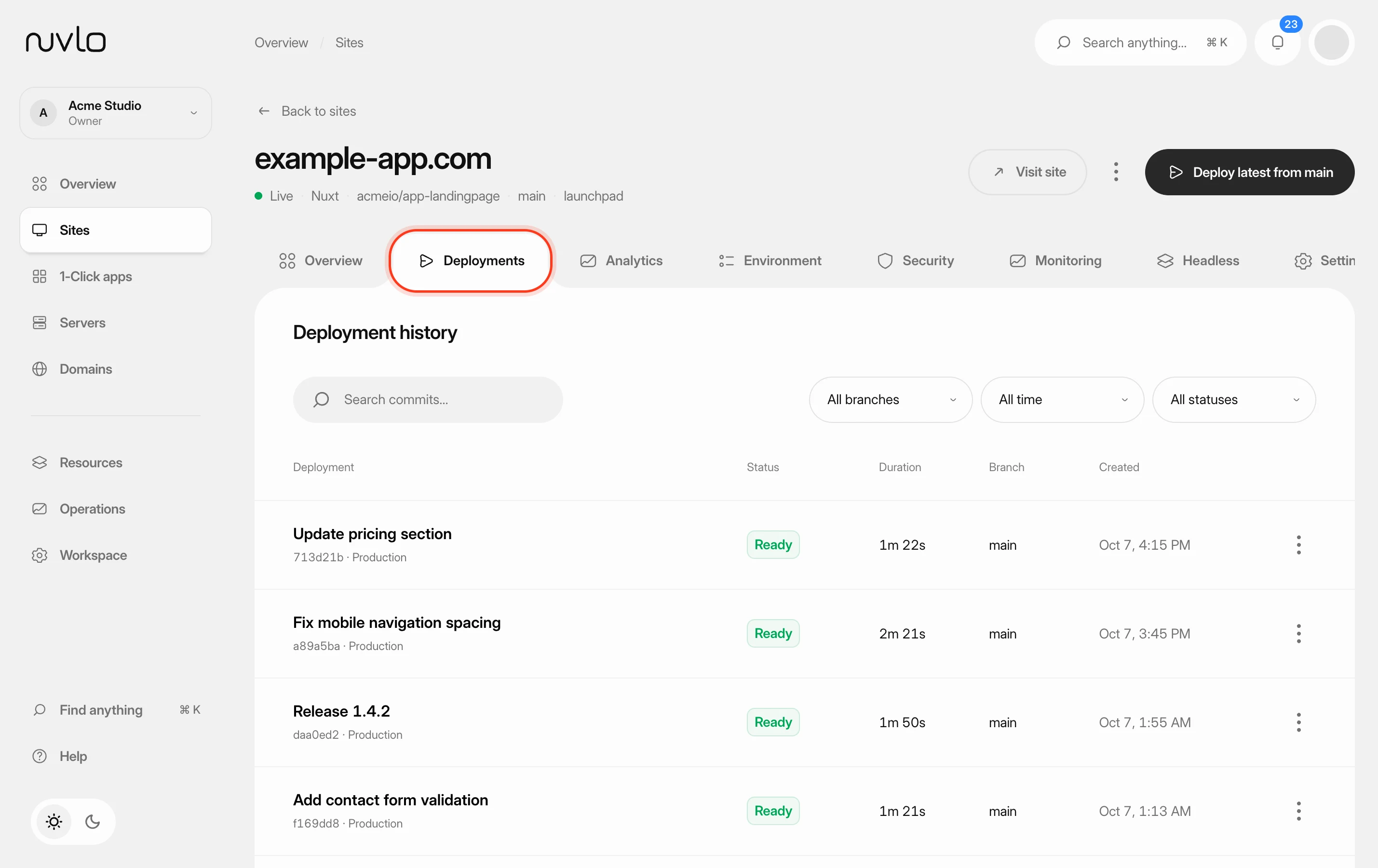 Roll back to an earlier releasePut a previous version of a Node.js app, static site or PHP site back online in seconds, without rebuilding it, and choose how many releases Nuvlo keeps.
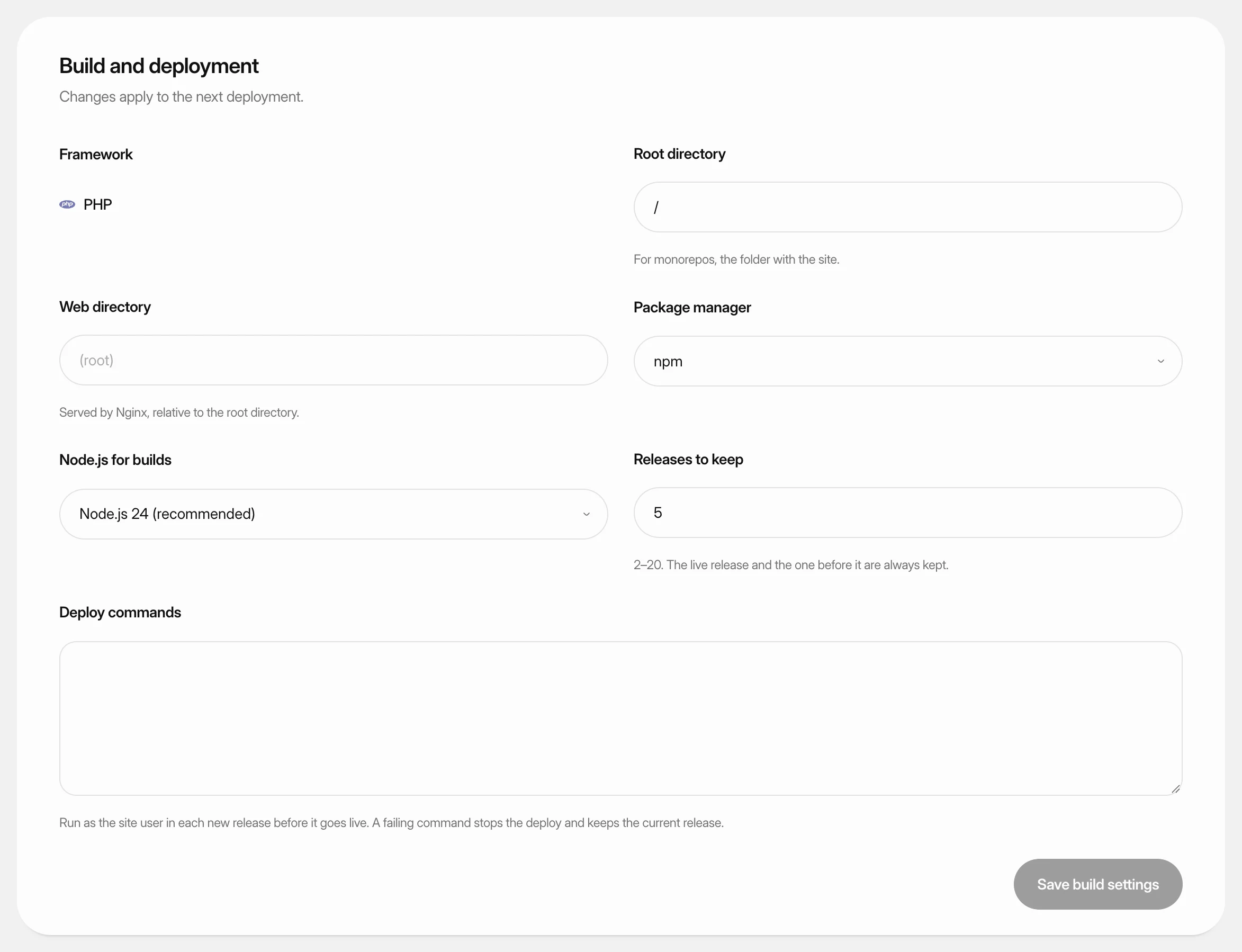 Change build settingsAdjust how Nuvlo builds and releases a static site, PHP site or Node.js app: folders, build command, package manager, Node.js version and how many releases to keep.