



Create an API token
Create a personal token so scripts and automation tools can work with Nuvlo, limited to the areas and the time you choose.
On this page
Step 1 Open API tokens
Click Workspace in the sidebar to open the Account page, then choose API tokens in the menu on the left. The table lists your tokens with their access, expiry date and when each was last used.
Step 2 Name the token and pick an expiry
Click Create token. Enter a Name that says where the token will be used, for example “Deployment automation”.
Choose Expires after: 30 days, 90 days, 1 year or Never. The default is 90 days. A token set to Never works until you revoke it, so prefer a shorter expiry and create a new token when it runs out.
Step 3 Choose what the token can access
Under Access, set each area to No access, View or View and manage:
- Servers: provisioning, reboots, firewall, updates.
- Sites & applications: deploys, SSL, environment variables, settings.
- Domains: custom domains on sites.
- Integrations: Git, cloud provider and storage connections.
When Sites & applications is set to View and manage, two more switches appear. They are off unless you turn them on:
- Secrets and files: read environment variables and database passwords, open and change site files, sign in to WordPress.
- Delete sites: remove sites and everything on them.
Give the token only what the script needs. A token also never gets more access than you have yourself.
Step 4 Copy the token
Click Create token.
The window then shows the token. Click the copy button and store it somewhere safe, such as your tool’s secret settings. The token is shown only once; if you lose it, revoke it and create a new one.
Send the token with each request in the Authorization header:
Authorization: Bearer nuvlo_…Revoke a token
Open the actions menu at the end of the token’s row and choose Revoke token, then confirm with Revoke token. Anything using it loses access right away.
Nuvlo also revokes all your tokens when you change your password or turn on two-factor sign-in. Expired tokens show an Expired badge.
What tokens can’t do
To protect your account, some actions only work when you are signed in to the dashboard. A token can’t create other tokens, manage your team, connect AI agents, or reveal a provider’s API key or a server’s root password.
Related guides
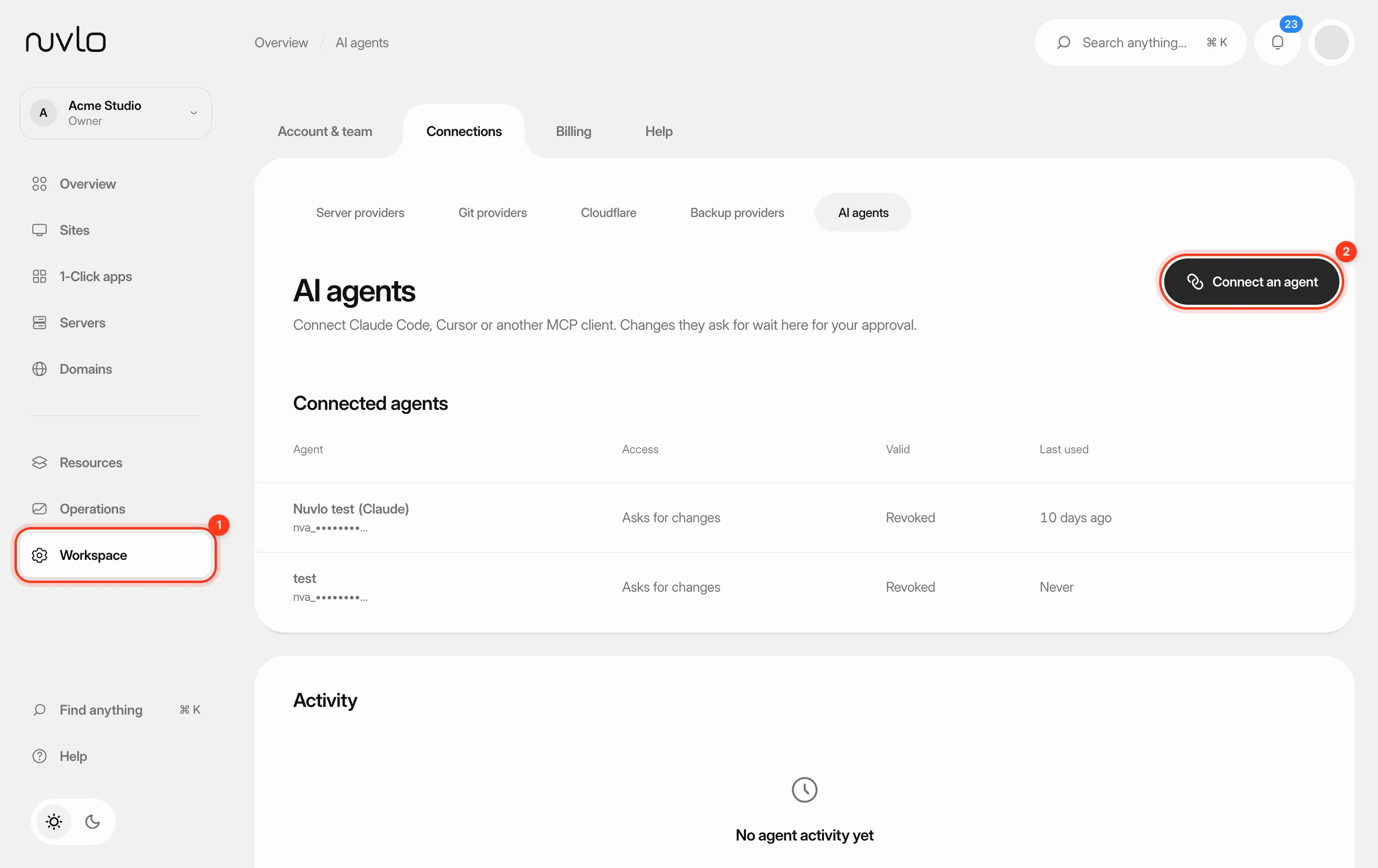 Connect an AI agentLet Claude, ChatGPT, Cursor, VS Code, Claude Code or another MCP client read your sites and ask for changes. Changes wait for your approval unless you allow undoable ones to run on their own.
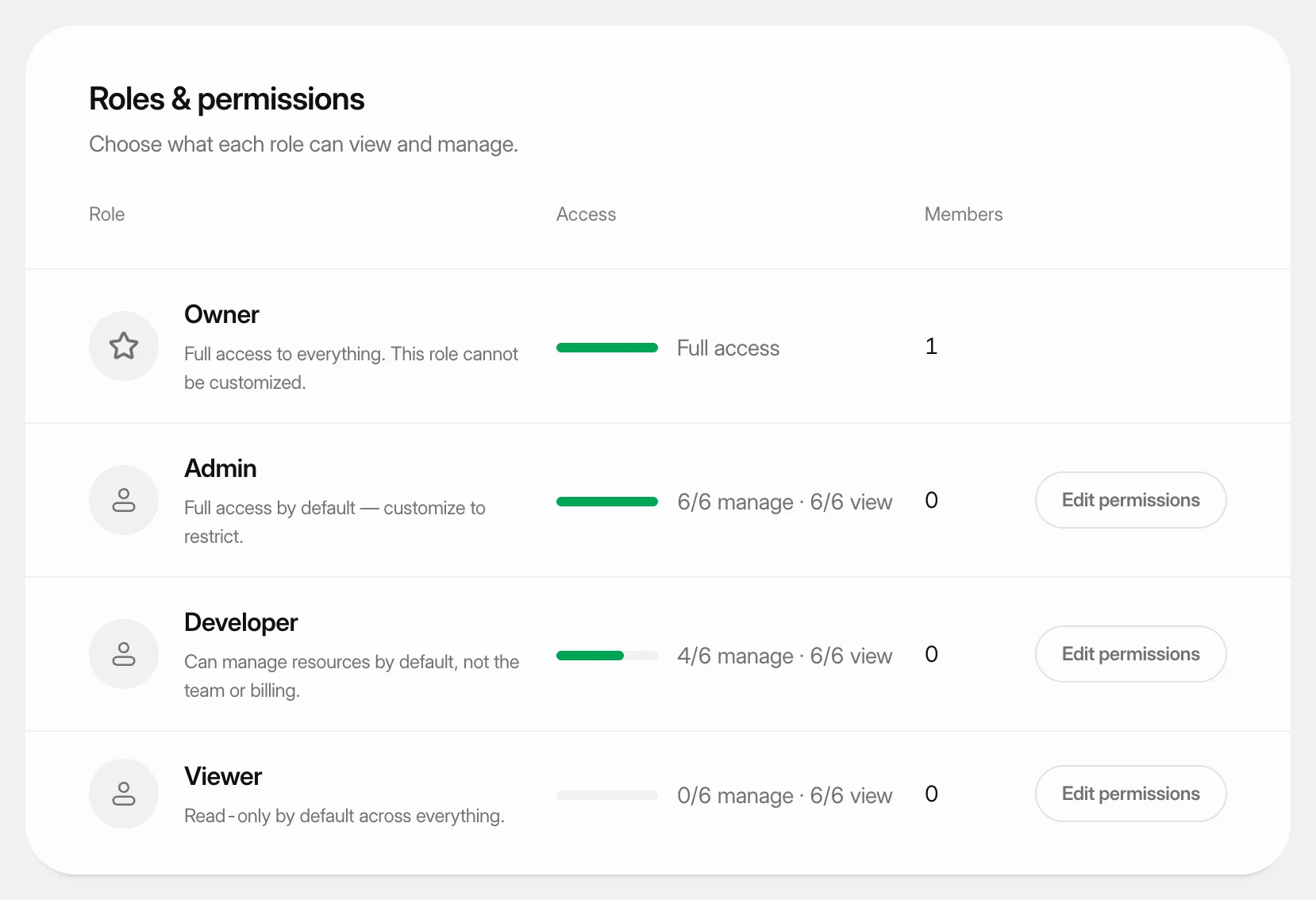 Set what each role can doUnderstand the four team roles and change what the Admin, Developer and Viewer roles may view and manage in your workspace.
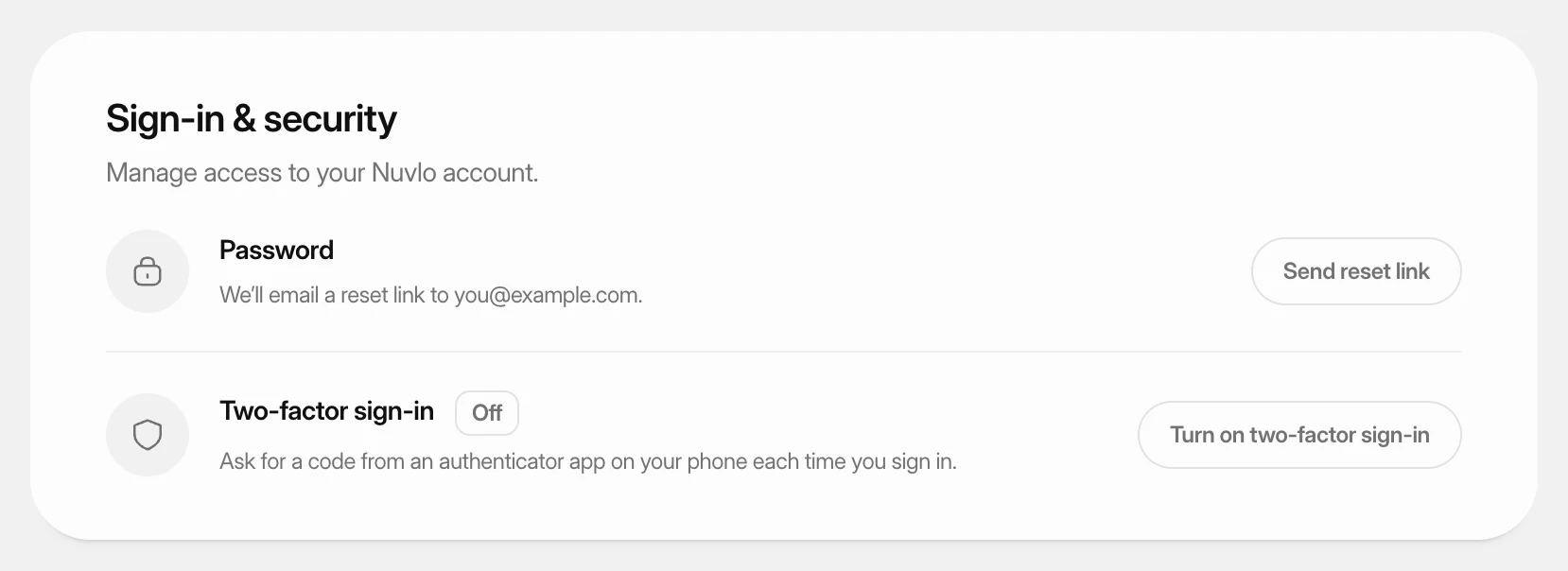 Turn on two-factor sign-inProtect your Nuvlo account with a code from an authenticator app. Nuvlo asks for the code when you sign in.