



Create a database
Create a standalone PostgreSQL or MariaDB database on one of your servers. It gets its own user and password and runs independently of your sites.
On this page
Before you start
- An active server of the type WordPress & apps or Mixed projects. If you don't have one yet, you can create it from the database form. See Create a server.
- A role that can manage servers. Viewers can't create databases. See Roles and permissions.
What you get
A standalone database runs in its own container on your server. It is separate from the databases Nuvlo creates for WordPress sites, so you can use it for an application, an analytics tool or anything else that needs a database.
- A dedicated database user and a generated password. The user is named after the database with
_useradded, for exampleproduction_db_user. - Data that stays in place when the container restarts.
- Private access: the database only listens on the server itself. From your computer you reach it through an SSH tunnel.
Step 1 Open the database form
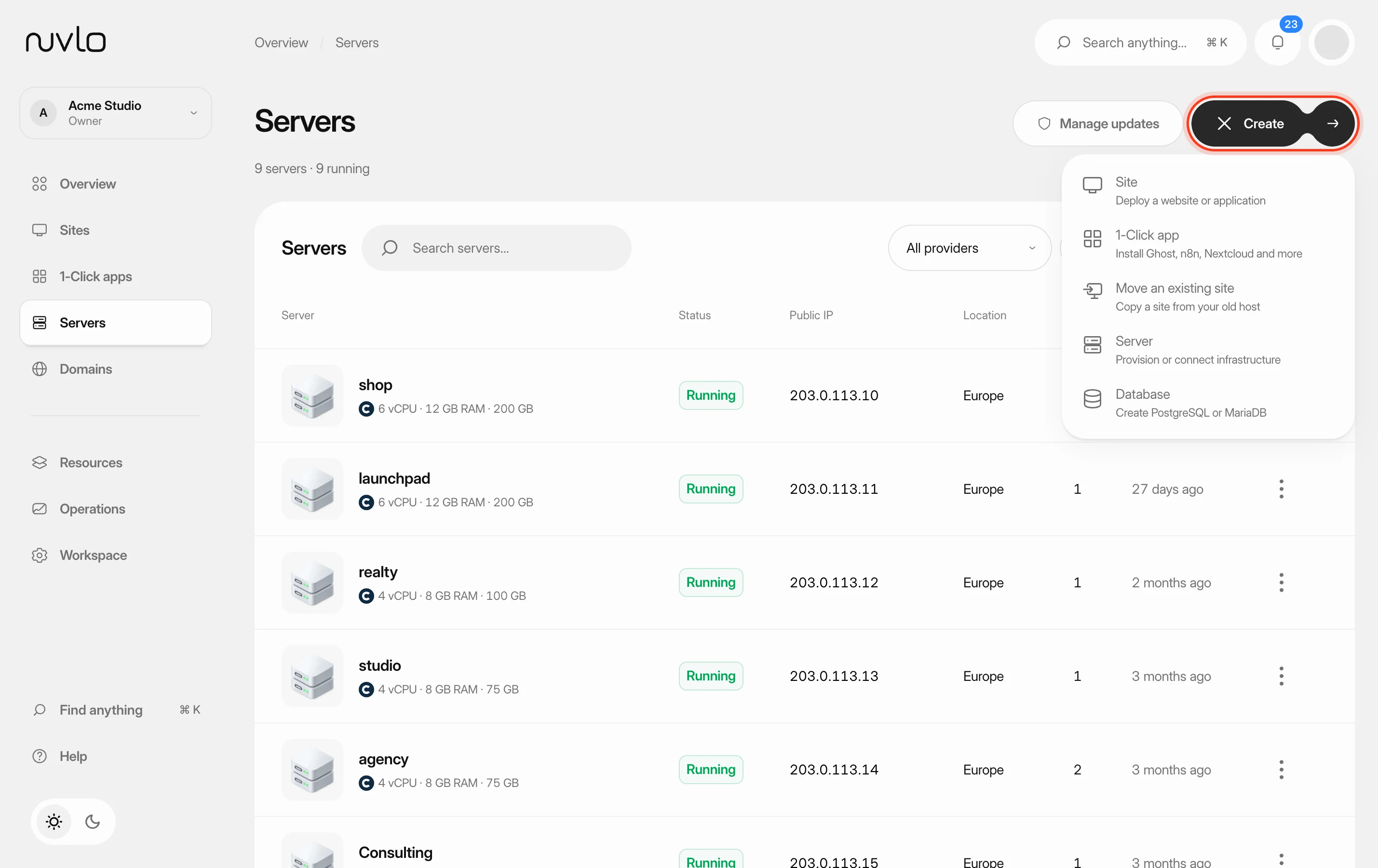
Click Create at the top of the dashboard and choose Database. You can also open Databases and click Create database at the top right.
Step 2 Name the database
Enter a Database name. It must start with a lowercase letter and can have up to 48 lowercase letters, numbers or underscores. System names such as postgres or mysql are reserved.
Pick the name with care. It becomes part of the database user's name, and the form gives you no way to rename it later.
Step 3 Choose a server
Open Server and pick where the database should run. The list only shows running WordPress & apps and Mixed projects servers that have an IP address.
If you don't have a compatible server, the form shows No compatible server yet. Click Create a server for databases. When the new server is ready, you come back to this form with it already selected.
Step 4 Pick the engine and memory limit
Under Database engine, choose PostgreSQL 18 or MariaDB 12.3. MariaDB is compatible with MySQL, so pick it when your software expects MySQL.
Under Memory limit, choose 512 MB, 1 GB or 2 GB. This is the most memory the database may use on the server. Leave enough room for the sites and apps that share the server.
Step 5 Review and create the database
Click Review database. Check the name, server, engine and memory limit. Access shows that the database is private to the server, and Backups shows that Nuvlo doesn't back up standalone databases yet.
Click Create database. Nuvlo prepares the database and checks that it is healthy. This can take a few minutes, so keep the page open.
ImportantStandalone databases aren't backed up by Nuvlo yet. Export the data regularly yourself, for example with pg_dump or mariadb-dump through an SSH tunnel.
Step 6 Check that the database is running
When it's ready, Nuvlo opens Databases. The list shows every database on your servers: the database name and its user, what uses it, the Engine, the Server and the Status.
A new database can show Starting for a moment before it switches to Running. Reload the page to read the list from your servers again.
If creation fails
If an error appears, click Create database again without changing anything. Nuvlo checks whether the first attempt already created the database and continues from there, so you don't end up with two. Changing a setting starts a new attempt.
Each server can hold only one database with a given name. If the name is already taken on that server, choose another name.
Related guides
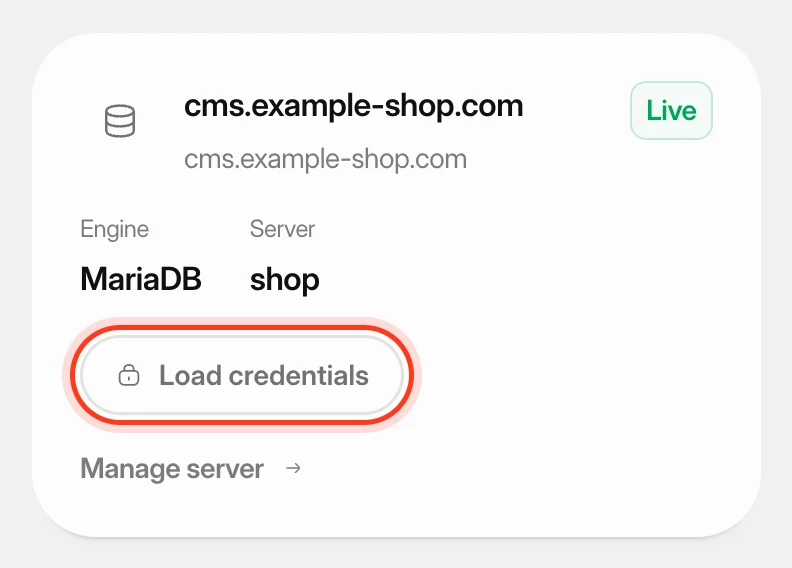 Find database credentialsLook up the host, port, database name, user and password of a standalone database or a WordPress site's database, and connect to a standalone database from your computer.
 Create a serverOrder a new server at your cloud provider from Nuvlo and have it set up with everything your sites need: web server, firewall, security hardening and the software for the projects you plan to host.
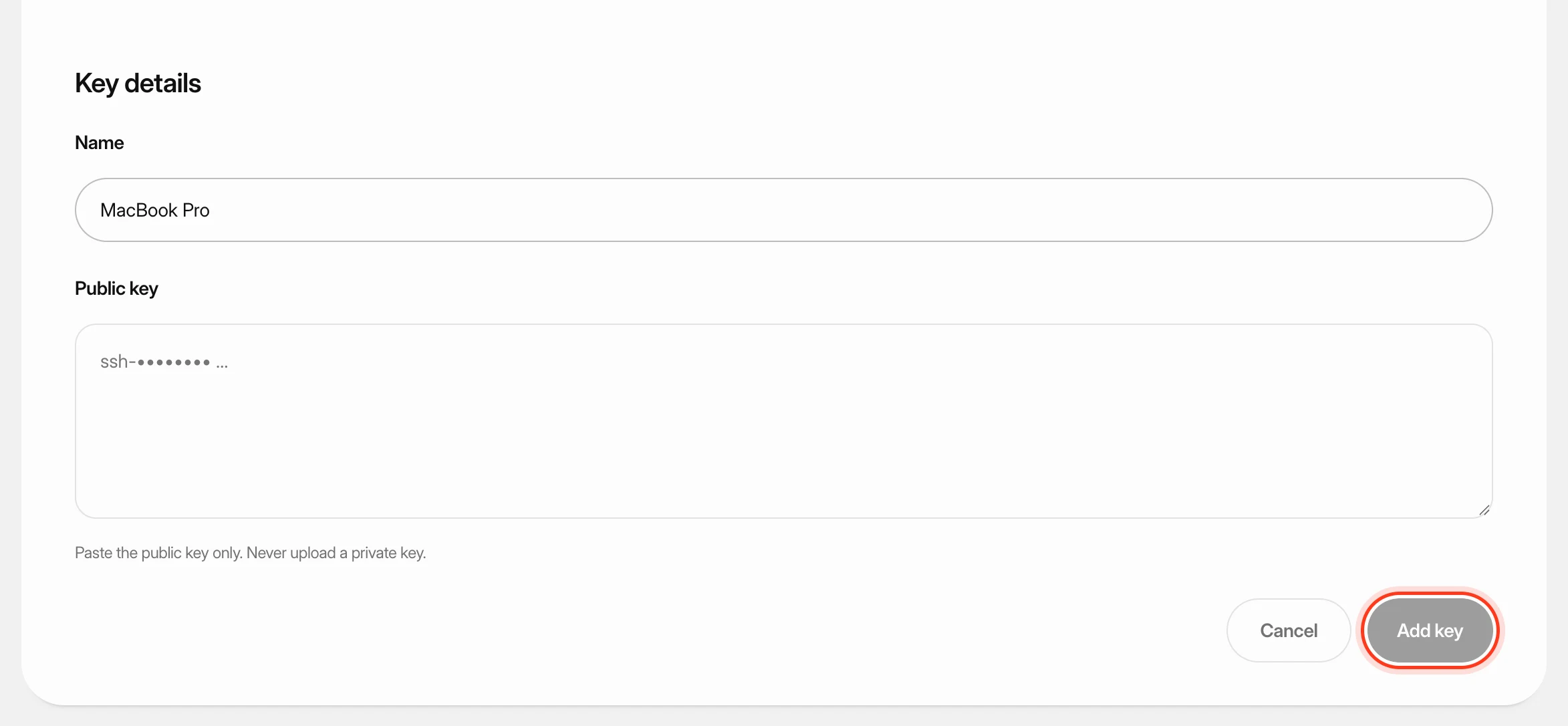 Add SSH keys to your serversSave your public SSH keys in Nuvlo and pick them when you create a server, so you can sign in to that server from your own computer. You'll also learn what happens when you delete a key.
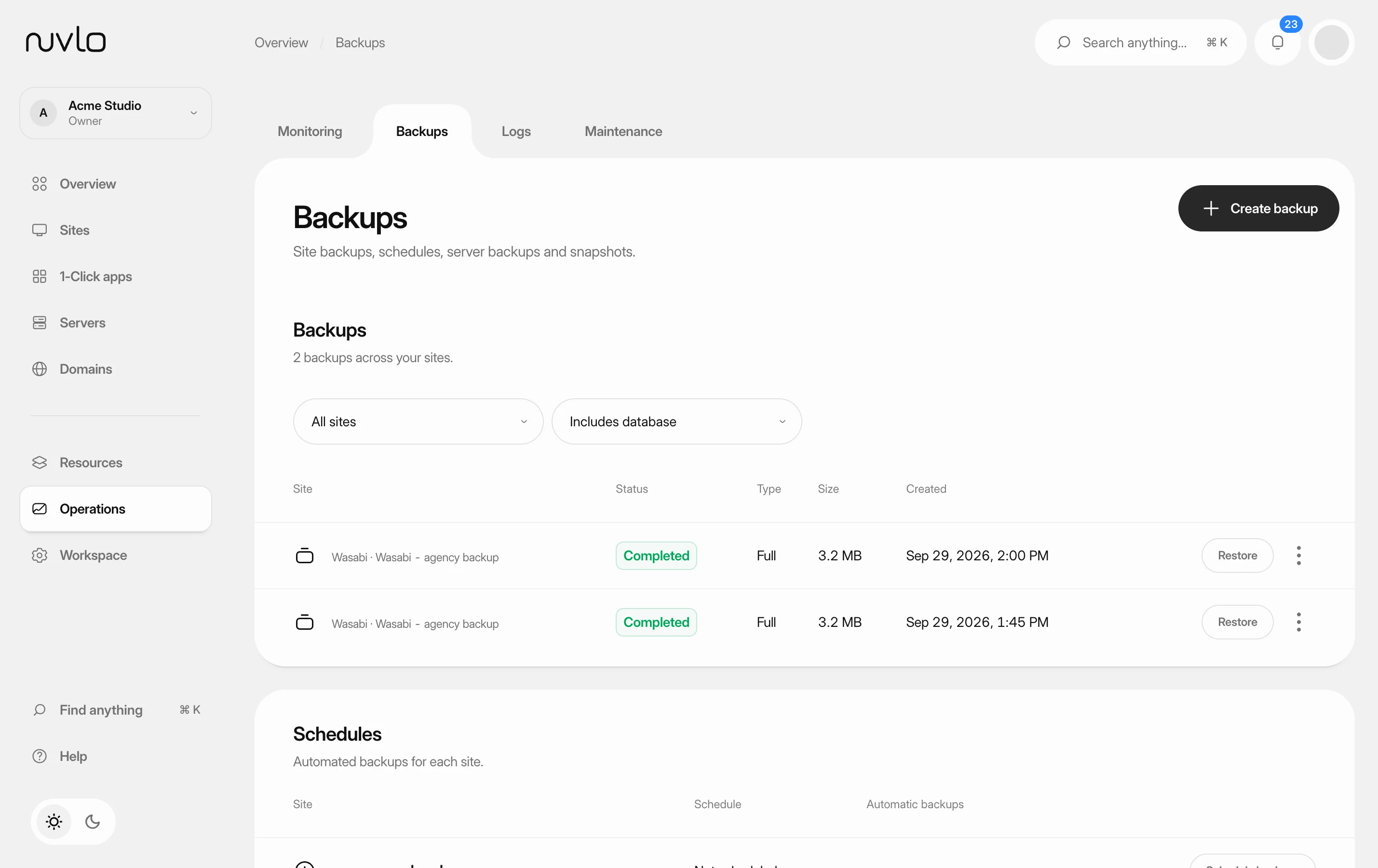 Back up a site databaseBack up only the database of a site to your own storage, now or on a schedule, and restore only the database when you need to.