



Restore a WordPress site from a backup
Bring a WordPress site to one of your servers from a backup file: a cPanel full backup, All-in-One WP Migration, Duplicator or UpdraftPlus. Works when the old site is offline.
On this page
Before you start
- The backup file, or a download link to it. Backups can be up to 50 GB.
- To upload from your computer: a connected S3 storage provider with a bucket. See Connect backup storage. With a download link you don’t need one.
- An active server. You can also create one during the restore.
- Permission to manage sites.
Which backups work
| Made with | What to add |
|---|---|
| cPanel full backup | The backup-….tar.gz file from Backup or Backup Wizard. Nuvlo finds every WordPress site in it, also in subfolders, with its database. |
| All-in-One WP Migration | The .wpress file from Export, File. Compressed exports work too. |
| Duplicator | The archive (…_archive.zip or .daf). The installer.php file isn’t needed. |
| UpdraftPlus | All files of one backup: the database (…-db.gz) and the plugins, themes, uploads and others ZIP files. |
Nuvlo recognises the format from the file’s content, so file names don’t matter.
ImportantBackups protected with a password or encryption can’t be read. Export them again without one.
Step 1 Start the restore
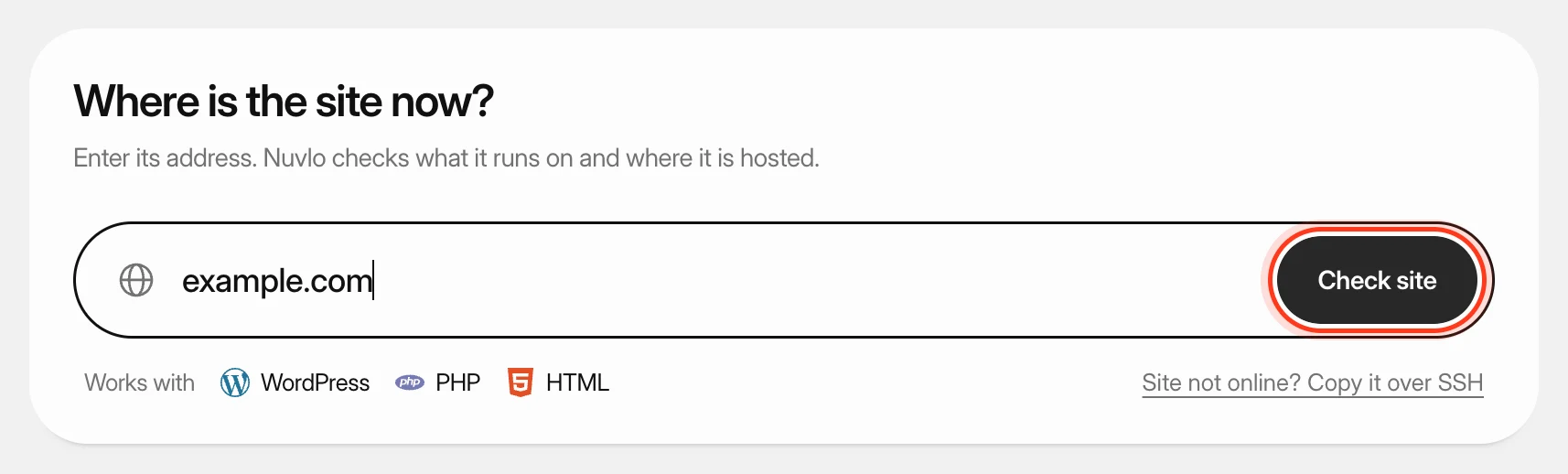
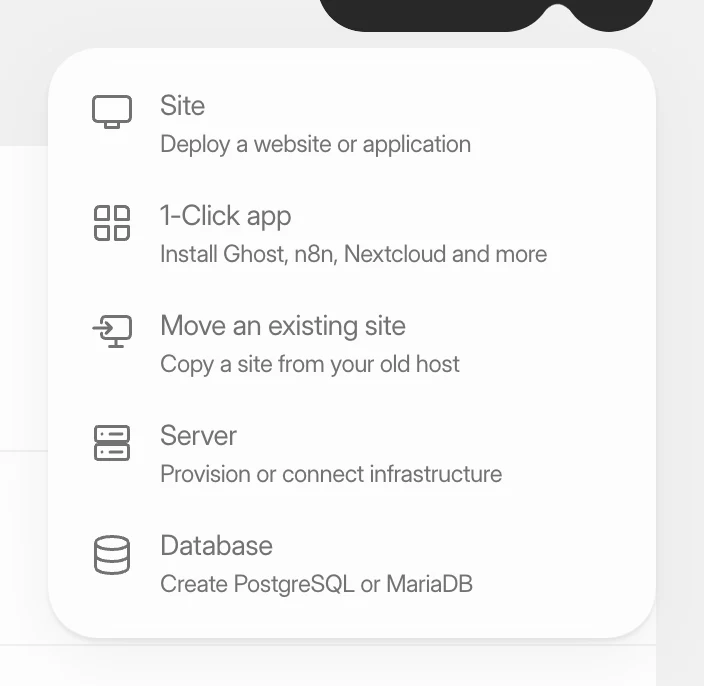
Click Create, then Move an existing site. On Move a site to Nuvlo, click Restore from a backup file under the address field, then Continue with the backup.
If the old site is still online, you can also check its address first and choose Restore a backup under How should Nuvlo move it?.
Step 2 Add the backup
Under Add the backup, choose how it gets to Nuvlo:
| Option | How it works |
|---|---|
| Upload files | Choose your storage and bucket, then drop the files. They go from your browser straight into your own bucket, under nuvlo-imports/. The first upload adds a rule to the bucket that lets your browser upload to it (CORS). |
| Download link | Paste the link, one per line. Share links from Dropbox and Google Drive work as they are. Other services need a direct download link. |
Under Server for the site, pick the server. It downloads and unpacks the backup, and the site is created there. Then click Upload and unpack on … or Download and unpack on ….
Keep the page open while files upload. Once unpacking starts, you can leave.
Step 3 Choose the site
Nuvlo lists every WordPress site it found, with the WordPress version, file and database size and plugins. Pick the one to restore.
Under Address of the copy, choose the site’s own domain, a temporary address or another domain, as when you move a site. See Move a WordPress site to Nuvlo.
Click Copy … to …. Nuvlo creates the WordPress site, copies themes, plugins and uploads, imports the database and clears caches.
Step 4 Check and switch
If the old site still answers, Nuvlo compares its pages with the copy. Then point the domain to the new server and click Finish moving …, as in a normal move.
Finishing or cancelling deletes the unpacked backup from the server and the uploaded files from your bucket. The site Nuvlo created stays, and so does your own copy of the backup.
What Nuvlo does with the backup
- Only the site’s
wp-contentfolder and its own database tables are restored. Nuvlo runs current WordPress core and its ownwp-config.php. - Database users, permissions, triggers, stored procedures and other databases in a dump are skipped.
- Links, folders that point outside the backup, and files with
..in their path are skipped. - Unpacking stops when a backup unpacks to far more data than its size suggests, or when the server’s disk gets full.
- Caches and older backups inside
wp-contentaren’t restored.
Limits
- Backups up to 50 GB, in up to 30 files. For larger sites, use the Nuvlo Migrator plugin or SSH, which copy without an archive.
- WordPress multisite networks can’t be restored automatically yet.
- A Hetzner Storage Box can’t take uploads from the browser. Use an S3 bucket or a download link.
- If your storage provider doesn’t let Nuvlo add the upload rule, add a CORS rule that allows
PUTfrom your Nuvlo address in the bucket’s settings, or use a download link.
Related guides
 Move a WordPress site to NuvloCopy a WordPress site from your current host to one of your servers with the Nuvlo Migrator plugin. The old site stays online until you point the domain to Nuvlo.
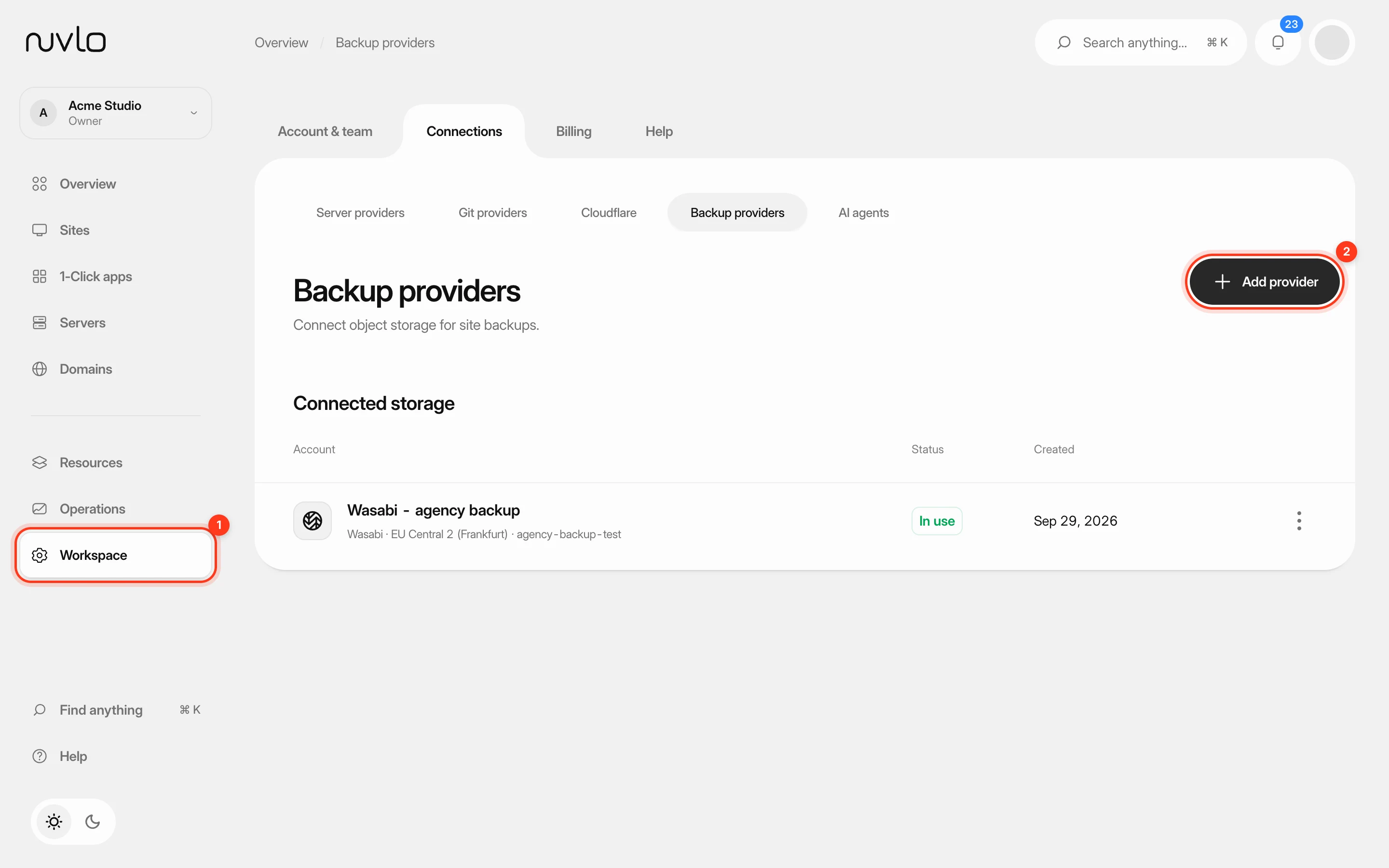 Connect backup storageConnect an S3-compatible storage account such as Wasabi, Cloudflare R2 or Amazon S3, and choose the bucket your site backups go to.
 Create a WordPress siteInstall a new WordPress site on one of your servers, with its own database, Redis cache and HTTPS. It takes four short screens and a few minutes of setup.