



Change build settings
Adjust how Nuvlo builds and releases a static site, PHP site or Node.js app: folders, build command, package manager, Node.js version and how many releases to keep.
On this page
Before you start
- A static site, PHP site or Node.js app in Nuvlo.
- Permission to manage sites in your Nuvlo account.
Step 1 Open the build settings
Open the site from Sites, go to the Settings tab and stay on General. Scroll to the Build and deployment card. On the Overview tab, Build settings at the bottom of the Production card leads to the same place.
Step 2 Edit the fields
Framework is shown for reference; it was set when the site was created. For a static or PHP site, the card shows these fields:
| Field | What it does |
|---|---|
| Root directory | For monorepos, the folder with the site. |
| Web directory (PHP) | The folder Nginx serves, relative to the root directory. |
| Publish directory (static) | The folder that is published. Empty publishes the root directory. |
| Build command (static) | The command that builds the site, such as npm run build. Empty publishes the files as they are. |
| Package manager | npm, pnpm, yarn or bun, for installing Node dependencies before a build. |
| Node.js for builds | The Node.js version used for building. |
| Releases to keep | 2–20. The live release and the one before it are always kept. |
| Deploy commands (PHP) | Commands that run as the site user in each new release before it goes live. A failing command stops the deploy and keeps the current release. |
For a Node.js app, the card has Root directory, Build command (empty uses the framework default), Output directory (relative to the root directory), Package manager, Node.js version and Releases to keep. Below them is Persistent storage, described in Keep data between releases.
When the chosen Node.js version no longer receives security updates, a warning below the field names the version to upgrade to.
Step 3 Save and redeploy
Click Save build settings. The changes apply to the next deployment; the live site isn't changed yet.
For a Node.js app, the button changes to Redeploy to apply. For static and PHP sites, deploy with Deploy latest at the top of the page, push a commit, or upload a new version.
Good to know
Routing, PHP version and PHP limits are on the PHP tab (PHP sites) or Routing tab (static sites). See Change PHP and routing settings.
Older Node.js apps that still deploy in place show a Deploys setting. Choosing Atomic releases (Recommended) reorganizes the site's folder on the server during the next deploy. This runs once and can't be undone by switching back, so take a backup first.
Related guides
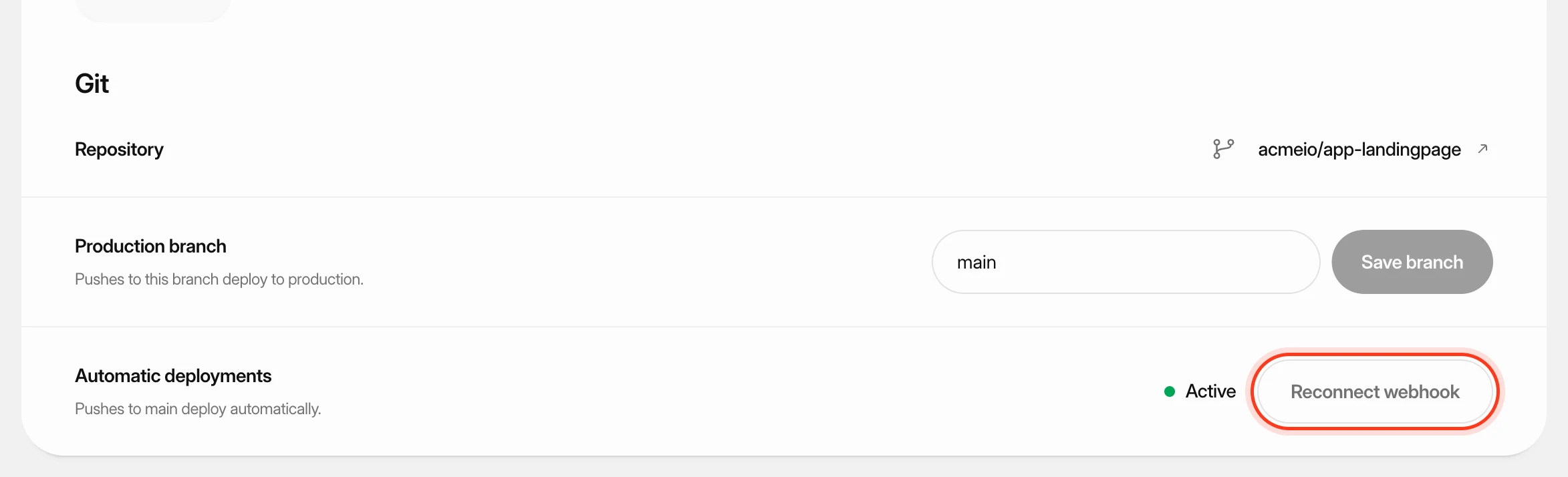 Deploy from GitKeep a site up to date with its GitHub repository: deploy automatically on every push, start a deploy yourself or from another tool, and read the build log when something goes wrong.
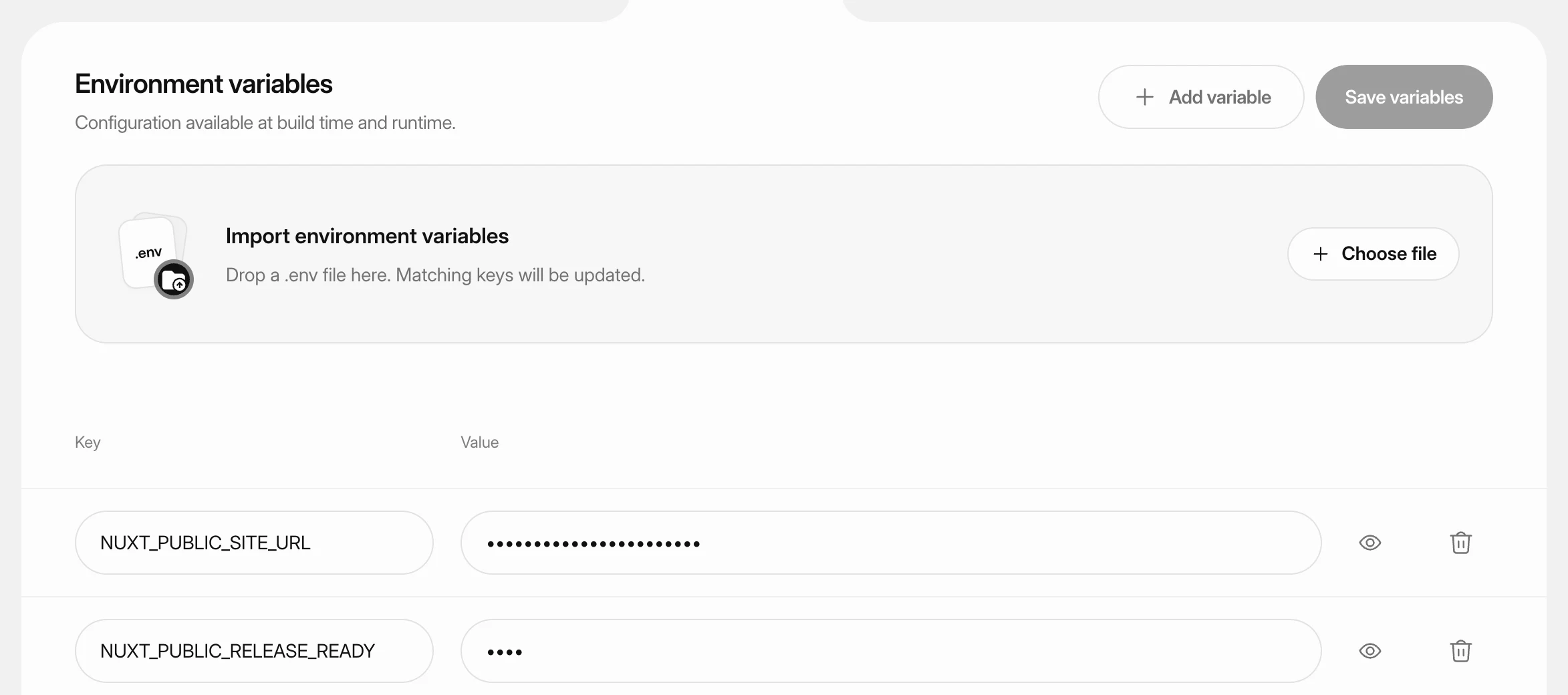 Set environment variablesStore API keys, database settings and other configuration for a static site, PHP site or Node.js app, and apply them with the next deploy.
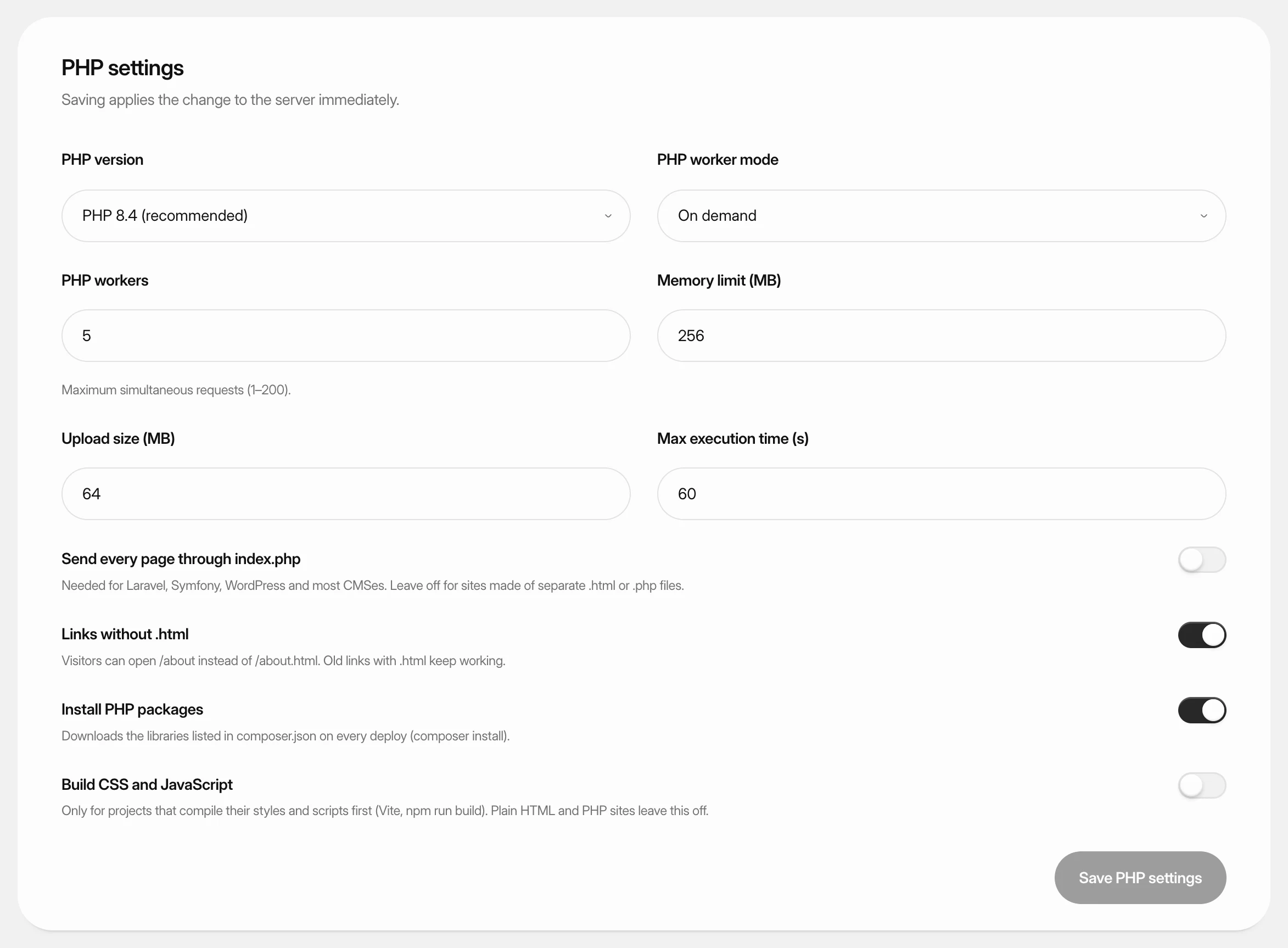 Change PHP and routing settingsSet the PHP version, PHP workers and limits of a PHP site, control how page addresses are routed, and use Laravel's maintenance mode and Artisan from the dashboard.
 Keep data between releasesMake sure uploads, SQLite databases and other files your Node.js app writes survive every deploy and rollback, by keeping their folders in shared storage.