



Review the activity log
See who did what in your workspace: deploys, deletions, security changes, server actions and billing events, including actions taken through API tokens and AI agents.
Before you start
- If you're a team member, a role with the Activity log permission. See Roles and permissions.
Step 1 Open the activity log
In the sidebar, select Operations and then Activity log. You can also choose Events in the account menu at the top right, or click View full log in the Recent activity section of the Team page.
Step 2 Read an entry
Each row of Recorded activity has five columns:
- Action: what happened, for example Site created, Deploy triggered or Snapshot deleted.
- Resource: the site, server or other item it happened to.
- Category: the kind of item, such as Server or Site.
- By: who did it. Actions taken through an API token show as API token of the person, and actions by an AI agent as AI agent for the person.
- When: how long ago. Hover over it to see the exact date and time.
The log also records when someone opens a secret, such as a site's environment variables, a database password or a WordPress magic login.
Step 3 Filter the list
Use the filter at the top right to narrow the list: All activity, Deploys, Deletions and removals, Security, Server or Billing.
Good to know
- The page shows the 50 most recent entries. The filter works on those 50.
- Entries are kept for 180 days.
- Nobody can edit or delete entries, including the account owner.
- The activity log covers the whole workspace. For messages meant for you, see Notifications.
Related guides
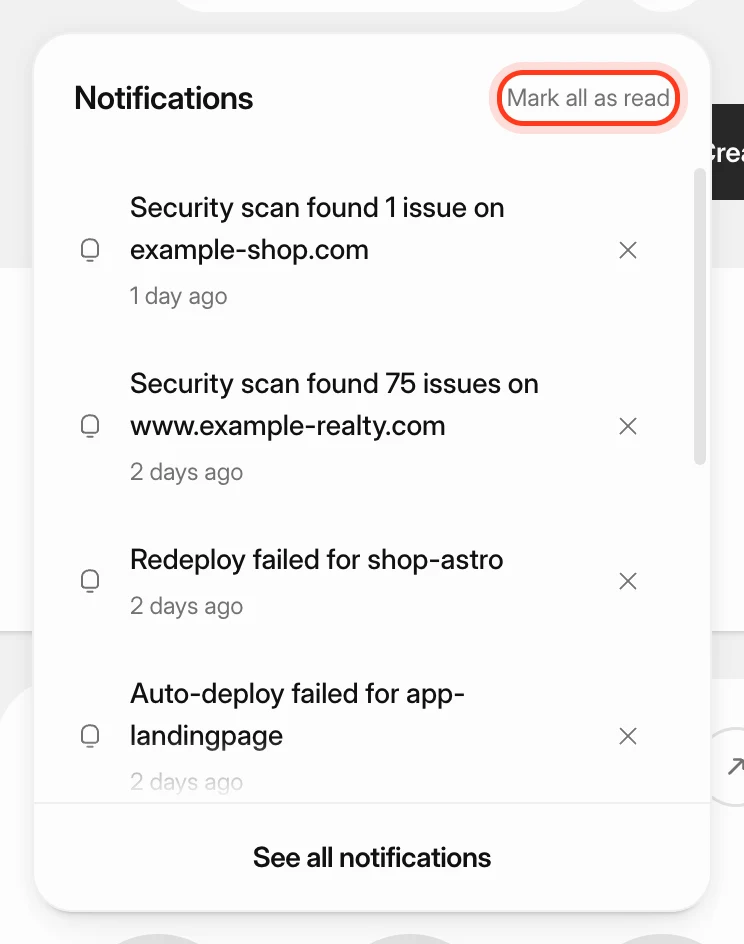 Manage notificationsKeep track of finished deploys, new servers, scan results and failures with the notification bell and the Notifications page, and send alerts to Slack, Discord, Microsoft Teams, Telegram, a webhook or email.
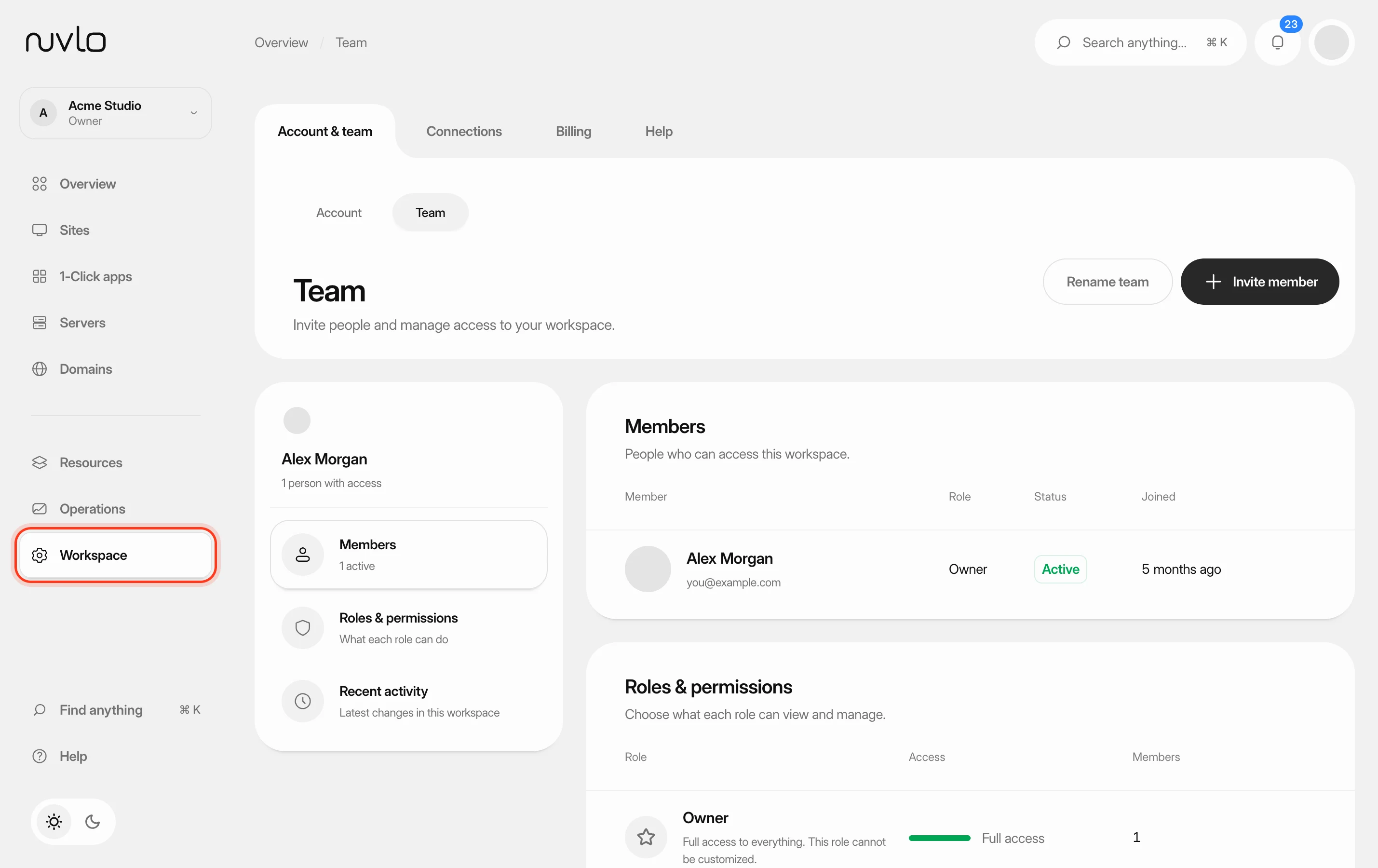 Invite and manage team membersInvite people to your workspace, choose their role, and change or remove their access later. You can also switch between your own workspace and the teams you belong to.
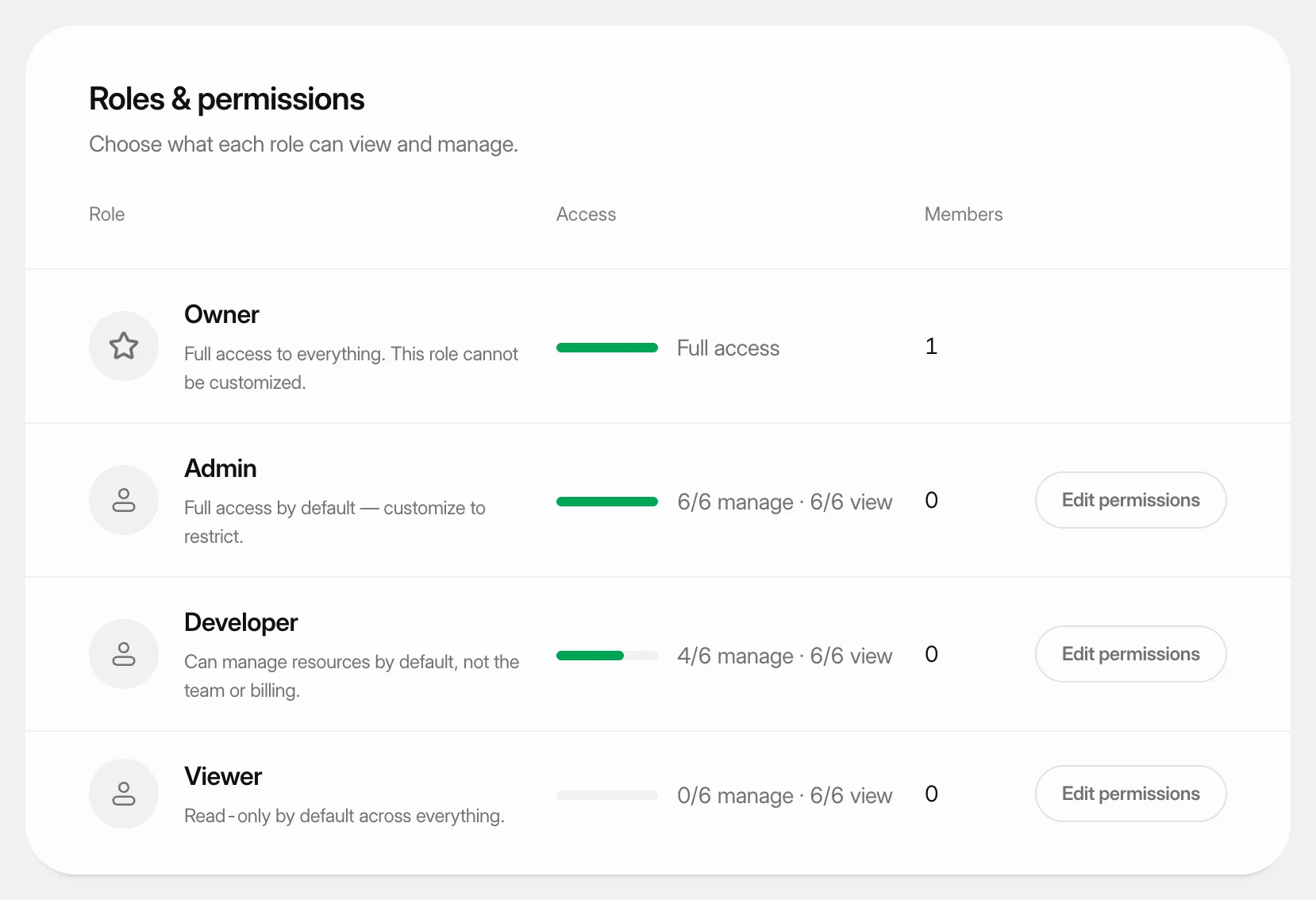 Set what each role can doUnderstand the four team roles and change what the Admin, Developer and Viewer roles may view and manage in your workspace.
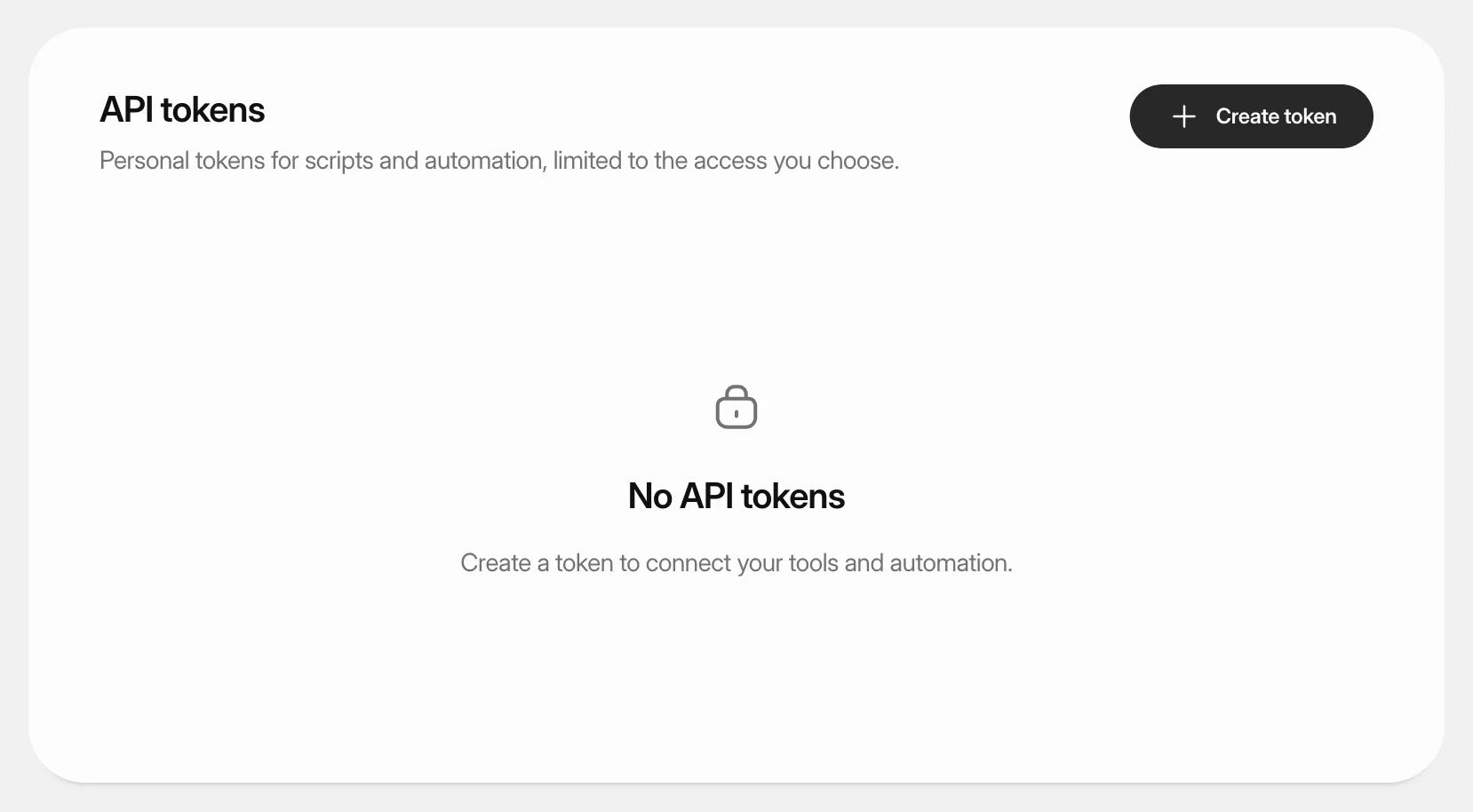 Create an API tokenCreate a personal token so scripts and automation tools can work with Nuvlo, limited to the areas and the time you choose.